How to set up your ChatGPT workspace like an expert
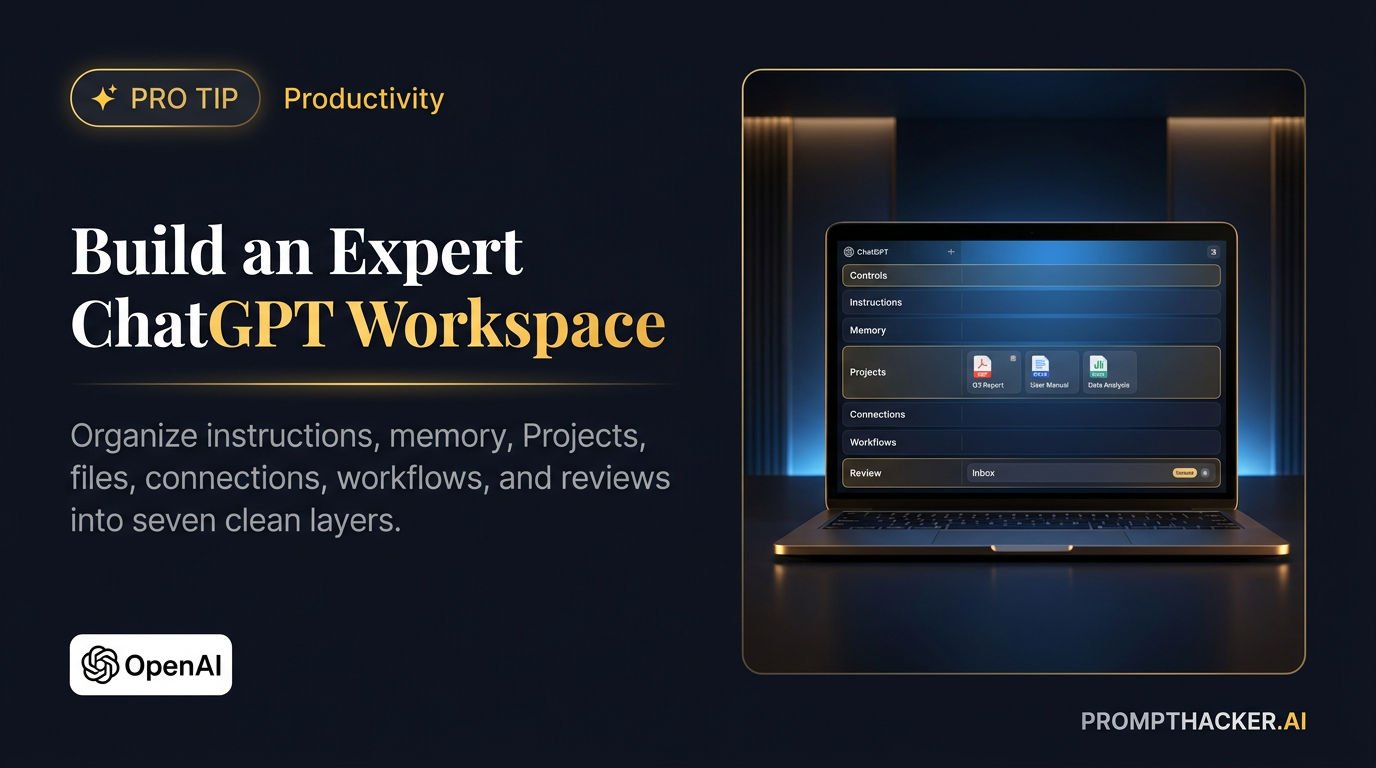
Build a clean ChatGPT workspace with useful custom instructions, governed memory, focused Projects, a reliable file canon, limited connections, reusable workflows, and a simple review system.
What matters today
Build a clean ChatGPT workspace with useful custom instructions, governed memory, focused Projects, a reliable file canon, limited connections, reusable workflows, and a simple review system.
Key points
- Put each kind of context in the correct workspace layer.
- Connect only the apps one workflow requires.
- Save recurring assignments as workflow cards.
- Use Temporary Chat when memory should stay off.
- Review workspace memory and permissions monthly.
Article roadmap
What you will learn
-
What belongs in global custom instructions and what belongs in a Project
-
How to use the new 5,000-character instruction limit
-
How to organize Projects, files, chats, plugins, memory, and Scheduled Tasks
-
How to prevent stale context, excessive permissions, and messy retrieval
-
How to measure whether the workspace improves real work
Most ChatGPT workspaces grow by accident.
The sidebar fills with unnamed chats. The same company description gets pasted twenty times. One Project contains current pricing, an old pitch deck, six versions of a brand guide, and a file called "FINAL-final-2.pdf." Memory holds a mix of useful preferences and obsolete facts. Connected apps are added for convenience but never reviewed.
The model may be capable, but the workspace is asking it to work inside a filing system nobody would give a new employee.
An expert setup is not complicated. It separates global rules from project context, current truth from history, reference material from temporary inputs, and draft permission from action permission. It also makes the workspace easy to audit and easy to leave.
The July 15 increase from 1,500 to 5,000 custom-instruction characters removes one old constraint. There is now enough room for a meaningful business operating brief. The extra space should not be filled with personality adjectives. It should carry the rules that improve decisions.
The workspace architecture
A useful ChatGPT workspace has seven layers:
| Layer | Purpose | Example | Review rhythm |
|---|---|---|---|
| Account settings | Privacy, security, model, and feature controls | Data Controls, active sessions, memory | Monthly and after policy changes |
| Global instructions | Stable rules that apply broadly | Customer definition, evidence standards, approval boundaries | Quarterly |
| Memory | Evolving continuity from prior work | Role, recurring responsibilities, working preferences | Monthly quick check, quarterly full audit |
| Projects | Scoped work environments | Product launch, strategic account, board reporting | At project start and milestone changes |
| Project knowledge | Authoritative sources and accepted examples | Pricing policy, current deck, KPI dictionary | Whenever source truth changes |
| Connections and permissions | External context and actions | Drive, email, Slack, CRM, local folders | Monthly permission audit |
| Reusable workflows | Repeatable assignments and schedules | Weekly brief, sales prep, market monitor | After every first two runs, then quarterly |
The design principle is scope. Put a rule at the broadest level where it is always correct, but no broader.
Step 1: clean the account before adding context
Start with Settings.
Review the account email, plan, workspace, and region. Feature availability depends on those details. A personal Pro account, a Business workspace, and an Enterprise workspace may expose different options and data controls.
Then review:
- Data Controls and model-improvement settings
- Memory and personalization
- Connected apps and plugins
- Active sessions and signed-in devices
- Voice settings
- Notifications and Scheduled Tasks
- Security options such as Lockdown Mode when relevant
Remove sessions you do not recognize. Disconnect services that are no longer used. Do not begin by connecting the entire business.
If the workspace will handle company information, write down the categories that are not allowed: passwords, payment credentials, highly sensitive employee information, regulated records, private legal strategy, or anything company policy excludes. A clean setup includes a negative list.
Step 2: write a business operating brief for custom instructions
OpenAI's July 15 release note says Plus, Pro, Enterprise, Business, and Education users can save up to 5,000 characters in custom instructions, increased from 1,500.
Use the space for stable context and behavior. Do not paste a complete company handbook. Instructions are loaded broadly, so every sentence should earn its place.
What belongs in global instructions
- What the business sells
- The ideal and excluded customer
- Current strategic priorities, if they are stable enough
- Important vocabulary and product names
- How recommendations should be evaluated
- Evidence and source standards
- Actions that require approval
- Preferred output formats
- Communication preferences
- What the assistant should do when uncertain
What does not belong
- Passwords, credentials, or secrets
- Detailed information about one client
- Temporary campaign facts
- Every old company decision
- Long source documents
- Instructions that apply only to one Project
- Claims that should be checked against a current source
The 5,000-character operating brief template
BUSINESS
[Company] provides [product/service] for [customer]. The primary business
outcome is [outcome]. Do not describe us as [common inaccurate description].
CUSTOMERS
Ideal customers: [definition].
Excluded or poor-fit customers: [definition].
Primary buyer and user: [roles].
PRIORITIES
Current priorities: [three items]. Recheck these after [date].
DECISION RULES
Evaluate recommendations by: revenue impact, time saved after review,
implementation cost, reversibility, customer risk, and evidence quality.
Prefer the smallest test that can answer the decision.
EVIDENCE
For current product, pricing, legal, policy, financial, or market claims,
use authoritative sources and include dates and links. Separate confirmed facts
from inference. If official sources conflict, explain the conflict.
Do not invent citations, numbers, quotations, customers, or capabilities.
APPROVAL BOUNDARIES
Always stop before sending, publishing, purchasing, deleting, changing access,
editing a source-of-truth record, contacting another person, or making an
external commitment. Show the exact proposed action and destination.
OUTPUTS
Lead with the decision or outcome. Use concise prose. For recommendations,
include rationale, cost, risk, first test, success measure, and stop condition.
For research, include a source ledger and unresolved questions.
WORKING STYLE
Ask no more than three clarifying questions at a time. State assumptions.
Do not flatter. Challenge weak logic respectfully. Avoid repetitive summaries.
WHEN UNCERTAIN
Say what is missing, what can be verified, and what decision can still be made.
Do not fill gaps with plausible details. Edit this template until it fits within the account limit. Add a review date next to changing priorities. The goal is a durable operating layer, not permanent storage for everything the business knows.
Step 3: divide the workspace into Projects by decision domain
Projects should match work that shares sources, instructions, and outputs.
Good Project boundaries:
- Board and investor reporting
- Product launch
- Strategic account
- Content and brand
- Sales enablement
- Hiring for one role family
- Market intelligence for one category
Poor Project boundaries:
- "Work"
- "Important"
- A different Project for every chat
- One Project containing every client
- A Project named after a tool instead of the business outcome
Name Projects with a predictable pattern:
[Function or client] | [Outcome] | [Active year or quarter] Examples:
- Leadership | Weekly Business Review | 2026
- Acme | Renewal and Expansion | Q3 2026
- Product | Fall Launch | 2026
- Marketing | PromptHacker Newsletter | 2026
The name should answer what belongs there. Archive or close the Project when the outcome ends.
Step 4: create a project charter before uploading files
Every Project needs a short charter containing:
- Purpose
- Audience
- Decisions supported
- Approved sources
- Source priority
- Prohibited sources
- Required outputs
- Approval boundaries
- Review date
Put the charter in Project instructions and in a visible file named 00-project-charter.md or its plain-language equivalent.
Why duplicate it? Project instructions guide ChatGPT. The visible file gives people a reviewable record and a portable copy.
This Project prepares the Monday leadership review.
It may use the approved KPI dashboard, customer issue log, project tracker,
and prior accepted briefs. The finance dashboard controls numerical conflicts.
Slack is supporting context, not a source of record.
Required output: one-page decision brief plus evidence appendix.
Stop before sending, assigning work, or editing any source system.
Review this charter on 2026-10-01. Step 5: build a current-truth file canon
The file canon is the small set of documents ChatGPT should treat as authoritative.
Create these files when relevant:
| File | Contents | Owner |
|---|---|---|
| 00-project-charter | Scope, sources, boundaries, outputs | Project owner |
| 01-company-brief | Product, customers, terminology, priorities | Executive owner |
| 02-kpi-dictionary | Metric definitions, systems, owners, update cadence | Finance or operations |
| 03-decision-log | Approved decisions, dates, rationale, review triggers | Project lead |
| 04-current-facts | Current pricing, dates, policies, status, sources | Subject owner |
| 05-output-standard | Accepted example and review checklist | Deliverable owner |
| 99-archive-index | Where superseded material lives | Project owner |
Use dates and status in file names when facts change:
2026-07-15-pricing-policy-approved.pdf
2026-07-12-customer-segmentation-draft.pdf
2026-06-30-board-metrics-superseded.xlsx Avoid "final" as a status. Approved, draft, superseded, and archived are clearer.
Do not upload five versions of the same document without explaining which one controls. If old versions must remain, put them in an archive folder and tell ChatGPT to ignore the archive unless historical comparison is requested.
Step 6: configure memory as a working summary, not a database
ChatGPT's newer memory system can maintain a summary from chats, files, and connected apps. It can expose sources used for personalization and lets users correct or remove remembered information.
Review the summary before relying on it. Ask:
Show the work-related information you currently remember about me.
Group it into role, company, projects, priorities, decision rules,
communication preferences, and possibly stale information.
Do not add or change memory during this review. Keep stable working context. Remove private details that do not improve the work. Move consequential facts into the Project canon.
Use Temporary Chat when the conversation should not use or create memory. Remember that deleting a chat and deleting a saved memory are separate actions. For complete removal, check both locations.
Where each kind of information belongs
Put broad rules at the account level and narrow facts inside the Project that owns them. The smaller the scope, the lower the chance of leaking or misapplying context.
| Information | Global instructions | Memory | Project | Temporary Chat |
|---|---|---|---|---|
| Stable response preference | Best | Good | Sometimes | No |
| Company-wide approval boundary | Best | Supporting | Repeat if stricter | No |
| One client's contract terms | No | No | Best, with source | Sometimes for one-off review |
| Current quarterly launch date | No | Avoid | Best, dated | No |
| Sensitive brainstorming | No | No | Only if approved | Best |
| Accepted report example | No | No | Best | No |
| Role and recurring responsibility | Good | Best | Supporting | No |
Step 7: connect apps according to one workflow
Plugins and connected apps can give ChatGPT access to business context. More connections do not create a better workspace by default. They create a larger permission surface.
Choose one workflow, then connect the minimum sources it needs. A sales meeting brief may need calendar, selected email, CRM, and one Project. It does not need payroll, the legal drive, and every Slack channel.
For each connection, record:
- Business purpose
- Data categories available
- Whether the assistant can only read or can also act
- Approval behavior
- Owner
- Review date
- Removal process
Use the app permission controls to require confirmation before changes. Even when ChatGPT can act, the operating brief should still require explicit approval for sends, updates, deletions, shares, purchases, and permission changes.
OpenAI's GPT-Red work reports improved resistance to prompt injection in GPT-5.6 Sol. That is useful, but it is not permission to remove review gates. Browsers, email, files, and tool responses can contain malicious instructions. Limit access and inspect consequential actions.
Step 8: choose the right surface for the task
The new ChatGPT environment includes Chat, Work, and Codex. Use each for its intended job.
| Surface | Use it for | Do not force it to do |
|---|---|---|
| Chat | Questions, brainstorming, quick research, discussion | Long unattended multi-source production |
| Work | Research, analysis, and finished documents, sheets, presentations, reports, and Sites | Casual questions that do not need an agent workflow |
| Codex | Software development, testing, technical files, and repositories | General executive work with no technical artifact |
Desktop Work can use local files and apps with permission. Cloud Work on web and mobile cannot directly access local computer files. At launch, cloud and desktop Work histories do not fully merge. Choose the surface that can reach the source material and record where the authoritative thread lives.
Watch OpenAI's official Work overview
Step 9: create reusable workflow cards
A workflow card is a short operating document, not a clever prompt.
It contains:
- Trigger
- Outcome
- Approved sources
- Steps
- Approval boundaries
- Output format
- Quality checks
- Success measure
- Stop condition
Example:
WORKFLOW: Monday leadership brief
TRIGGER: Monday at 8:00 a.m. Eastern
OUTCOME: One-page decision brief ready by 9:00 a.m.
SOURCES: KPI dashboard, project tracker, customer issue log, prior brief
STEPS: Check changes, reconcile metrics, identify decisions, draft, verify
APPROVAL: Draft only. Do not send or assign tasks.
OUTPUT: Decisions, metrics, changes, risks, owners, source appendix
QUALITY: Every number sourced; no repeated stale issue; conflicts visible
SUCCESS: Under 10 minutes of human review and correction
STOP: Pause if a source is unavailable or metrics do not reconcile Save the card in the Project. Run it manually twice before scheduling.
Step 10: turn only proven workflows into Scheduled Tasks
Scheduled Tasks can run once, repeat on a schedule or trigger, or monitor for change. Schedule preparation and monitoring before scheduling action.
Good scheduled tasks:
- Draft a Monday review brief
- Monitor a list of competitors and report material changes
- Prepare a customer meeting packet
- Check a dashboard and flag thresholds
- Update a private tracker from approved sources
Poor scheduled tasks:
- Send unsupervised customer messages
- Delete or reorganize important files
- Change permissions
- Pay bills or approve refunds
- Publish public claims without review
Every recurring task needs a silence rule. If nothing changed, it should say so. Otherwise, an automated monitor can create noise that Executives learn to ignore.
Step 11: create a review inbox
Agent work needs a destination. Without one, drafts spread across chats and notifications.
Use a simple review inbox inside a Project, task manager, or shared document. Every item should show:
- Workflow name
- Created time
- Source freshness
- Proposed decision or action
- Risk level
- Owner
- Deadline
- Exact approval needed
Use three statuses: Review, Approved, and Rejected or Needs Revision. Avoid complicated process software until volume justifies it.
The inbox turns AI activity into accountable work. It also shows whether the workspace is producing useful decisions or merely more content.
Step 12: measure the workspace
Do not measure messages sent to ChatGPT. Measure completed workflows.
Track:
- Manual time before ChatGPT
- Agent run time
- Human review and correction time
- Percentage accepted without change
- Number of source or permission errors
- Business result, such as meetings prepared or reports completed
Workspace health scorecard
| Measure | Healthy target | Warning sign |
|---|---|---|
| Projects with a current charter | 100% of active Projects | Nobody can explain what belongs in a Project |
| Canon files with owner and review date | 90% or more | Old files appear as current truth |
| Connected apps tied to an active workflow | 100% | Connections have no owner or purpose |
| Recurring workflows tested twice before scheduling | 100% | First drafts run unattended |
| Review time compared with old manual time | At least 30% lower | Cleanup erases the time saved |
| Consequential actions with explicit approval | 100% | Broad permission prompts or silent changes |
| Quarterly memory audit completed | Yes | Stale roles and priorities persist |
The numbers are operating targets, not product guarantees. Set stricter targets for sensitive workflows.
The monthly workspace reset
Set aside 20 minutes each month.
- Archive chats and Projects that no longer support active work.
- Review memory for stale, sensitive, or contradictory items.
- Remove unused app connections and old local-folder permissions.
- Check Scheduled Tasks for noise, failures, or outdated sources.
- Update Project charters and current-truth files.
- Rename vague chats that contain reusable work.
- Export or copy important instructions and workflow cards.
- Review active sessions and security settings.
The reset prevents entropy. It also creates a moment to stop workflows that looked useful but never saved time after review.
The quarterly exit test
A well-designed workspace is portable.
Once a quarter, confirm that the business can export or copy:
- Global operating brief
- Project charters
- Current-truth files
- Decision log
- Workflow cards
- Memory summary
- Approval policy
- Review metrics
If the workspace depends on invisible context that cannot be reviewed or moved, it is fragile. Portability improves governance even when the company has no plan to switch tools.
Common setup mistakes
Filling instructions with style adjectives
"Professional, concise, engaging" is less useful than the customer definition, decision rules, and evidence policy. Style matters, but business context should get the first characters.
Treating chat history as the source of truth
A prior conversation records what was discussed, not necessarily what was approved. Put approved decisions in a dated decision log.
Uploading every file
Retrieval quality falls when obsolete and duplicate files compete. Curate a canon and archive the rest.
Connecting every app
Each connection expands the data and actions available. Connect by workflow and review monthly.
Scheduling before testing
Automation multiplies ambiguity. Run the assignment manually twice with new data.
Trusting memory with high-consequence facts
Use memory for continuity. Use authoritative sources for prices, contracts, policies, financial numbers, and customer status.
A one-day expert setup
Hour 1: settings and boundaries
Review Data Controls, security, memory, sessions, and connections. Write the negative list and approval policy.
Hour 2: operating brief
Complete the 5,000-character instruction template. Test it with three common requests and remove anything that produces unwanted behavior.
Hour 3: first Project
Create one Project for a recurring business outcome. Add the charter, current-truth files, accepted example, and archive boundary.
Hour 4: first workflow
Build one workflow card and run it manually. Measure review time. Do not schedule it yet.
One clean Project will outperform ten half-organized Projects. Expand only when the first one has a clear owner and measurable benefit.
Give the team a one-page workspace policy
If more than one person uses the workspace, publish a short policy before adding more connections. It should answer six questions:
- Which data categories are allowed?
- Which data categories are prohibited?
- Which Projects and sources are authoritative?
- Which actions always require approval?
- Who owns memory, connections, and Scheduled Task reviews?
- How does a person report and correct a bad output or permission mistake?
Keep the policy readable. A two-page legal memo that nobody remembers will not control a live workflow. Link to detailed security and retention policies separately.
What a well-run workspace feels like
An expert ChatGPT workspace is quiet. It does not contain every possible connection, instruction, and automation. It contains the right context at the right scope.
Global instructions explain how the business thinks. Memory supports continuity. Projects keep client and workflow context separate. Canon files preserve current truth. Connections follow a written purpose. Scheduled Tasks prepare reviewable work. People approve consequential actions.
Set up that structure once, then maintain it for 20 minutes a month. The result is not merely better prompts. It is a workspace that can produce consistent work without forcing the team to re-explain the business every morning.
Source links
- OpenAI: ChatGPT release notes
- OpenAI Memory FAQ
- OpenAI Help: ChatGPT Work and Codex
- OpenAI: ChatGPT is now a partner for your most ambitious work
- Official video: Meet ChatGPT Work
Three deep dives. Four useful moves. One email worth opening.
PromptHacker turns the AI firehose into practical next steps for work, health, family, and everything time keeps trying to steal.