ChatGPT Atlas Adds Tab Groups and Auto Search: One Browser That Stops the Tab Chaos
What the January 22 Atlas update added: tab groups, Auto search mode, and a new results layout
What matters today
What the January 22 Atlas update added: tab groups, Auto search mode, and a new results layout
Article roadmap
What you will learn
-
What the January 22 Atlas update added: tab groups, Auto search mode, and a new results layout
-
How Auto mode decides between a ChatGPT answer and a Google search per query
-
A research workspace setup that keeps related sources grouped
-
A structured research prompt that uses Auto mode end to end
-
Why the memory improvements matter when you keep many tabs open
Research is where browser tabs go to multiply. You start with one question, open a source, open a comparison, open the AI tab to summarize, open three more sources the AI suggested, and twenty minutes later you have a wall of tabs and no idea which belongs to which question. Then comes the second friction: for every lookup, you decide whether to ask the AI or run a web search, and you switch tabs to do it.
On January 22, OpenAI updated its ChatGPT Atlas browser to attack both problems at once. Tab groups let you organize related pages into named, collapsible groups. An "Auto" search mode decides, per query, whether to answer with built-in ChatGPT or route to Google. A refreshed vertical results layout surfaces links more prominently. And performance work reduces memory use and slowdowns when many tabs are open, which is exactly when a research browser usually grinds.
None of these is a headline feature on its own. Together, they remove two daily frictions that quietly cost research-heavy roles, marketers, analysts, founders, twenty to forty minutes a week. The win comes from setting up one organized workspace and letting the browser handle the routing.
What the January 22 Update Added
The update has four parts, and each maps to a specific annoyance.
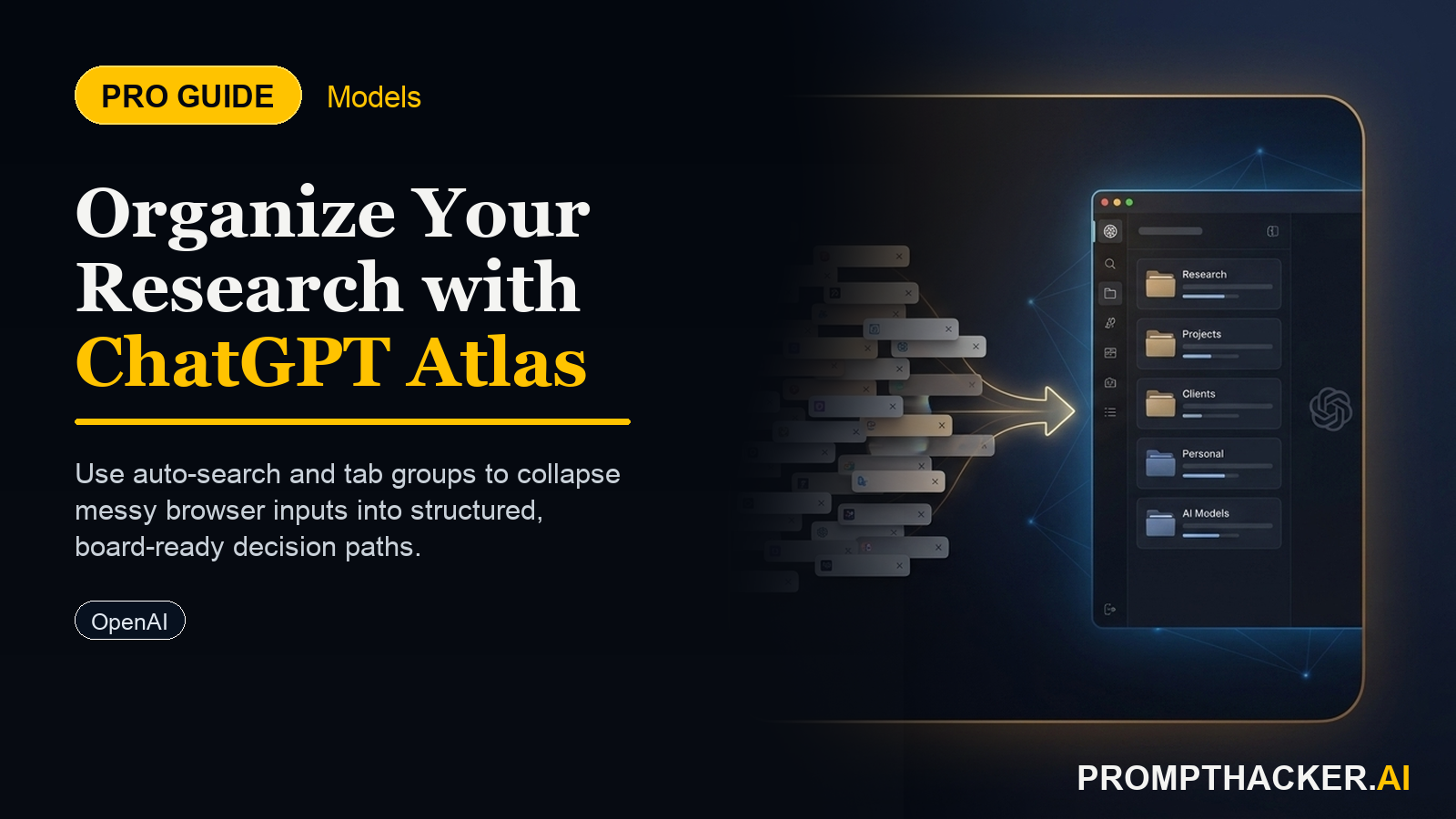
Tab groups. You can now organize related pages into named groups that collapse and expand. A common pain point in modern browsing is dozens of open tabs with no structure. Groups give that structure: one group per project or question, collapsed when you are not in it.
Auto search mode. Atlas added an "Auto" mode that analyzes each query's intent and decides whether to process it through built-in ChatGPT for a conversational, explanatory answer or route it to Google for traditional web indexing and real-time results. You stop choosing where to search; the browser chooses per query.
New results layout. The search results interface was refreshed with a vertical layout that displays links more prominently in answers, so you can scan sources faster.
Performance. OpenAI included optimizations that reduce memory use and help prevent slowdowns, particularly with many tabs open, plus fixes for vertical tab "mini mode" and a simplified right-click menu for tabs.
How Auto Mode Actually Helps
The value of Auto mode is subtle until you watch it work. Most research mixes two kinds of queries. Some are factual lookups best served by live web results: a current price, a recent announcement, a specific spec. Others are synthesis questions best served by a conversational answer: "explain the tradeoff between these two approaches" or "summarize what these sources agree on."
Before Auto mode, you decided which engine each query needed and switched manually. Auto mode reads the intent and routes automatically. A factual lookup goes to Google; a synthesis question stays in ChatGPT. For a research session that mixes both, that is dozens of small decisions removed across an hour of work.
The practical effect is that you stop thinking about where to search and think only about what you need to know. The browser handles the routing in the background.
Setting Up a Research Workspace
The setup takes about ten minutes once and then pays back on every research session afterward.
- Update ChatGPT Atlas to the latest version on your Mac so tab groups and Auto mode are available.
- Create a tab group named after your current project or decision.
- Drag every related tab into that group. Collapse it when you switch contexts.
- Set the search bar to Auto mode so factual lookups and synthesis questions both run in the same window.
- Use the new vertical results layout to scan links quickly and pull the credible ones into your group.
The discipline that makes this work is one group per question or project. When research for a decision lives in a single collapsible group, you can step away and come back without losing the thread, and you can close the whole group when the decision is made.
A Structured Research Prompt for Auto Mode
Auto mode is most useful when paired with a structured research question that forces both factual lookups and synthesis. This prompt does both, so Auto mode routes parts of it to the web and parts to ChatGPT in one pass.
ATLAS RESEARCH SWEEP PROMPT
I am evaluating [topic or vendor] for a decision this week. Give me: (1) the three most credible recent sources, with links, (2) a plain summary of what each one says, (3) the points where they disagree, and (4) the single open question I should answer before deciding. Keep it tight and cite every link.
Run this in an Auto-mode window inside your project's tab group. The factual retrieval pulls live sources; the synthesis organizes them. You end with credible links, a clear summary, the disagreements, and the one thing left to check, all in one window instead of a dozen tabs and two separate tools.
Why the Memory Work Matters
The performance improvements read like a footnote, but they address the exact failure mode of a research browser. A research session is when you have the most tabs open, which is precisely when a browser starts to lag and consume memory. By reducing memory use and slowdowns with many tabs open, the update keeps Atlas usable in the one situation where browsers usually buckle.
Combined with tab groups, this means you can keep a large, organized research workspace open across a day without the browser becoming sluggish. For roles that live in research, that reliability is what makes the workspace setup worth committing to.
Action Steps Summary
- Update Atlas: Get the latest version on your Mac so tab groups and Auto mode are available.
- Build a project tab group: Create one named group per project or decision and drag related tabs into it.
- Switch to Auto mode: Let the browser route factual lookups to Google and synthesis questions to ChatGPT automatically.
- Run the research sweep prompt: Use the structured three-source prompt inside your project group to get sources, summary, disagreements, and the open question in one pass.
- Keep the workspace open: The memory improvements let you hold a large organized research window across the day without slowdown.
Three deep dives. Four useful moves. One email worth opening.
PromptHacker turns the AI firehose into practical next steps for work, health, family, and everything time keeps trying to steal.