PH PROMPTHACKER.AI

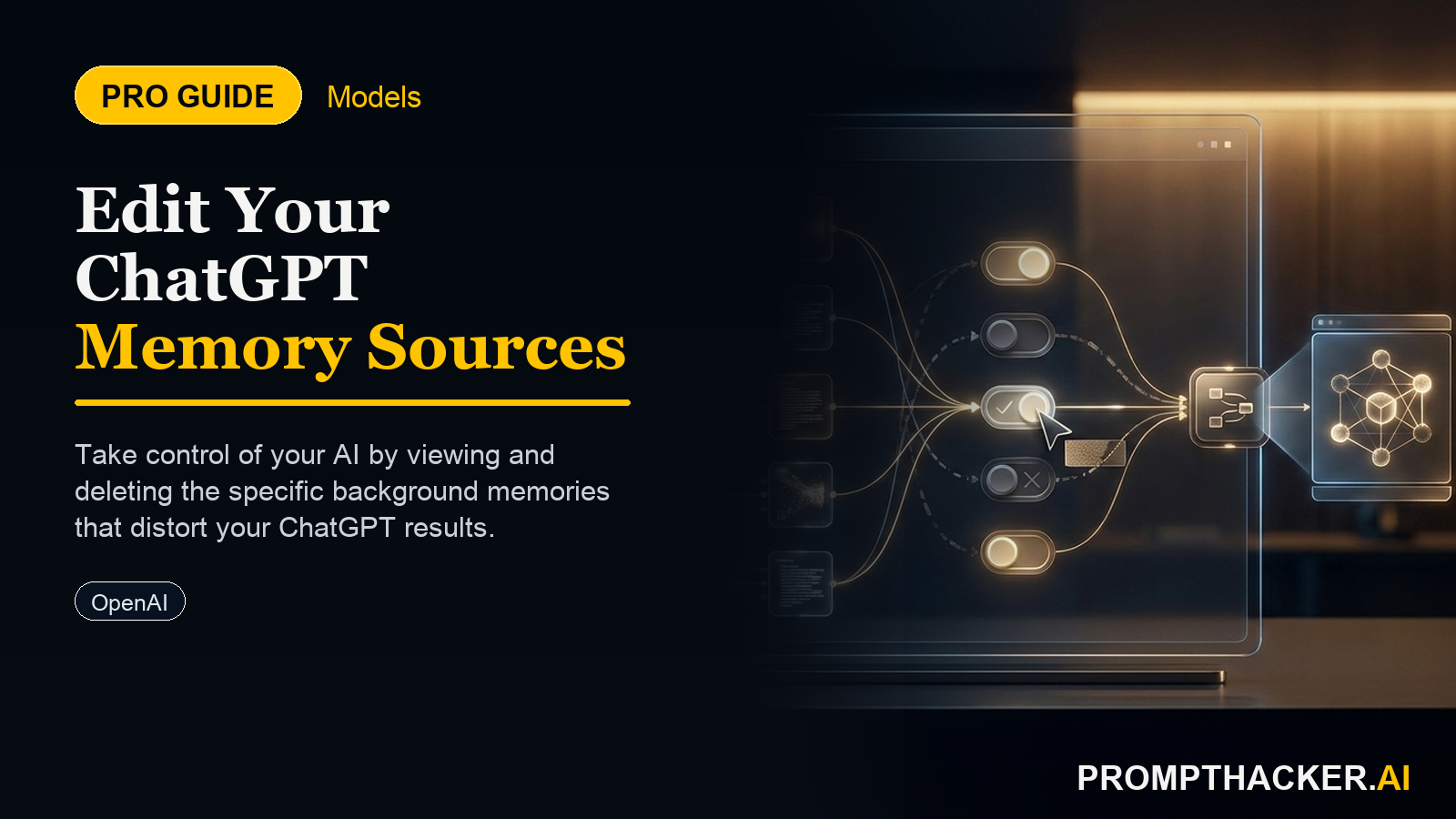
ChatGPT Memory Sources Are Now Editable

You can now see every input shaping your ChatGPT experience and delete the ones making it act wrong.

May 6, 2026 6 min read
chatgpt memory sources edit controls guide
Quick Scan

What matters today

You can now see every input shaping your ChatGPT experience and delete the ones making it act wrong.

Format TOP UPDATE
Audience Executives using AI at work
Time 6 min read
Topic Chatgpt

Key points

  • What the Memory Sources Panel Actually Shows
  • Why Personalization Drifts
  • How to Audit and Clean Your Memory Sources
  • The Strategic Setup After Cleaning
  • Who Has Access and What Is Coming

What You'll Learn

  • What the new memory sources panel shows and how to access it
  • Why ChatGPT personalization drifts over time and what was causing it
  • How to audit your current sources and remove the ones feeding bad data
  • The strategic setup that makes ChatGPT more useful for your specific business context
  • Which tier has access now and what is coming to mobile

If ChatGPT has been giving you responses that feel subtly off, more generic than your setup would suggest, or confidently wrong about details of your work -- there is a reason. Something in its memory was feeding it bad information, and until May 5, you had no way to find it.

OpenAI's new memory sources panel changes that. ChatGPT Plus and Pro users can now open a single view that shows every input shaping their personalized experience: chat threads, Gmail connections, and uploaded files. Each source shows when it was added and how it is being used. You can correct, delete, or mark any source as irrelevant without losing the rest of your memory.

This is the first time ChatGPT has given users meaningful control over the data driving personalization. The difference between a well-maintained memory and a drifted one is the difference between an AI that knows your business and one that half-knows it in ways that are harder to catch than a clean wrong answer.

Premium Content Below

The full audit walkthrough, strategic setup guide, and 5 executive action steps are available to PromptHacker Premium subscribers.

What the Memory Sources Panel Actually Shows

ChatGPT's personalization system pulls from three source categories:

Chat history. Every conversation that contained information the model flagged as relevant to your preferences, context, or working style. These threads accumulate and can include outdated job titles, old company names, superseded project contexts, and preferences you expressed once and forgot about.

Gmail. If you connected Gmail to ChatGPT, the model reads email threads as a source of context. This can be useful, and it can also be a source of noise if you have used Gmail for different roles or contexts over time.

Uploaded files. Documents you have pasted or attached to ChatGPT conversations. Old org charts, prior-year financial models, outdated client briefs -- if you shared them once, they may still be informing responses.

Why Personalization Drifts

Memory drift happens when the data feeding personalization is no longer accurate. A job title that changed. A company you no longer work with. A preference you expressed in 2024 that no longer applies.

The problem is that wrong data creates wrong priors that are invisible in most responses. ChatGPT does not announce "I am basing this recommendation on an email thread from 18 months ago." It just incorporates the stale context into the response without flagging it, and the output is subtly less accurate than it should be.

How to Audit and Clean Your Memory Sources

Access the panel. On ChatGPT web, navigate to Settings, then Personalization, then Memory Sources. Live for Plus and Pro users as of May 5. Mobile access rolling out in the coming weeks.

Review each source type. Start with uploaded files. These are the most likely to contain fully outdated information and easiest to evaluate at a glance. Delete any file source connected to a completed project, a former employer, a client relationship that has ended, or a role you no longer hold.

Audit chat-derived context. For each flagged chat thread, check the timestamp and the description of what the model extracted. Ask: is this still accurate? Mark as irrelevant anything that no longer applies.

Evaluate Gmail context carefully. Gmail connections tend to surface both high-value context and noise. Remove threads from projects, roles, or relationships that no longer apply to your current context.

Do not delete everything. The goal is a clean, accurate baseline -- not an empty memory. Keep sources that reflect your current role, clients, preferences, and communication style. Accurate, current data is significantly more useful than a blank slate.

The Strategic Setup After Cleaning

Once the outdated sources are gone, use the first few days to actively improve the accuracy of what remains. Start a new thread and tell ChatGPT the 5 to 7 things that would most help it assist you accurately: current role, primary responsibilities, the types of tasks you use ChatGPT for most, communication style preferences, and any standing constraints.

ChatGPT will add this conversation to your memory sources. When you open new threads, the model has an accurate, current baseline to work from instead of the accumulated drift of months of casual use.

Who Has Access and What Is Coming

Memory sources view and edit is available now on ChatGPT web for Plus and Pro subscribers. Mobile access (iOS and Android) is scheduled to follow in the coming weeks. Free tier users do not have access to the sources panel. Teams and Enterprise accounts have personalization settings managed at the organizational level -- check with your admin if the panel does not appear.

5 Executive Action Steps

Step 1: Open the memory sources panel today

Go to Settings, then Personalization, then Memory Sources in ChatGPT web. Take 10 minutes to review what is there before doing anything else. Understanding your current state is the prerequisite to improving it.

Step 2: Delete all file sources older than 6 months

If a file source is from a document more than 6 months old, evaluate it with fresh eyes. More than half of file sources this old will be from completed projects or outdated contexts.

Step 3: Mark stale chat threads as irrelevant

Any chat thread referencing a former role, a completed project, or a relationship you no longer have -- mark it as irrelevant. This preserves the thread itself while removing its influence on future responses.

Step 4: Evaluate Gmail sources one by one

Review each flagged email thread. Keep the ones that reflect current relationships and working patterns. Remove any that reference outdated contexts.

Step 5: Run a context-setting conversation to rebuild the baseline

Start a new thread and tell ChatGPT the 5 to 7 things it needs to know to assist you accurately right now. Current role, priorities, task types, communication preferences, standing constraints. Make this the most accurate summary of your current context in your memory sources.

Bottom line

The useful move with ChatGPT Memory Sources Are Now Editable is to run one narrow test this week, then keep only the workflow that saves time, improves a decision, or gives your team clearer output. Treat the announcement as raw material, not the win itself.

About the author

Pierre Bradshaw Founder, PromptHacker.ai

Pierre has spent 25+ years building growth systems across fintech, real estate, lending, campaigns, and AI workflows, with machine-learning work dating back to 2012.

If you have any questions or comments about ChatGPT Memory Sources Are Now Editable feel free to reach out. I'd love to hear from you.

Contact Pierre
Free weekly briefing

Three deep dives. Four useful moves. One email worth opening.

PromptHacker turns the AI firehose into practical next steps for work, health, family, and everything time keeps trying to steal.