Outlook Copilot: Prioritize Emails with Enhanced Sentiment Analysis
How to leverage AI-driven sentiment analysis to understand sender intent and tone.
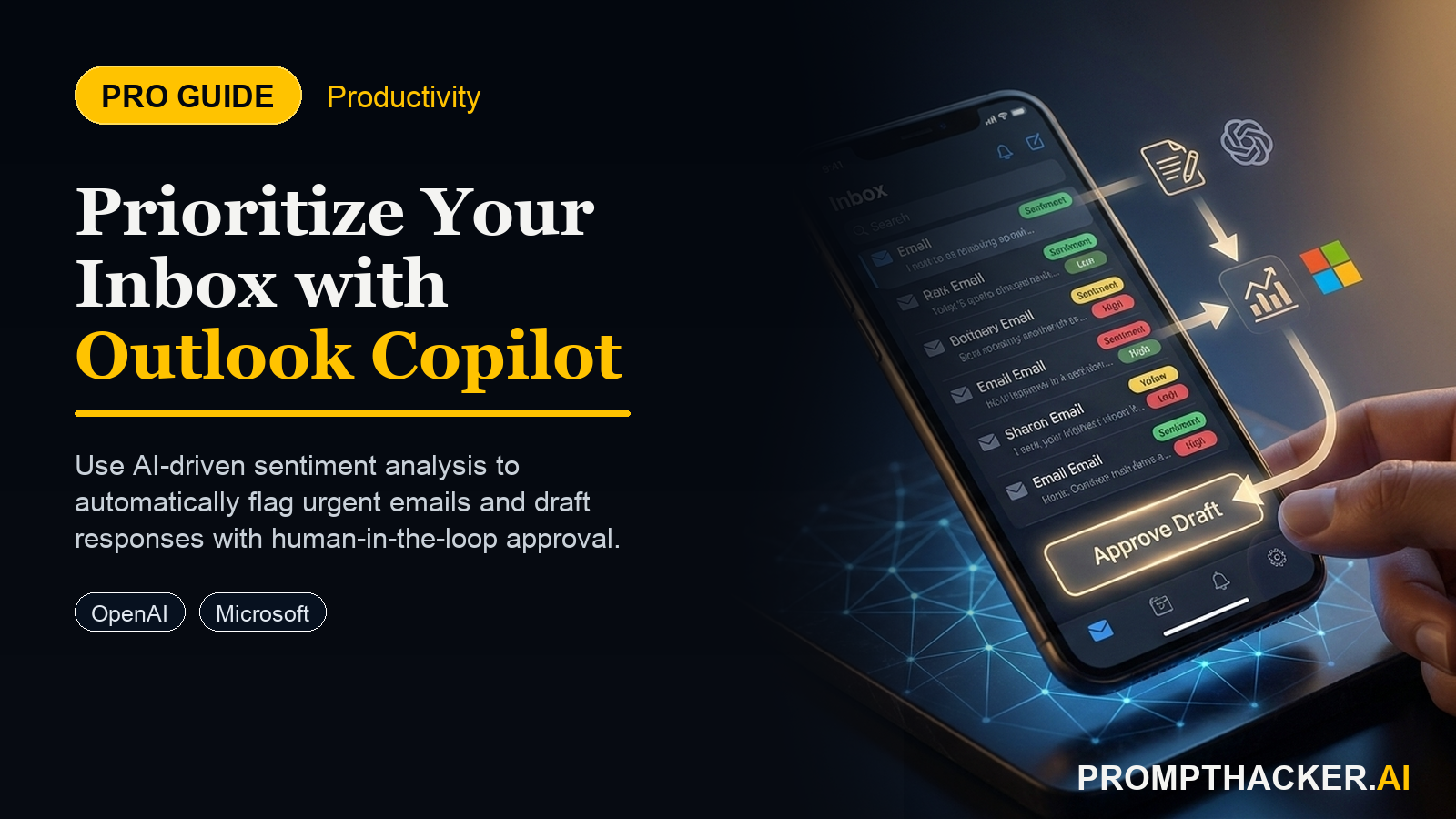
What matters today
How to leverage AI-driven sentiment analysis to understand sender intent and tone.
Article roadmap
What you will learn
-
How to quickly identify urgent or sensitive emails to ensure timely action.
-
How to leverage AI-driven sentiment analysis to understand sender intent and tone.
-
How to craft more targeted and effective email responses using Copilot's insights.
-
How to reduce daily email management time by 30 minutes.
The CEO of a rapidly scaling FinTech startup faces an inbox overflowing with hundreds of messages daily. Among them are critical investor updates, nuanced client feedback, urgent team requests, and a constant stream of operational communications. Each morning, the CEO spends an hour manually triaging, often missing subtle cues in emails that indicate dissatisfaction or high urgency, simply because the sheer volume makes deep analysis impossible. This manual process is not only time-consuming but also prone to error, leaving valuable opportunities on the table and increasing the risk of miscommunication with key stakeholders.
If the CEO continues this approach, critical emails may be overlooked, leading to delayed responses, strained client relationships, and potentially missed investor deadlines. A missed opportunity to address a minor client complaint quickly can escalate into a major retention issue. Similarly, misinterpreting the tone of an investor's email could lead to misaligned strategic decisions. The cost is not just in time, but in reputation and revenue.
This article details how to leverage Microsoft Copilot's enhanced sentiment analysis in Outlook to instantly grasp the emotional context of incoming emails. This capability allows executives to prioritize their attention with precision and to formulate responses that are not just quick, but also appropriately toned and effective, ensuring no critical communication falls through the cracks.
Managing an executive inbox demands speed and precision. Every email carries potential weight, but identifying the truly critical messages and understanding their underlying sentiment can be a time-consuming, mentally taxing task. Microsoft Copilot's enhanced sentiment analysis in Outlook addresses this directly, providing AI-driven insights that allow for intelligent prioritization and more effective communication. This feature is designed to cut through the noise, giving executives a clear view of what truly requires their immediate, nuanced attention.
Understanding Copilot's Enhanced Sentiment Analysis
Copilot in Outlook now goes beyond simple keyword detection to analyze the emotional tone and intent behind an email's content. It identifies whether an email is positive, negative, neutral, or contains specific emotional nuances like urgency, frustration, or appreciation. This analysis is presented directly within the Outlook interface, typically as a subtle indicator next to the email subject or within the preview pane. The AI processes language, context, and even common idiomatic expressions to provide a sophisticated assessment.
For instance, an email from a major client might contain seemingly neutral language, but Copilot could detect underlying dissatisfaction based on specific phrasing or historical context, flagging it as "moderately negative" or "urgent concern." This insight is invaluable for an executive who cannot afford to misread a critical message.
Time to value: 5 minutes per email, saving up to 30 minutes daily on triage.
1. Activating and Recognizing Sentiment Indicators
Copilot's sentiment analysis is typically active by default for Microsoft 365 Copilot subscribers within Outlook. No complex setup is required. The key is to recognize where these insights appear.
When you open Outlook, navigate to your inbox. As you scroll through your emails, Copilot will process them in the background. For emails where sentiment is particularly pronounced or relevant, you will observe a small, discreet icon or text indicator. This might be a color-coded bar (e.g., red for negative, green for positive), an emoji (e.g., a slightly frowning face for concern), or a short textual summary like "Urgent" or "Client Dissatisfaction" appearing near the sender's name or the subject line. Clicking on these indicators often provides a brief, expanded explanation of Copilot's assessment.
Why this matters:
Visually identifying sentiment at a glance allows for immediate, informed triage. An executive can quickly scan an inbox of 100 emails and instantly see the 5-10 that require urgent, empathetic, or strategic attention. This eliminates the need to open and skim every potentially important message.
Edge Case: Overriding or Refining AI:
Copilot's analysis is highly accurate, but no AI is perfect. If you believe Copilot has misidentified the sentiment, you can usually provide feedback directly through the interface (e.g., a "thumbs up/down" icon next to the sentiment indicator). This helps the model learn and improves accuracy over time for your specific communication patterns. Do not rely solely on the AI for highly sensitive, nuanced human interactions; use it as a powerful first filter.
2. Prioritizing Your Inbox with AI-Driven Insights
Once you recognize the sentiment indicators, the next step is to integrate this information into your prioritization workflow. This transforms your inbox from a chronological list into a strategically ordered task queue.
Consider a regional sales director who has just launched a new product and is receiving hundreds of feedback emails from their team and early adopters. Manually sifting through these for critical bugs, major complaints, or significant praise would take hours. With Copilot, the director can immediately filter or visually prioritize emails flagged as "Critical Bug Report," "High Customer Dissatisfaction," or "Urgent Escalation" from those marked "General Feedback" or "Positive Review."
Actionable Strategy:
Visual Scan: Begin your email review by quickly scanning for Copilot's sentiment indicators. Focus first on "Urgent," "Negative," or "Concern" flags. Filter/Sort: If your Outlook setup allows, create smart folders or use search queries that filter emails based on Copilot's sentiment tags (e.g., "Show me all emails flagged as 'Negative' or 'Urgent'"). This immediately brings the most critical communications to the top. Time Blocking: Dedicate specific blocks of time to address emails based on their sentiment. For example, the first 30 minutes of your day are for "Urgent/Negative" emails, the next hour for "Neutral/Action Required," and later for "Positive/Informational."
Three deep dives. Four useful moves. One email worth opening.
PromptHacker turns the AI firehose into practical next steps for work, health, family, and everything time keeps trying to steal.