PH PROMPTHACKER.AI

Microsoft Copilot Automates Complex CRM Report Generation

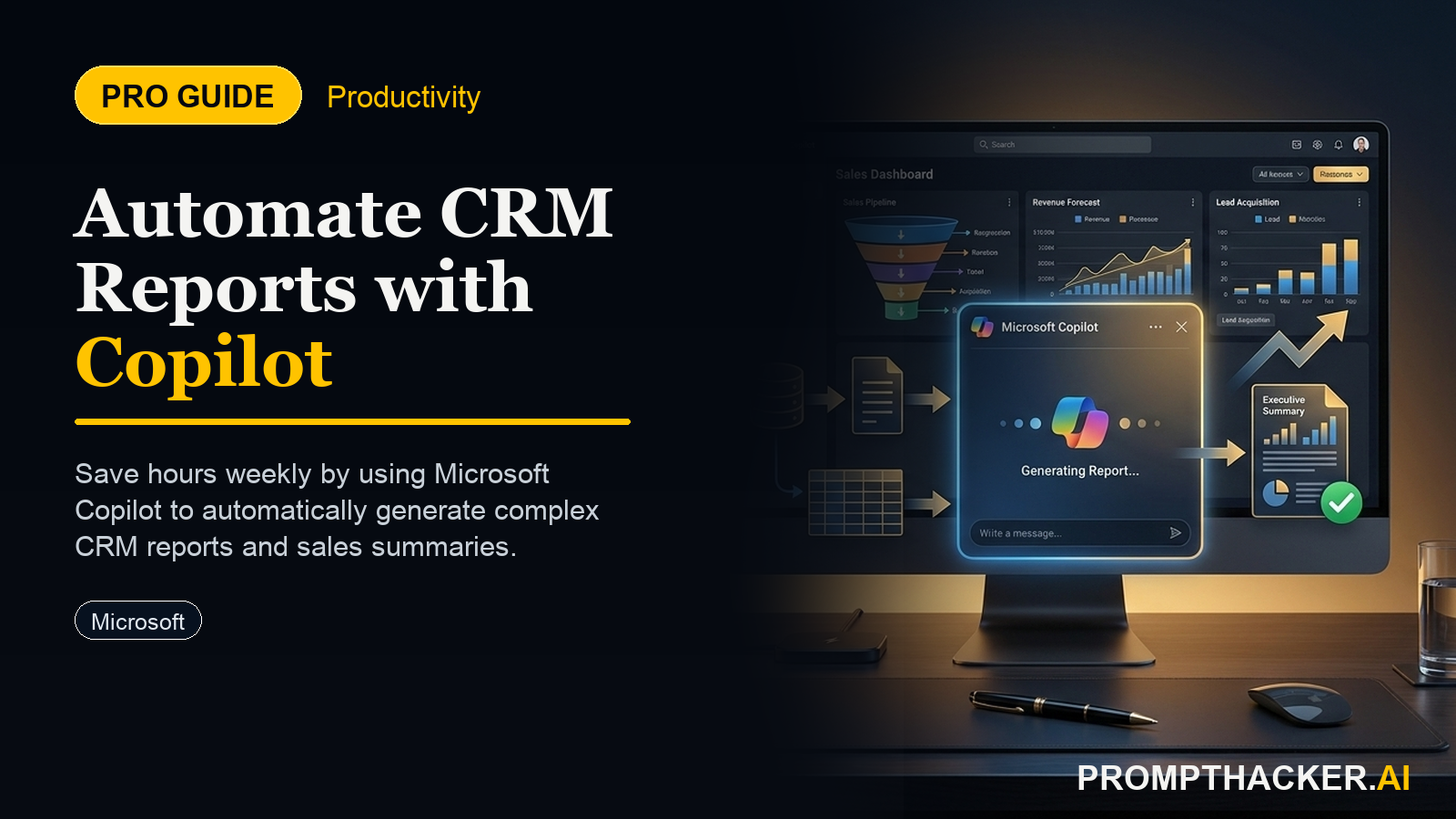
Sales directors gain 120 minutes weekly by automating complex CRM report generation with Microsoft Copilot.

May 28, 2025 7 min read
copilot automates crm report generation
Quick Scan

What matters today

Sales directors gain 120 minutes weekly by automating complex CRM report generation with Microsoft Copilot.

Format TOP UPDATE
Audience Executives using AI at work
Time 7 min read
Topic Microsoft Copilot

Key points

  • Understanding the Integration and Core Functionality
  • Step-by-Step Implementation for Executives

What you will learn in this article:

  • How to eliminate manual data extraction and report compilation from CRM systems.
  • How to generate comprehensive sales forecasts and performance summaries in minutes.
  • How to accelerate data-driven decision-making for sales directors and business analysts.
  • How to specify report filters and metrics using natural language prompts.
  • How to integrate AI-generated reports into existing stakeholder communication workflows.

A regional sales director at a mid-sized software company faces a recurring challenge every quarter: compiling a detailed performance report for the executive board. This report requires synthesizing sales data, customer churn rates, and pipeline projections from the CRM system. The manual process involves extracting raw data, cleaning it in spreadsheets, creating pivot tables, and then drafting narratives, consuming an entire day, often stretching into late evenings. This time drain means less focus on coaching the sales team or developing new strategies.

Without an efficient reporting mechanism, critical insights remain buried in data, leading to delayed strategic adjustments. Opportunities to identify underperforming regions or capitalize on emerging market trends are missed. The sales director becomes a data clerk, not a strategic leader, impacting team morale and ultimately, the company's bottom line as competitors move faster.

This article introduces Microsoft Copilot's new capability to automatically generate comprehensive business reports directly from integrated CRM data. Discover how to transform hours of manual effort into minutes of focused analysis, providing immediate access to the intelligence needed for rapid, informed decisions.

The landscape of business intelligence shifts with Microsoft Copilot's latest update, enabling direct, automated report generation from Customer Relationship Management (CRM) systems. This advancement fundamentally alters how sales directors and business analysts approach data analysis and reporting, moving from laborious manual processes to efficient, AI-driven insights. The core benefit is clear: executives can now request complex performance summaries, detailed sales forecasts, or nuanced customer insights using natural language prompts, receiving structured, ready-to-use reports in minutes. This capability eliminates the manual effort of data extraction and report compilation, saving sales directors an average of 120 minutes per week.

Understanding the Integration and Core Functionality

Microsoft Copilot's new feature leverages its deep integration within the Microsoft 365 environment, extending its reach directly into connected CRM platforms. This means Copilot does not require data to be manually exported or uploaded to a separate service. Instead, it queries the CRM system directly, respecting existing access permissions and data security protocols. When a user issues a natural language prompt, Copilot processes the request, identifies the relevant data points within the CRM, synthesizes this information, and then structures it into a coherent report format. This report can include tables, charts, and narrative summaries, tailored to the specific request.

For example, a sales operations manager might need to understand the conversion rates across different lead sources for the previous quarter. Traditionally, this involves navigating multiple CRM dashboards, exporting data, and then performing calculations in a spreadsheet. With Copilot, the request "Generate a Q2 lead conversion rate report by source from CRM" initiates an automated process that delivers the complete analysis. This provides granular detail without the typical data handling overhead.

Step-by-Step Implementation for Executives

Implementing this new capability within your daily workflow involves a straightforward sequence of steps, designed for immediate executive adoption.

  • Step 1: Access Microsoft Copilot within Your Microsoft 365 Environment Begin by opening Microsoft Copilot. This can be accessed through various Microsoft 365 applications where Copilot is integrated, such as Microsoft Teams, Microsoft Outlook, or directly within a web browser interface for Copilot. The key is to ensure your Copilot instance is linked to your organization's CRM system. This linkage typically occurs at an administrative level during the initial setup of Copilot for enterprise use, ensuring secure and authorized access to business-critical data. If you encounter issues, verify with your IT department that the necessary connectors and permissions for your CRM (e.g., Salesforce, Dynamics 365) are active within your Microsoft 365 tenant. Why this matters Proper access ensures Copilot can securely retrieve the necessary data without requiring additional authentication steps for each query. This initial setup is foundational for all subsequent reporting tasks, establishing a trusted data pipeline.
  • Step 2: Prompt Copilot with a Request for a Specific Report Once Copilot is open, articulate your reporting need using natural language. The more specific your prompt, the more precise the generated report will be. Think about the exact data you need and the period you want to cover. VERBATIM PROMPT EXAMPLE "Generate a Q2 sales performance report from CRM." Worked Example: A Chief Revenue Officer (CRO) needs a quick overview of the sales team's performance for the second fiscal quarter. Instead of waiting for a manual compilation, the CRO opens Copilot and enters the prompt. Copilot then queries the CRM, gathering data on closed deals, pipeline value, and individual sales representative performance for April, May, and June. It compiles this into a structured report, often including key metrics like total revenue, average deal size, and win rates, presented in an easily digestible format. This allows for rapid comprehension of key trends. Edge Case: Vague Prompts If the prompt is too vague, Copilot might ask clarifying questions. For instance, "Give me a sales report" might elicit a follow-up: "For which period? Which metrics are most important?" Be prepared to refine your request if Copilot seeks further detail. Learning to provide initial specificity saves iterative prompting, streamlining your interaction.
  • Step 3: Specify Any Desired Filters or Metrics for the Report Enhance the precision of your report by adding specific filters, timeframes, or metrics directly within your prompt. This allows for highly customized reports that address exact business questions without needing to manually manipulate data post-generation. VERBATIM PROMPT EXAMPLE "Generate a Q2 sales performance report from CRM, focusing on new customer acquisition in the Western region, showing revenue and deal count." Worked Example: A marketing director wants to assess the impact of a recent campaign in the Western region. They refine their request to include specific filters. Copilot then filters the CRM data to only include new customer acquisitions within the specified geographical region during Q2. The report automatically highlights revenue figures and the number of deals closed, providing direct insights into the campaign's effectiveness in that segment. This provides a clear, actionable performance snapshot. Edge Case: Unavailable Data If a requested filter or metric is not available or not configured in your CRM, Copilot will inform you. For example, if your CRM does not track "new customer acquisition" as a distinct field but rather lumps it into "customer type," Copilot might return data on all customers or ask for clarification on how "new customer" is defined in your system. This highlights the importance of well-structured CRM data and consistent data entry practices.
  • Step 4: Review the Automatically Generated Report for Accuracy and Completeness Upon receiving the report, always conduct a quick review. While Copilot is highly accurate, cross-referencing key figures with known data points or previous reports ensures confidence. Check for any anomalies, missing sections, or misinterpretations of your prompt. This step is crucial for maintaining data integrity and executive trust. Why this matters Even with advanced AI, human oversight remains critical. This review phase acts as a quality control gate, ensuring that the insights you derive are based on correct and complete information. It also provides an opportunity to identify areas where your prompts could be further refined for future requests, improving the system's utility over time. What can go wrong A common issue is misinterpreting the scope of the data. For instance, if you ask for "sales performance" and your CRM has multiple sales stages, Copilot might default to "closed-won" deals, potentially excluding pipeline value or lost opportunities that you intended to include. Clarifying the exact "stage" of sales data in your prompt can mitigate this, ensuring the report aligns with your specific analytical needs.

The final step involves distributing the generated report. Copilot often provides reports in formats that are easily shareable within the Microsoft 365 ecosystem (e.g., as a Word document, Excel spreadsheet, or directly within a Teams chat). This immediate availability accelerates the decision-making cycle.

Worked Example: The sales director receives the Q2 performance report within minutes. After a quick review, they share it directly in the weekly sales leadership meeting's Teams channel. The leadership team can immediately discuss trends, identify areas for improvement, and allocate resources without waiting for a lengthy presentation to be prepared. This enables agile responses to market changes and performance shifts, keeping the organization highly responsive.

Real-world Scenario: Quarterly Business Review (QBR) Preparation

Consider the preparation for a Quarterly Business Review. Previously, a business analyst might spend an entire week gathering data from various CRM modules, consolidating it, and building slides. Now, they can use Copilot to generate initial drafts of performance summaries, regional breakdowns, and product-specific sales analyses in a fraction of the time. For example, "Generate a Q1 QBR summary for EMEA region, including top 5 products by revenue and lead source effectiveness." This allows the analyst to focus on strategic insights and recommendations, rather than data assembly, delivering a more impactful QBR.

Bottom line

The useful move with Microsoft Copilot Automates Complex CRM Report Generation is to run one narrow test this week, then keep only the workflow that saves time, improves a decision, or gives your team clearer output. Treat the announcement as raw material, not the win itself.

About the author

Pierre Bradshaw Founder, PromptHacker.ai

Pierre has spent 25+ years building growth systems across fintech, real estate, lending, campaigns, and AI workflows, with machine-learning work dating back to 2012.

If you have any questions or comments about Microsoft Copilot Automates Complex CRM Report Generation feel free to reach out. I'd love to hear from you.

Contact Pierre
Free weekly briefing

Three deep dives. Four useful moves. One email worth opening.

PromptHacker turns the AI firehose into practical next steps for work, health, family, and everything time keeps trying to steal.