PH PROMPTHACKER.AI

Microsoft Copilot in PowerPoint Enables Instant Presentation Generation

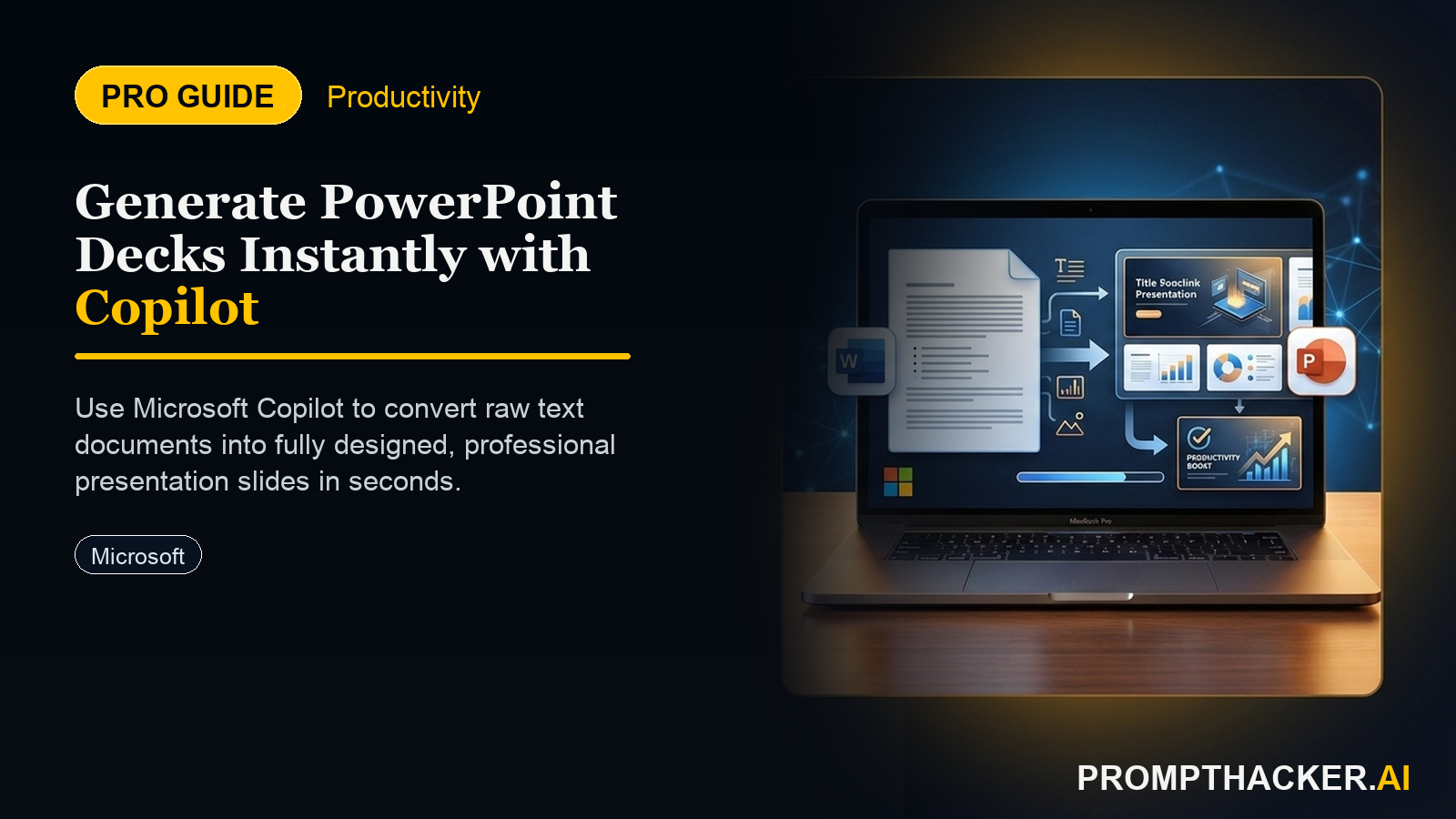
Generate full presentations instantly with Microsoft Copilot in PowerPoint, cutting 2 hours per presentation for rapid communication.

February 19, 2025 7 min read
copilot powerpoint instant presentation generation
Quick Scan

What matters today

Generate full presentations instantly with Microsoft Copilot in PowerPoint, cutting 2 hours per presentation for rapid communication.

Format TOP UPDATE
Audience Executives using AI at work
Time 7 min read
Topic Microsoft Copilot

Key points

  • 1. Initiating Instant Presentation Generation with a Clear Prompt
  • 2. Integrating Company Data and Brand Guidelines for Consistency
  • 3. Reviewing and Refining the AI-Generated Presentation
  • 4. Accelerating Communication and Decision-Making

What you will learn in this article:

  • How to generate a complete presentation from a single text prompt to save 2 hours per deck.
  • How to integrate company data and brand guidelines into AI-generated slides for consistent output.
  • How to accelerate communication and decision-making by rapidly producing high-quality presentations.
  • How to review and refine AI-generated content for accuracy and impact to ensure professional delivery.

A marketing director at a rapidly scaling e-commerce company faces a familiar challenge: an urgent need to present a Q1 performance review to the executive board. The data is compiled, the insights are clear, but the manual process of crafting a visually appealing, brand-compliant PowerPoint presentation from scratch consumes hours. Each slide requires careful formatting, chart creation, and text placement, often leading to late nights and rushed deadlines, diverting valuable strategic time.

The stakes are high. Delayed or poorly presented information can hinder strategic adjustments, slow decision-making, and even impact investor confidence. In a competitive market, the ability to communicate key insights quickly and professionally is not a luxury, but a necessity for maintaining momentum and securing future growth. Relying on outdated manual processes means sacrificing agility and potentially missing critical windows for action.

This article details how Microsoft Copilot in PowerPoint eliminates the arduous manual slide creation process, enabling executives and their teams to generate full, professional presentations from a simple text prompt. Discover how this integration with existing company data and brand guidelines saves 2 hours per presentation, freeing up significant time for strategic thought and accelerating critical communication across the organization.

The landscape of corporate communication demands both speed and precision. For years, the creation of compelling presentations has been a bottleneck, consuming countless hours of executive and team time. Microsoft Copilot in PowerPoint fundamentally shifts this paradigm, transforming a laborious task into an efficient, AI-powered workflow. This update allows users to generate entire presentations from a simple text prompt or outline, drawing upon existing company data and adhering to established brand guidelines. The result is professional-quality slides, produced rapidly, that significantly accelerate communication and decision-making processes.

Consider a head of sales preparing for a critical client pitch. Previously, this involved gathering data, selecting templates, drafting content, and fine-tuning visuals,a process that could easily span several hours, often days, for a complex proposal. With Copilot, that timeline shrinks dramatically. The sales leader can now focus on strategy and client relationship building, knowing that the presentation itself can be generated with unprecedented speed and accuracy.

1. Initiating Instant Presentation Generation with a Clear Prompt

The core of Copilot's power in PowerPoint lies in its ability to interpret and act upon natural language prompts. Instead of manually inserting slides, text, and images, users provide a concise instruction outlining the presentation's purpose, audience, and key messages. This allows Copilot to construct a foundational deck tailored to specific needs.

Real-world scenario: A product manager needs to present a quarterly update on feature adoption rates and user feedback for a new software release. The goal is to inform stakeholders about progress and identify areas for improvement.

Action: Open PowerPoint and access the Copilot pane.

Verbatim Prompt Example

"Create a presentation summarizing Q1 user adoption rates for the 'Phoenix' software release. Include slides on key metrics, user feedback analysis, and proposed next steps. The audience is executive stakeholders. Pull data from the 'Phoenix Q1 Report.xlsx' in our SharePoint 'Product Data' folder."

Why it matters:

A clear and detailed prompt is crucial. It acts as the blueprint for Copilot, guiding its selection of information and structure. Specifying the document source (e.g., a file in SharePoint or OneDrive) enables Copilot to intelligently draw upon existing, relevant company data, ensuring the presentation is factually accurate and contextually rich. Without a precise prompt, Copilot may generate generic content, requiring more manual refinement. This initial step saves the product manager the hours typically spent on structuring the presentation and initial content population.

Edge Case & Fix:

If the specified data source is ambiguous or lacks clear headings, Copilot might struggle to extract the most relevant information. Fix: Ensure source documents are well-structured, ideally with clear sections, tables, or named ranges that Copilot can easily identify. Alternatively, provide more specific instructions within the prompt regarding which parts of the document to focus on.

2. Integrating Company Data and Brand Guidelines for Consistency

A presentation's impact is not solely about its content; its visual consistency and adherence to brand standards are equally important. Copilot integrates with Microsoft Graph, allowing it to access and utilize information across a user's Microsoft 365 environment, including linked internal documents and established brand templates. This capability ensures that generated presentations are not only informative but also visually professional and aligned with corporate identity.

Real-world scenario: A marketing professional needs to create a presentation for an upcoming industry conference, requiring strict adherence to corporate branding, including specific color palettes, fonts, and logo placement.

Action: Within the Copilot prompt, specify brand guidelines and data sources.

Verbatim Prompt Example

"Generate a 10-slide presentation on 'Innovations in AI-Driven Customer Service' for the 'Tech Horizons 2025' conference. Incorporate our standard corporate brand guidelines template located in the 'Brand Assets' SharePoint library. Include recent customer success stories from the 'Customer Testimonials.docx' file in OneDrive."

Why it matters:

This step ensures that every presentation, regardless of who creates it, maintains a consistent, professional appearance. It eliminates the need for manual formatting adjustments, which can be time-consuming and prone to human error. By linking to established brand assets, Copilot automatically applies the correct visual identity, reinforcing the company's image. This is particularly valuable for sales and marketing teams who frequently create client-facing materials, as it guarantees uniformity in messaging and appearance.

Edge Case & Fix:

Copilot might struggle with highly complex or custom brand guidelines that are not clearly defined within a standard PowerPoint template. Fix: Ensure the designated brand guidelines template is a standard `.potx` file and is clearly structured. If specific elements are consistently missed, consider simplifying the template or providing a more explicit instruction in the prompt, such as "Use Font: Arial, Color Palette: [Hex Codes], include Logo: 'CompanyLogo.png' on every slide."

3. Reviewing and Refining the AI-Generated Presentation

While Copilot excels at rapid generation, human oversight remains critical. The initial draft provides a strong foundation, but it may require refinement to capture nuanced messaging, incorporate specific anecdotes, or adjust for a particular audience's context. This iterative process allows executives to leverage AI for speed while maintaining control over the final output's quality and precision.

Real-world scenario: A CEO receives a Copilot-generated presentation for an investor briefing. The content is accurate, but the tone needs to be more persuasive, and specific charts require adjustments to highlight growth trajectories more prominently.

Action: Review each slide, using Copilot for targeted adjustments.

Verbatim Prompt Example (for specific slide refinement)

"On slide 5, revise the bullet points to adopt a more persuasive tone, emphasizing future growth potential rather than just past achievements. For the bar chart on slide 7, highlight the Q4 2024 data series in a contrasting color and add a data label for the highest value."

Why it matters:

This step transforms an AI-generated draft into a polished, impactful presentation. Executives save time on initial creation, then apply their expertise to refine the message and visual storytelling. Copilot acts as an assistant, executing specific changes efficiently, rather than requiring a complete manual overhaul. This balance of AI automation and human intelligence ensures both speed and strategic depth. The CEO can quickly iterate on the presentation, ensuring it perfectly aligns with their strategic objectives and communicates the desired message to investors.

Edge Case & Fix:

Copilot might misinterpret subjective requests like "more persuasive tone" or apply changes in a way that doesn't fully align with the user's intent. Fix: Provide highly specific instructions. Instead of "more persuasive tone," try "rewrite this bullet point to emphasize market opportunity and competitive advantage." For visual adjustments, be explicit about colors, labels, and data points. If Copilot struggles, consider making minor manual adjustments directly.

4. Accelerating Communication and Decision-Making

The ultimate benefit of instant presentation generation is the acceleration of organizational communication and decision-making. By reducing the time spent on creating presentations, teams can disseminate information faster, react to market changes more swiftly, and dedicate more resources to strategic analysis and execution. This efficiency gain translates into a more agile and responsive business operation.

Real-world scenario: A project manager needs to provide a weekly status update to a geographically dispersed team. Manual compilation of reports and slides often delays these updates, leading to communication gaps and slower problem resolution.

Action: Use Copilot to quickly generate the weekly status presentation.

Verbatim Prompt Example

"Create a concise 5-slide weekly project status update for the 'Apollo' initiative. Include progress against milestones, current risks, and next week's priorities. Pull data from the 'Apollo Project Plan.mpp' and 'Weekly Risk Log.xlsx' files in the 'Apollo Project' Teams channel. Format using the standard 'Project Update' template."

Bottom line

The useful move with Microsoft Copilot in PowerPoint Enables Instant Presentation Generation is to run one narrow test this week, then keep only the workflow that saves time, improves a decision, or gives your team clearer output. Treat the announcement as raw material, not the win itself.

About the author

Pierre Bradshaw Founder, PromptHacker.ai

Pierre has spent 25+ years building growth systems across fintech, real estate, lending, campaigns, and AI workflows, with machine-learning work dating back to 2012.

If you have any questions or comments about Microsoft Copilot in PowerPoint Enables Instant Presentation Generation feel free to reach out. I'd love to hear from you.

Contact Pierre
Free weekly briefing

Three deep dives. Four useful moves. One email worth opening.

PromptHacker turns the AI firehose into practical next steps for work, health, family, and everything time keeps trying to steal.