PH PROMPTHACKER.AI

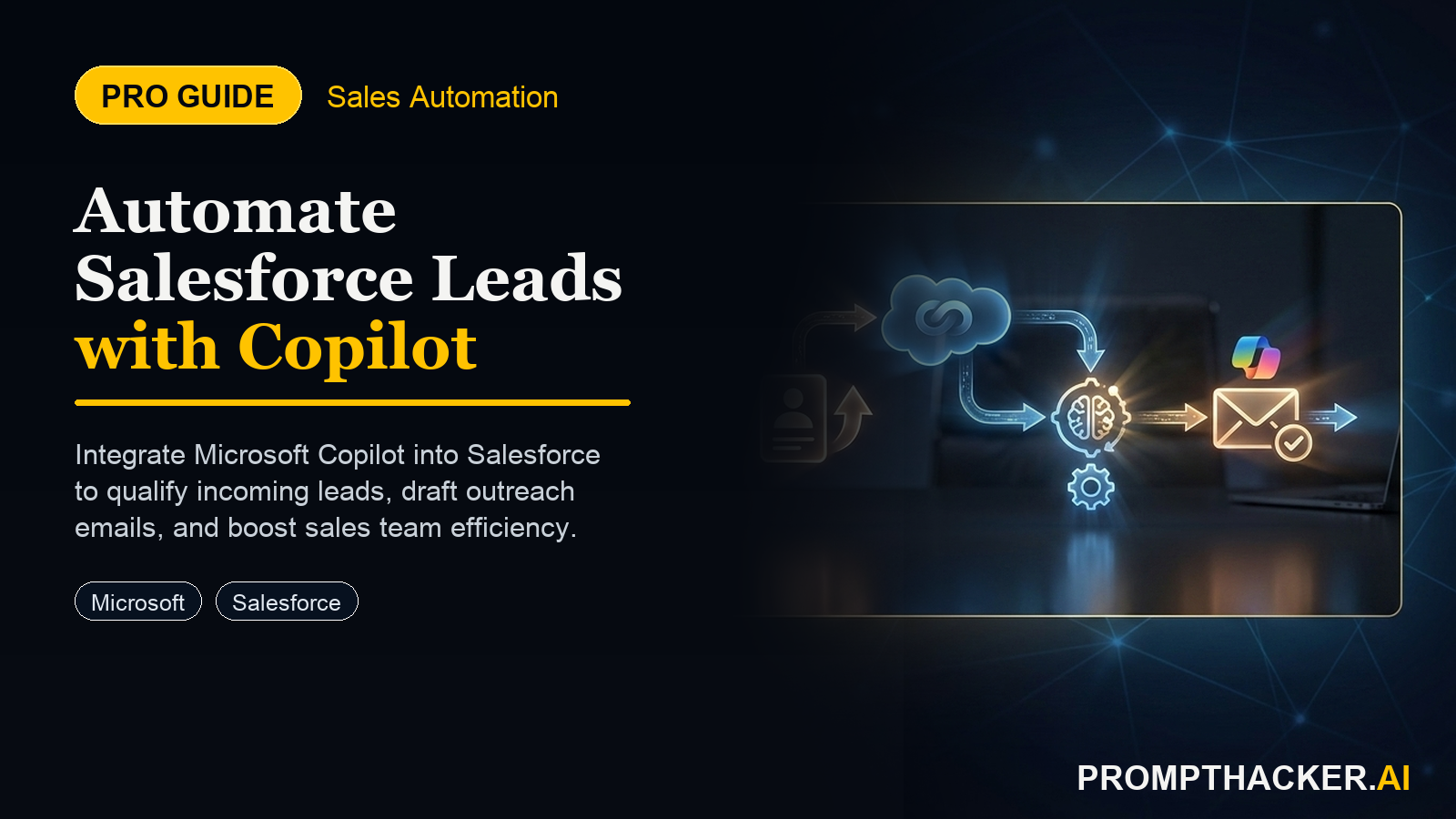
Automate Lead Qualification and Outreach with Copilot in Salesforce CRM

Gain significant sales efficiency by integrating Microsoft Copilot directly into Salesforce CRM workflows to automate lead qualification and personalize customer engagement.

January 22, 2025 7 min read
copilot salesforce crm automate lead outreach
Quick Scan

What matters today

Gain significant sales efficiency by integrating Microsoft Copilot directly into Salesforce CRM workflows to automate lead qualification and personalize customer engagement.

Format TOP UPDATE
Audience Executives using AI at work
Time 7 min read
Topic Microsoft Copilot

Key points

  • Setting Up Microsoft Copilot for Salesforce CRM
  • Automated Lead Qualification with Copilot
  • Personalized Sales Outreach with Copilot

What you will learn in this article:

  • How to configure Microsoft Copilot within Salesforce CRM to enable AI-powered sales assistance.
  • How to use Copilot to automate initial lead qualification and scoring, reducing manual review time.
  • How to generate personalized sales outreach messages (emails, LinkedIn) with Copilot for improved engagement.
  • How to integrate AI insights into your sales strategy to enhance team productivity and conversion rates.

The head of sales for a 75-person B2B software company is reviewing their pipeline. The sales team just returned from a major industry conference, bringing back a list of 250 new leads. Each lead has a basic contact record in Salesforce, but beyond that, the information is unstructured: a few scribbled notes, a business card photo, and a general sense of interest. The sales reps are now facing hours of manual research to qualify each lead, determine their potential fit, and craft personalized initial outreach messages. This process is time-consuming and often inconsistent, leading to missed opportunities and a slow pipeline velocity.

Without an efficient system, many of these leads will age out before receiving proper attention. Manual qualification is prone to human error, and generic outreach often results in low engagement rates. The sales team's valuable time is diverted from actual selling to administrative tasks, directly impacting quarterly revenue targets and overall team morale. The company risks losing potential customers to competitors who can engage more quickly and personally.

This article details how to integrate Microsoft Copilot directly into Salesforce CRM to automate critical sales tasks. It will provide a step-by-step guide for leveraging AI to streamline lead qualification and generate highly personalized outreach. Discover how to transform your sales workflow, allowing your team to focus on building relationships and closing deals, rather than sifting through data.

Integrating Microsoft Copilot into Salesforce CRM represents a significant advancement in sales efficiency. This integration allows sales professionals to access AI-powered insights and automation directly within their familiar Salesforce environment. The goal is to reduce manual effort, improve the quality of sales interactions, and accelerate the sales cycle. This deep dive focuses on two core applications: automating lead qualification and personalizing sales outreach.

Setting Up Microsoft Copilot for Salesforce CRM

Before utilizing Copilot's capabilities, ensure the necessary integrations and permissions are in place. This typically involves an administrator enabling Copilot for Salesforce within your Microsoft 365 environment and configuring the necessary data connectors and permissions within Salesforce. Specific licensing for Microsoft Copilot for Sales is generally required.

  • Verify Licensing and Permissions: Confirm that your organization has the appropriate Microsoft Copilot for Sales licenses. The Salesforce administrator must grant Copilot access to relevant Salesforce objects, such as Leads, Accounts, Contacts, and Opportunities. This ensures Copilot can read and write data as needed. Without correct permissions, Copilot cannot access the information required to provide insights or automate tasks.
  • Install Copilot for Sales Application: The Copilot for Sales application needs to be installed from the Salesforce AppExchange or configured directly from the Microsoft 365 admin center, depending on your organization's setup. Follow the guided installation process, which typically involves linking your Microsoft 365 tenant with your Salesforce instance. Incorrect installation can lead to data synchronization issues or features not appearing as expected.
  • Configure AI Models and Data Access: Within the Copilot for Sales settings, configure which data points Copilot should prioritize when analyzing Salesforce records. This might include recent activities, email interactions, company size, industry, or specific custom fields relevant to your sales process. Ensuring Copilot has access to high-quality, relevant data is crucial for accurate AI outputs. If the data is incomplete or outdated, Copilot's recommendations will be less effective.

Automated Lead Qualification with Copilot

A key challenge for any sales team is efficiently identifying high-potential leads from a large influx of new contacts. Manually sifting through lead data, cross-referencing company websites, and assessing fit against an Ideal Customer Profile (ICP) consumes significant time. Copilot can automate much of this initial qualification, providing sales representatives with a prioritized list and concise summaries.

Consider a sales development representative (SDR) responsible for qualifying 80 new leads daily. Manually, this involves opening each Salesforce record, researching the company, checking LinkedIn profiles, and then manually updating a qualification score. This process can take 10-15 minutes per lead, leaving little time for actual engagement. With Copilot, this time can be drastically reduced, allowing the SDR to focus on higher-value interactions.

Step 1: Define Lead Qualification Criteria

Before Copilot can qualify leads, it needs clear criteria. Work with your sales leadership to define what constitutes a "qualified" lead. This typically includes:

  • BANT Criteria: Budget, Authority, Need, Timeline.
  • Firmographics: Industry, company size, revenue, geographic location.
  • Technographics: Specific software or technologies used.
  • Engagement History: Website visits, content downloads, email opens.

These criteria should be explicitly articulated within your sales playbook and communicated to Copilot through your prompts. If the criteria are vague, Copilot's qualification will be inconsistent.

Step 2: Use Copilot for Initial Lead Scoring and Summarization

Once Copilot is configured and criteria are defined, a sales representative can use it directly from a Salesforce lead record. Copilot can analyze all available data points and provide a quick assessment.

  • Action: Open a lead record in Salesforce. Access the Copilot pane (typically a sidebar or integrated widget).
  • Prompt Example:

PROMPT EXAMPLE

"Analyze this Salesforce lead record for [Lead Name] at [Company Name]. Based on our Ideal Customer Profile (ICP) which prioritizes B2B SaaS companies with 50-500 employees, using HubSpot, and demonstrating recent engagement with our 'AI for Sales' whitepaper, provide a qualification score (1-5, where 5 is highly qualified). Summarize their key pain points and suggest relevant product features from our 'Sales Accelerator Suite'."

  • Expected Outcome: Copilot will return a qualification score, a concise summary of the lead's profile, inferred pain points, and suggested product features. This reduces the need for manual research by 80% for initial assessment.

Troubleshooting

If Copilot provides a low qualification score for a lead that appears promising, review the data quality within Salesforce. Missing or incorrect data (e.g., outdated company size) can skew Copilot's analysis. Manually add or correct information, then re-run the prompt.

Step 3: Refine Qualification and Next Steps

Copilot's initial assessment is a starting point. Sales representatives should review the AI-generated summary and score, adding their human intuition. For example, if Copilot identifies a company as small but the rep knows it's a rapidly growing startup, the rep can adjust the score and add context.

  • Action: Review Copilot's output. Add notes to the Salesforce record.
  • Prompt Example:

PROMPT EXAMPLE

"This lead, [Lead Name], scored 3 out of 5 for qualification. However, I know [Company Name] just secured Series B funding. Re-evaluate their qualification, considering recent funding news (Series B, $20M) and suggest three specific questions to ask during a discovery call that align with a rapidly scaling business."

  • Expected Outcome: Copilot updates the qualification based on new information and provides targeted questions, ensuring the discovery call is more productive. Time to value: 2 minutes for re-evaluation and question generation.

Personalized Sales Outreach with Copilot

After qualification, crafting personalized outreach messages is crucial for capturing a lead's attention. Generic emails or LinkedIn messages are often ignored. Copilot can generate highly tailored content by drawing on all available Salesforce data, saving significant time and improving response rates.

Consider a busy account executive needing to send personalized follow-up emails to 30 qualified leads from a webinar. Manually writing each email, referencing specific points from the webinar, and tailoring it to each lead's company and role can take 15-20 minutes per email. This amounts to 7.5 to 10 hours of writing. With Copilot, this task can be completed in a fraction of the time.

Step 1: Gather Contextual Information

For effective personalization, Copilot needs access to specific details about the lead and their company. This includes their role, industry, recent interactions (e.g., webinar attendance, whitepaper download), and any specific pain points identified during qualification. Ensure these details are accurately recorded in Salesforce.

Step 2: Generate Personalized Outreach Messages

Copilot can draft various forms of outreach: emails, LinkedIn messages, or even scripts for initial phone calls. The key is to provide a clear objective and sufficient context in the prompt.

  • Action: Select a qualified lead in Salesforce. Open the Copilot pane.
  • Prompt Example (Email):

PROMPT EXAMPLE (EMAIL)

Bottom line

The useful move with Automate Lead Qualification and Outreach with Copilot in Salesforce CRM is to run one narrow test this week, then keep only the workflow that saves time, improves a decision, or gives your team clearer output. Treat the announcement as raw material, not the win itself.

About the author

Pierre Bradshaw Founder, PromptHacker.ai

Pierre has spent 25+ years building growth systems across fintech, real estate, lending, campaigns, and AI workflows, with machine-learning work dating back to 2012.

If you have any questions or comments about Automate Lead Qualification and Outreach with Copilot in Salesforce CRM feel free to reach out. I'd love to hear from you.

Contact Pierre
Free weekly briefing

Three deep dives. Four useful moves. One email worth opening.

PromptHacker turns the AI firehose into practical next steps for work, health, family, and everything time keeps trying to steal.