Google Gemini Advanced Delivers Personalized Daily Executive Briefings
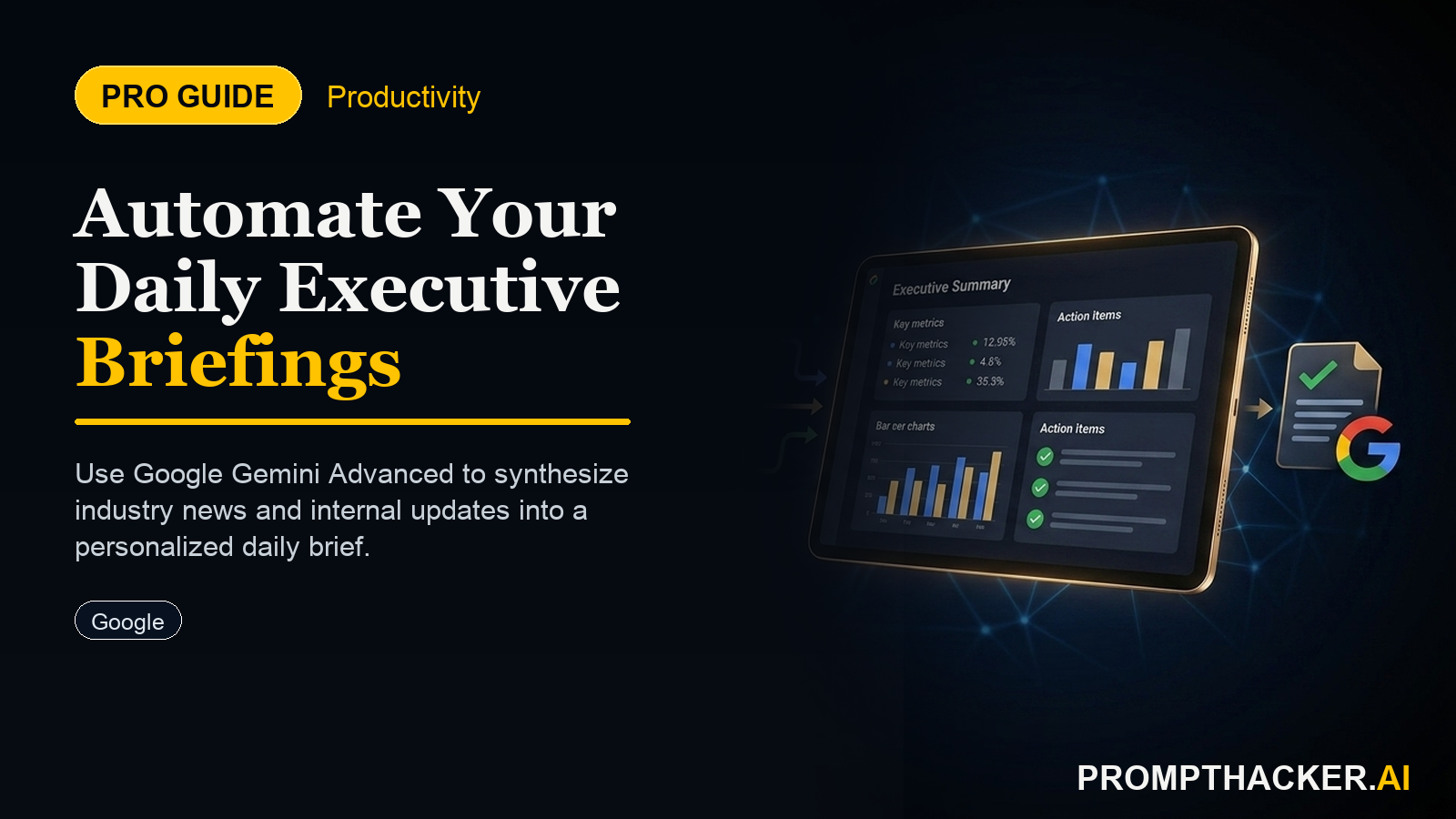
Get personalized daily executive briefings from Gemini Advanced, saving 45 minutes each morning on intelligence gathering.
What matters today
Get personalized daily executive briefings from Gemini Advanced, saving 45 minutes each morning on intelligence gathering.
Key points
- Step 1: Access Gemini Advanced Settings to Initiate Briefing Setup
- Step 2: Configure Your Industry, Role, and Preferred Information Sources
- Step 3: Link Relevant Google Workspace Documents and Calendars
- Step 4: Set a Daily Delivery Time for Your Executive Briefing
- Step 5: Review the Generated Briefing Each Morning to Start Your Day Informed
What you will learn in this article:
- How to configure Gemini Advanced to generate a personalized daily executive briefing.
- How to integrate Google Workspace data to enrich your daily intelligence overview.
- How to eliminate 45 minutes of manual news and report compilation each morning.
- How to ensure your daily briefing remains relevant to your specific industry and role.
- How to use a consolidated AI-generated briefing to inform strategic decisions faster.
A Chief Marketing Officer at a rapidly growing e-commerce company faces a constant barrage of information. Every morning, before the day officially begins, the CMO typically spends 45 minutes sifting through industry newsletters, market research reports, competitor announcements, and internal sales data. This daily ritual is crucial for staying ahead, but it consumes valuable time that could be spent on strategic planning or team leadership. The challenge is not just finding information, but synthesizing it into actionable insights tailored to the company's specific product lines and market position.
Without an efficient system, executives risk falling behind. Critical market shifts can be missed, competitive threats can emerge unnoticed, and internal performance issues might only surface after significant impact. The sheer volume of data available today makes manual compilation not only time-consuming but also prone to oversight, potentially leading to suboptimal decisions or missed opportunities. This daily information bottleneck can hinder agility, slow strategic adjustments, and ultimately impact a company's competitive edge.
This article details how Google Gemini Advanced now offers a feature to generate daily personalized executive briefings, a powerful update that consolidates vital information automatically. Discover how this tool pulls data from linked Google Workspace accounts and public sources, delivering a concise, role-specific overview directly to you. Learn the exact steps to configure this feature, ensuring you receive a tailored briefing that saves significant time and enhances your daily decision-making process.
The launch of personalized executive briefing generation within Google Gemini Advanced marks a significant shift in how leaders consume and act on information. This new capability directly addresses the time sink of manual intelligence gathering by automating the creation of daily summaries. For CEOs, department heads, and strategic planners, this means a consistent, tailored overview of news, market trends, and internal reports, all delivered without manual effort. The system integrates seamlessly with existing Google Workspace accounts and public data sources, providing a comprehensive yet concise daily update. This feature is designed to save 45 minutes each morning, translating to 225 minutes of reclaimed time per week, allowing executives to begin their day informed and focused on high-value tasks.
Consider a Head of Product Development at a fintech startup. This executive needs to monitor regulatory changes, emerging technologies, competitor product launches, and internal development progress daily. Previously, this involved juggling multiple dashboards, news feeds, and communication channels. With Gemini Advanced's personalized briefings, this executive receives a single, digestible summary. If a new regulation impacting digital lending is announced, or a competitor releases a feature similar to one in development, this information is highlighted. Simultaneously, a summary of internal project milestones or bug reports from Google Docs or Sheets linked to their Workspace can be included, providing a holistic view of both external landscape and internal execution. This consolidated intelligence enables faster responses to market dynamics and more informed internal resource allocation.
Step 1: Access Gemini Advanced Settings to Initiate Briefing Setup
The first step in leveraging Gemini Advanced for personalized briefings involves navigating to its dedicated settings. This is where the foundation for your daily intelligence stream is laid. Accessing these settings typically involves logging into your Gemini Advanced account and looking for a "Settings" or "Preferences" option, often represented by a gear icon. Within this section, locate the new "Executive Briefing" or "Personalized Briefings" configuration panel. This initial access point is critical because it ensures you are interacting with the correct module for this specific functionality. Without properly accessing this panel, you cannot proceed with the necessary personalization.
The "why" behind this step is straightforward: control and customization. Google has designed this feature to be highly customizable, recognizing that no two executives have the same information needs. By guiding you to a dedicated setup area, the platform ensures that all subsequent configurations are directly applied to your briefing profile. Skipping this step or trying to configure it through general Gemini chat prompts will not yield the desired automated, daily briefing result. Ensure you are in the official settings interface to begin.
Step 2: Configure Your Industry, Role, and Preferred Information Sources
Once inside the briefing configuration panel, the next critical action is to define your information parameters. This involves specifying your industry (e.g., "SaaS," "Biotech," "Retail Banking"), your specific role (e.g., "CEO," "Head of Operations," "Chief Legal Officer"), and your preferred information sources. The more precise you are in these definitions, the more relevant and valuable your daily briefing will be. For instance, a "Head of Operations" in the "Logistics and Supply Chain" industry might prioritize news on global shipping disruptions, fuel price fluctuations, and warehouse automation trends.
Preferred information sources can include general news outlets, specific industry publications, financial news services, or even academic journals if relevant to your role. Gemini Advanced allows you to input keywords, specific URLs, or select from predefined categories. This granular control helps filter out noise and focus on signals. It is important to consider the breadth and depth of your sources here. Opting for too few sources might lead to an incomplete picture, while too many could dilute the focus. A balanced approach ensures comprehensive coverage without information overload. This step is where you teach Gemini Advanced what truly matters to your daily decision-making.
Example Configuration Prompt within Gemini Advanced Settings:
"My industry is 'Enterprise SaaS, focusing on AI-driven CRM solutions'. My role is 'Chief Technology Officer'. Key information sources include: TechCrunch, Gartner Hype Cycle reports, specific competitor blogs (e.g., Salesforce AI blog, HubSpot Dev), and SEC filings for publicly traded AI companies. I prioritize updates on large language model advancements, data privacy regulations, and enterprise security threats."
Step 3: Link Relevant Google Workspace Documents and Calendars
To truly personalize and internalize your briefing, you must link your Google Workspace accounts. This integration is a cornerstone of the Gemini Advanced executive briefing feature. By granting access to Google Docs, Sheets, Slides, and Calendar, Gemini Advanced can pull internal reports, project updates, meeting summaries, and upcoming event information directly into your daily briefing. This means that alongside external market news, you can receive a concise summary of your team's progress on key initiatives, critical action items from recent meetings, or reminders about significant upcoming deadlines, all in one place.
For a CEO, linking Workspace could mean receiving a daily summary of the previous day's sales figures from a Google Sheet, an executive summary of a newly drafted marketing plan from a Google Doc, and a reminder of a critical board meeting scheduled for the afternoon, all within the same briefing. This eliminates the need to open multiple applications or chase down various reports. When linking, pay attention to the permissions requested by Gemini Advanced. Granting appropriate access is essential for the feature to function effectively, but always ensure you understand what data is being accessed. This internal context is what elevates the briefing from a general news digest to a truly personalized intelligence report.
Step 4: Set a Daily Delivery Time for Your Executive Briefing
With your information parameters and internal data sources configured, the next step is to establish the delivery schedule. Gemini Advanced allows you to specify a precise time for your briefing to be generated and delivered each day. Most executives choose a time early in the morning, typically between 6:00 AM and 8:00 AM, to ensure they receive the briefing before their official workday begins. This allows for a proactive start, where critical information is absorbed and digested before the flurry of meetings and tasks commences.
The choice of delivery time is strategic. Receiving the briefing too late might mean you are reacting to information rather than proactively preparing for it. Too early, and you might not be ready to process the information effectively. Experiment with a few times to find what best suits your personal workflow and daily schedule. This setting ensures consistency, establishing a reliable routine for receiving your daily intelligence. Consistency is key to building a habit around reviewing these briefings and integrating them into your decision-making process.
Step 5: Review the Generated Briefing Each Morning to Start Your Day Informed
The final step, and arguably the most crucial, is to actively review the generated briefing every morning. The value of an automated briefing lies not just in its creation, but in its consumption and application. When your briefing arrives, take the time to read through it carefully. Look for highlighted decisions, emerging trends, critical action items, and any anomalies in internal reports. This daily review replaces the manual effort of compilation, but it still requires executive attention to extract insights.
Initially, you might find the briefing needs slight adjustments. If certain topics are over-represented or under-represented, return to Step 2 (Configure Your Industry, Role, and Preferred Information Sources) to refine your settings. If the summaries of internal documents are not quite hitting the mark, review the permissions or the structure of those documents. The system learns and performs better with feedback and iterative refinement of your preferences. This active engagement ensures the briefing remains a continuously optimized tool for daily intelligence gathering, saving you 45 minutes of manual work while keeping you comprehensively informed.
Optimizing Briefing Quality and Addressing Edge Cases
While Gemini Advanced significantly streamlines information gathering, optimizing its output requires an understanding of potential edge cases and refinement strategies.
- Information Overload: If your briefings are too long or contain too much tangential information, revisit your source selection in Step 2. Be more specific with keywords, exclude broad categories, and prioritize highly relevant industry-specific publications. You can also adjust the desired length of the briefing within some configuration options, aiming for a concise overview rather than a deep dive.
- Lack of Specificity: If the briefings feel too generic, ensure your "industry" and "role" definitions are hyper-specific. Instead of "Tech Executive," use "Head of AI Strategy for Healthcare SaaS." This guides Gemini Advanced to pull more targeted information. Linking specific internal reports (e.g., a "Q4 Sales Performance" Google Sheet) rather than just a general "Sales" folder will also yield more precise internal summaries.
- Outdated Information: While Gemini Advanced focuses on real-time and recent data, verify the freshness of public sources. If a linked news site is known for slow updates, consider replacing it with a more dynamic feed. For internal documents, ensure the linked files are actively maintained and updated by your team. The AI can only summarize the data it is provided.
- Bias in Reporting: AI models can sometimes reflect biases present in their training data or source material. If you notice a consistent slant in news summaries, diversify your public information sources to include a wider range of perspectives. This helps ensure a balanced view of market trends and news events.
- Security and Permissions: When linking Google Workspace, always verify the specific permissions requested. Ensure your organization's data governance policies are met. Gemini Advanced operates within Google's robust security framework, but understanding access levels is always prudent for sensitive internal documents. If you have concerns, consult with your IT security team.
By proactively addressing these areas, executives can transform the Gemini Advanced personalized briefing from a useful tool into an indispensable daily asset, consistently delivering accurate, relevant, and actionable intelligence.
ACTION STEPS SUMMARY
- Access Gemini Advanced Settings: Navigate to your Gemini Advanced account and locate the dedicated "Executive Briefing" or "Personalized Briefings" configuration panel to begin setting up your automated daily updates.
- Configure Industry, Role, and Sources: Define your specific industry, executive role, and preferred external information sources (e.g., specific news sites, industry reports) to ensure the briefing's content is highly relevant to your needs.
- Link Google Workspace Accounts: Integrate your Google Docs, Sheets, Slides, and Calendar to allow Gemini Advanced to pull and summarize internal reports, project updates, and upcoming events, creating a holistic intelligence overview.
- Set Daily Delivery Time: Choose a consistent time, typically early morning, for your personalized executive briefing to be generated and delivered, enabling you to start your day informed and prepared.
- Review and Refine Briefings Daily: Actively review each morning's briefing and, if necessary, return to the settings to adjust your industry, role, or source configurations, ensuring continuous optimization and relevance.
Three deep dives. Four useful moves. One email worth opening.
PromptHacker turns the AI firehose into practical next steps for work, health, family, and everything time keeps trying to steal.