PH PROMPTHACKER.AI

Gemini Sheets Automates Reporting: Save 2 Hours Weekly

Executives gain significant time back as Google Gemini Advanced streamlines reporting in Google Sheets, transforming raw data into presentation-ready insights.

September 3, 2025 8 min read
gemini advanced google sheets automated reporting
Quick Scan

What matters today

Executives gain significant time back as Google Gemini Advanced streamlines reporting in Google Sheets, transforming raw data into presentation-ready insights.

Format PRODUCTIVITY GEM
Audience Executives using AI at work
Time 8 min read
Topic Gemini

Key points

  • Step 1: Access Gemini Advanced and Link Your Google Account
  • Step 2: Select a Google Sheet Containing Your Desired Data
  • Step 3: Prompt Gemini to Generate a Specific Report
  • Step 4: Review the Generated Report and Request Any Necessary Adjustments
  • Step 5: Obtain a Polished Report and Relevant Charts for Immediate Use

What you will learn in this article:

  • How to eliminate manual data manipulation and chart creation for faster report generation.
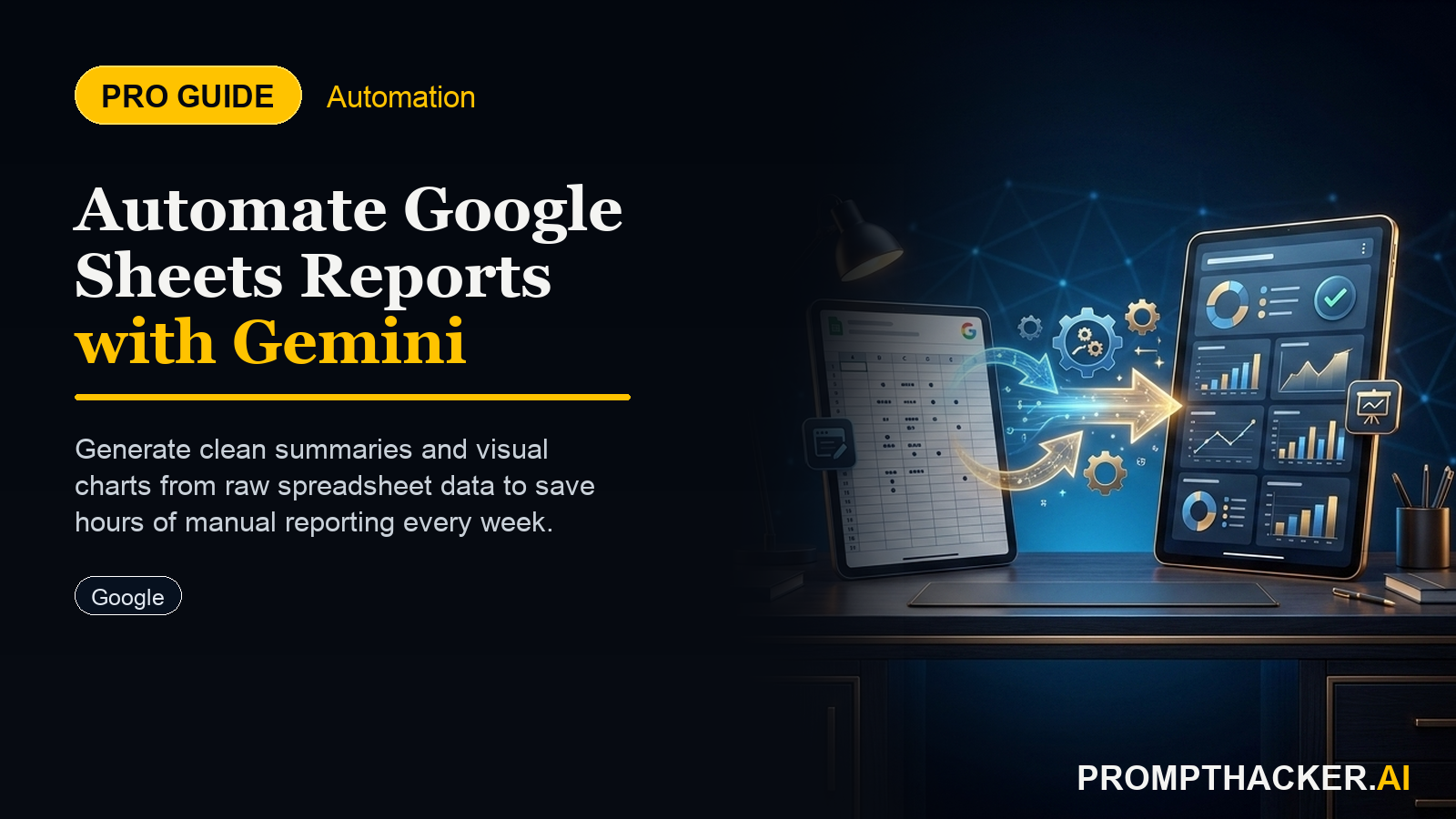
  • How to automate detailed reports and visualizations directly within Google Sheets using Gemini Advanced.
  • How to reclaim approximately 120 minutes weekly for strategic analysis and decision-making.
  • How to transform raw spreadsheet data into polished, presentation-ready insights with minimal effort.
  • How to refine AI-generated reports to meet specific executive presentation standards.

A finance executive at a rapidly expanding e-commerce firm spends every Tuesday morning consolidating sales data from various regions, manually creating pivot tables, and designing charts for the weekly executive briefing. This routine consumes nearly three hours, pulling focus away from critical strategic planning sessions and market analysis. The manual process is not only time-intensive but also prone to human error, requiring meticulous cross-referencing and validation before each presentation. This scenario is common across industries, where valuable executive time is absorbed by repetitive, data-heavy tasks.

The cost of this manual labor extends beyond just hours logged. Delayed insights, missed opportunities, and the mental overhead of repetitive tasks can hinder an organization's agility. When executives are bogged down in data mechanics, their capacity for high-level problem-solving and proactive strategy development diminishes. The opportunity cost of not automating these processes is significant, impacting everything from quarterly growth projections to competitive response times. Without a streamlined approach, organizations risk falling behind in a data-driven market.

This article details how Google Gemini Advanced now integrates directly with Google Sheets, offering a powerful solution to this pervasive challenge. Discover how this new capability automates the creation of detailed reports and visualizations, transforming raw data into presentation-ready insights with minimal effort. Executives can shift from data manipulators to strategic decision-makers, reclaiming significant time each week for higher-value activities. Learn the exact steps to implement this integration and free up your schedule for what truly matters.

The strategic value of an executive's time is immense. Every minute spent on manual data manipulation is a minute not dedicated to market analysis, team leadership, or innovative problem-solving. Google Gemini Advanced's new integration with Google Sheets directly addresses this by automating the most time-consuming aspects of data reporting. This update, released on August 28, 2025, enables executives to transform raw spreadsheet data into polished, presentation-ready reports and visualizations. The result is not just a faster report, but a fundamental shift in how executive time is utilized, allowing for more strategic analysis and decision-making.

Consider the impact on a marketing manager responsible for weekly performance dashboards. Before this integration, assembling these dashboards involved exporting data, cleaning it, building charts in presentation software, and then updating them manually each week. This entire process could easily consume two hours. With Gemini Advanced, that two-hour block can shrink to mere minutes, giving the marketing manager 120 minutes back for campaign optimization, competitive research, or team development. For finance executives and operations directors, the time savings are equally profound, allowing them to focus on forecasting, risk assessment, or process improvement.

This capability specifically eliminates the need for manual data manipulation and chart creation, which collectively account for a significant portion of reporting overhead. The direct integration means data remains within the Google ecosystem, maintaining security and accessibility. The process transforms routine reporting tasks, turning raw data into actionable insights without the need for specialized data science skills or complex programming.

Step 1: Access Gemini Advanced and Link Your Google Account

The foundation for automated reporting begins with ensuring your Google Gemini Advanced account is properly linked to your Google ecosystem. This linkage grants Gemini the necessary permissions to securely access and process data within your Google Sheets. Without this connection, Gemini cannot retrieve or interact with your spreadsheet files, rendering the automation capabilities inaccessible. This step is crucial for maintaining data integrity and ensuring that all operations are performed within a secure, authenticated environment.

To initiate this, navigate to the Gemini Advanced interface. Look for an option to connect or link your Google Account. This usually appears during the initial setup or can be found within the settings or preferences menu. Once prompted, authorize Gemini Advanced to access your Google Drive, which includes Google Sheets. This authorization is typically a one-time process, but it is vital to confirm the permissions granted align with your organizational security policies. Granting access ensures that Gemini can read the necessary spreadsheet data and, in some cases, create new sheets or modify existing ones to insert reports or visualizations.

For organizations with stringent data governance, it is important to understand the scope of permissions being granted. Gemini Advanced operates under the security protocols of your Google Account, meaning it inherits the same access rights you possess. This ensures that sensitive data remains protected and is only accessed by authorized AI models under your direct control. Failure to properly link your account or grant the correct permissions will result in Gemini being unable to locate or process your Google Sheets, leading to errors or incomplete reports. Always verify the connection status before proceeding with reporting tasks.

Step 2: Select a Google Sheet Containing Your Desired Data

Once Gemini Advanced is linked to your Google Account, the next step involves identifying and selecting the specific Google Sheet that contains the data you wish to analyze and report on. This selection process is intuitive, designed to allow executives to quickly point Gemini towards the relevant information without navigating complex directories. The clarity and organization of your source Google Sheet play a significant role in the quality and accuracy of the AI-generated reports.

Within the Gemini Advanced interface, you will typically find an option to "Upload" or "Connect to" a data source. When selecting Google Sheets, Gemini will present you with a list of your accessible Google Sheets files. You can usually search for specific sheet names or browse through your Drive. It is essential to select the correct sheet and, if applicable, the specific tab within that sheet where your raw data resides. For example, if you have a sheet named "Q3 Sales Data" with multiple tabs like "Raw Sales," "Marketing Spend," and "Regional Performance," ensure you direct Gemini to the "Raw Sales" tab if that is where the core data for your sales report is located.

Data quality and formatting within your chosen Google Sheet are paramount. Gemini Advanced performs best with structured data: clear column headers, consistent data types (numbers in number columns, dates in date columns), and no merged cells within the data range. If your data is messy or inconsistent, Gemini may struggle to interpret it accurately, leading to flawed reports. Before connecting, take a moment to ensure your sheet is well-organized, with each column representing a distinct data point. This preparatory step significantly enhances the AI's ability to generate precise and meaningful insights.

Step 3: Prompt Gemini to Generate a Specific Report

With your Google Sheet selected and data prepared, the core of automated reporting lies in crafting an effective prompt for Gemini. This prompt acts as your instruction, guiding the AI on what type of report to generate, what metrics to include, and how to visualize the information. The power of Gemini Advanced is its ability to understand natural language, allowing executives to describe their reporting needs in plain terms rather than requiring complex commands.

An effective prompt is clear, concise, and specific. It should include the desired report type, the key metrics or dimensions, and any specific comparisons or trends you want to highlight. For instance, instead of a vague "Give me a sales report," a more effective prompt would be:

EXAMPLE PROMPT

"Generate a quarterly sales performance report for Q3 2025 based on the 'SalesData_Q3_2025' tab in this Google Sheet. Compare regional performance for North America and Europe, identify the top 5 performing products by revenue, and visualize monthly revenue trends with a line chart. Include a summary of total revenue and average order value."

This prompt provides Gemini with all the necessary parameters to construct a relevant and detailed report. You can further refine your prompt to specify chart types (bar chart, pie chart, line graph), date ranges, or even specific filters (e.g., "only include sales from new customers"). The more precise your prompt, the more accurately Gemini can tailor the output to your executive briefing needs. Experiment with different prompt structures to discover what yields the most useful results for your specific reporting requirements.

Step 4: Review the Generated Report and Request Any Necessary Adjustments

After submitting your prompt, Gemini Advanced will process the data and present a draft report. This is a critical juncture where executive oversight ensures the AI's output aligns perfectly with your strategic objectives and presentation standards. The initial report serves as a strong foundation, but it is rare for a first draft, even from an AI, to be perfectly polished for immediate use. Reviewing the report for accuracy, completeness, and visual appeal is essential before distribution.

Carefully examine the generated tables, charts, and summary text. Check that all key metrics are present and calculated correctly. Verify that the visualizations clearly convey the intended message and are easy for an audience to understand. For example, if a bar chart for regional performance shows disproportionate scaling, you might need to ask Gemini to adjust the axis. If the summary highlights an irrelevant trend, you can prompt the AI to focus on a different aspect.

This iterative refinement process is one of the most powerful features of AI-powered reporting. You do not need to start over if the report is not perfect; you simply provide feedback to Gemini. Use prompts like: "Adjust the color palette of the regional comparison chart to use corporate branding colors," or "Add a brief explanation of the year-over-year growth for the top product," or "Reformat the revenue numbers to currency format." This conversational refinement allows you to quickly tailor the report to exact specifications, ensuring it is presentation-ready and meets the high standards expected in executive communications.

Step 5: Obtain a Polished Report and Relevant Charts for Immediate Use

Bottom line

The value of Gemini Sheets Automates Reporting: Save 2 Hours Weekly is repetition. Run it on one real task, save the version that works, and turn the result into a small weekly habit instead of another one-time AI experiment.

About the author

Pierre Bradshaw Founder, PromptHacker.ai

Pierre has spent 25+ years building growth systems across fintech, real estate, lending, campaigns, and AI workflows, with machine-learning work dating back to 2012.

If you have any questions or comments about Gemini Sheets Automates Reporting: Save 2 Hours Weekly feel free to reach out. I'd love to hear from you.

Contact Pierre
Free weekly briefing

Three deep dives. Four useful moves. One email worth opening.

PromptHacker turns the AI firehose into practical next steps for work, health, family, and everything time keeps trying to steal.