Google Gemini Deepens Workspace Integration for Document Creation
How to generate new documents and presentations directly within Google Workspace by referencing existing files.
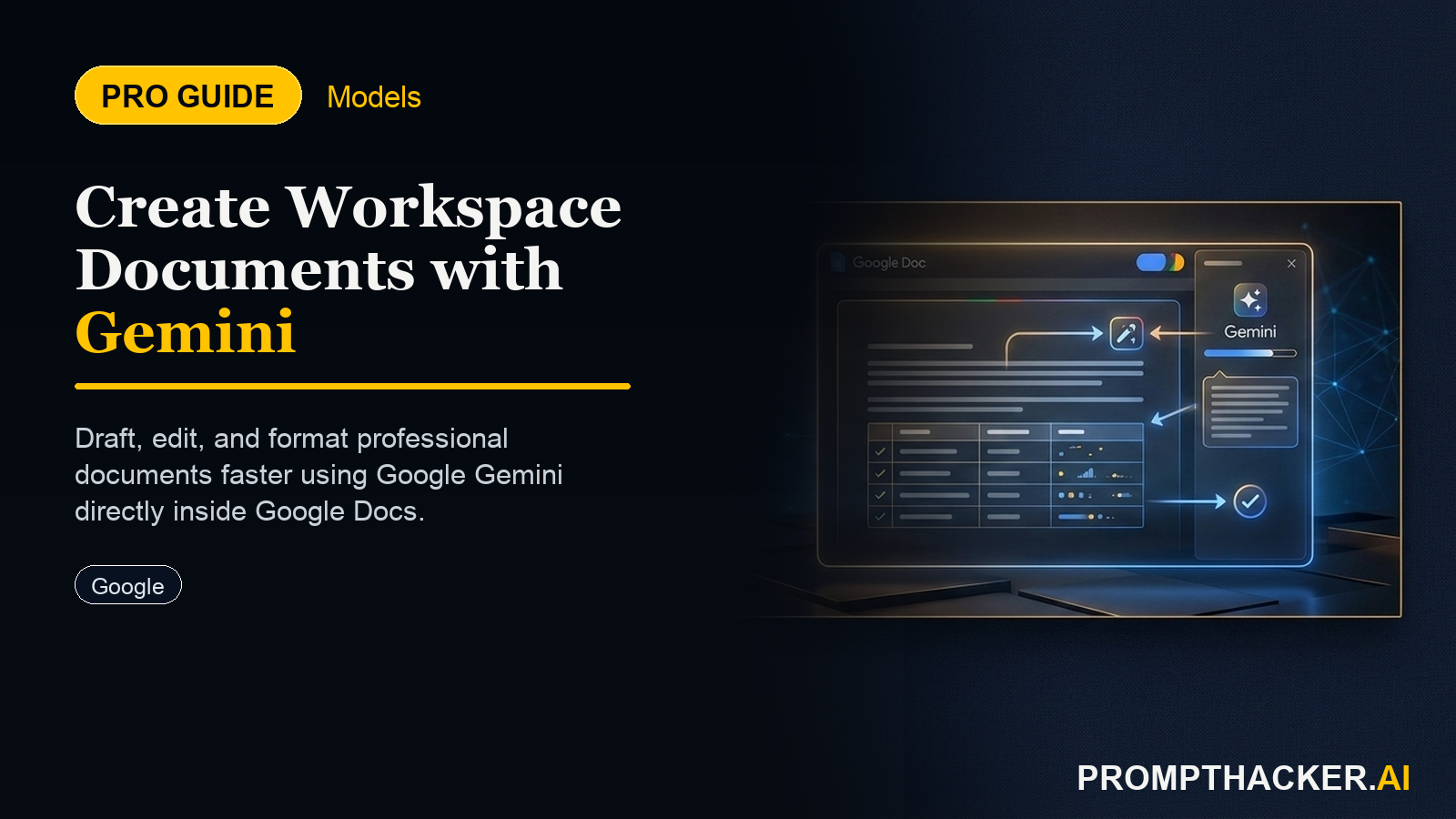
What matters today
How to generate new documents and presentations directly within Google Workspace by referencing existing files.
Article roadmap
What you will learn
-
How to generate new documents and presentations directly within Google Workspace by referencing existing files.
-
How to synthesize information from various Google Docs, Sheets, and Slides to create coherent summaries and analyses.
-
How to reduce context switching and manual data compilation, saving 75 minutes weekly on content creation tasks.
-
How to refine Gemini's output for accuracy and completeness, ensuring executive-ready documents.
A marketing director at a rapidly growing SaaS startup faces a recurring challenge. Weekly, the director must compile performance reports, executive summaries, and presentation decks, drawing data from campaign spreadsheets, previous strategy documents, and sales forecasts--all scattered across Google Drive. This process involves hours of opening multiple tabs, copying and pasting figures, rewriting key takeaways, and ensuring consistency across different formats. The manual effort not only consumes valuable time but also introduces the risk of errors, delaying critical decision-making.
Failure to streamline this content creation process leads to bottlenecks, delayed reporting, and missed opportunities for timely strategic adjustments. Executives remain reliant on outdated or manually compiled information, hindering their ability to react quickly to market changes or internal performance shifts. The cost is measured in lost productivity and compromised strategic agility. This article outlines how Google Gemini's deeper integration with Google Workspace provides a direct solution, enabling executives and their teams to generate new content, summaries, and analyses with unprecedented efficiency.
Google Gemini's latest update significantly enhances its capabilities within Google Workspace applications, specifically Google Docs and Google Slides. This integration allows Gemini to directly access, interpret, and synthesize information from existing documents, spreadsheets, and presentations. The result is a streamlined workflow that eliminates the need for manual copy-pasting and constant context switching, freeing up 75 minutes per week for marketing, sales, and operations teams. This efficiency gain translates into faster report generation, quicker presentation development, and more agile decision-making for executive teams.
The core benefit lies in Gemini's ability to act as an intelligent assistant embedded directly within your content creation environment. Instead of manually extracting data points from a Google Sheet to write a report in Google Docs, or synthesizing insights from multiple Docs to build a presentation in Google Slides, Gemini performs these actions for you. This feature ensures that critical business intelligence is not only accessible but also actionable, accelerating the production of executive-ready materials.
Consider a sales operations executive tasked with creating a quarterly business review (QBR) presentation. Previously, this involved pulling sales figures from a Google Sheet, client feedback from various Google Docs, and market trends from a shared Google Slide deck. Each piece of information required careful review and manual integration into the new QBR presentation. With Gemini's enhanced integration, the executive can now prompt Gemini within Google Slides to synthesize this disparate information into a cohesive narrative, complete with relevant data points and strategic recommendations. This reduces compilation time from hours to minutes.
Streamlining Document Creation with Gemini and Google Docs
The process begins directly within your Google Workspace application. For generating a comprehensive report, start with Google Docs. This approach maintains a single, integrated environment for content creation, from initial prompt to final draft.
Step 1: Initiate Document Creation in Google Docs
Open a new or existing document in Google Docs. The integration is designed to work seamlessly whether you are starting fresh or adding content to an ongoing project. For a new report, simply open a blank document. If you are updating an existing strategy document, navigate to that file. This step establishes the foundation for Gemini's content generation. Activating Gemini within Docs is typically done through a dedicated icon or menu option, making it readily available whenever content assistance is required.
Step 2: Activate Gemini and Provide Contextual Prompt
Once your document is open, activate Gemini within the application interface. This usually involves clicking a Gemini icon or selecting a "Help me write" option. The crucial next step involves crafting a prompt that clearly defines your content objective and context.
"Using the data from [Spreadsheet Name] and the strategy notes in [Doc Name], draft a 500-word executive summary for the Q3 performance report. Focus on year-over-year growth and highlight three key areas for improvement."
Unlock Advanced AI Workflows
Get exclusive access to our prompt library and deep-dive strategy guides.
Three deep dives. Four useful moves. One email worth opening.
PromptHacker turns the AI firehose into practical next steps for work, health, family, and everything time keeps trying to steal.