Grok Now Plugs Into Your Work Apps: SharePoint, Outlook, Notion, and More in One Chat
The frustrating part of most AI assistants has never been the answer. It is the gathering. You copy the ticket out of Linear, paste the email thread from Outlook, dig the spec out of Notion, and only then can you ask your question. By the time the context is assembled, you could have answered it yourself.
What matters today
The frustrating part of most AI assistants has never been the answer. It is the gathering. You copy the ticket out of Linear, paste the email thread from Outlook, dig the spec out of Notion, and only then can you ask your question.
Article roadmap
What you will learn
-
Which apps Grok now connects to and what the MCP option adds
-
Why a cross-app question beats copy-pasting between tabs
-
The two connectors worth turning on first
-
Three prompts that only work once your tools are connected
-
The access and privacy questions to settle before you switch it on
The frustrating part of most AI assistants has never been the answer. It is the gathering. You copy the ticket out of Linear, paste the email thread from Outlook, dig the spec out of Notion, and only then can you ask your question. By the time the context is assembled, you could have answered it yourself.
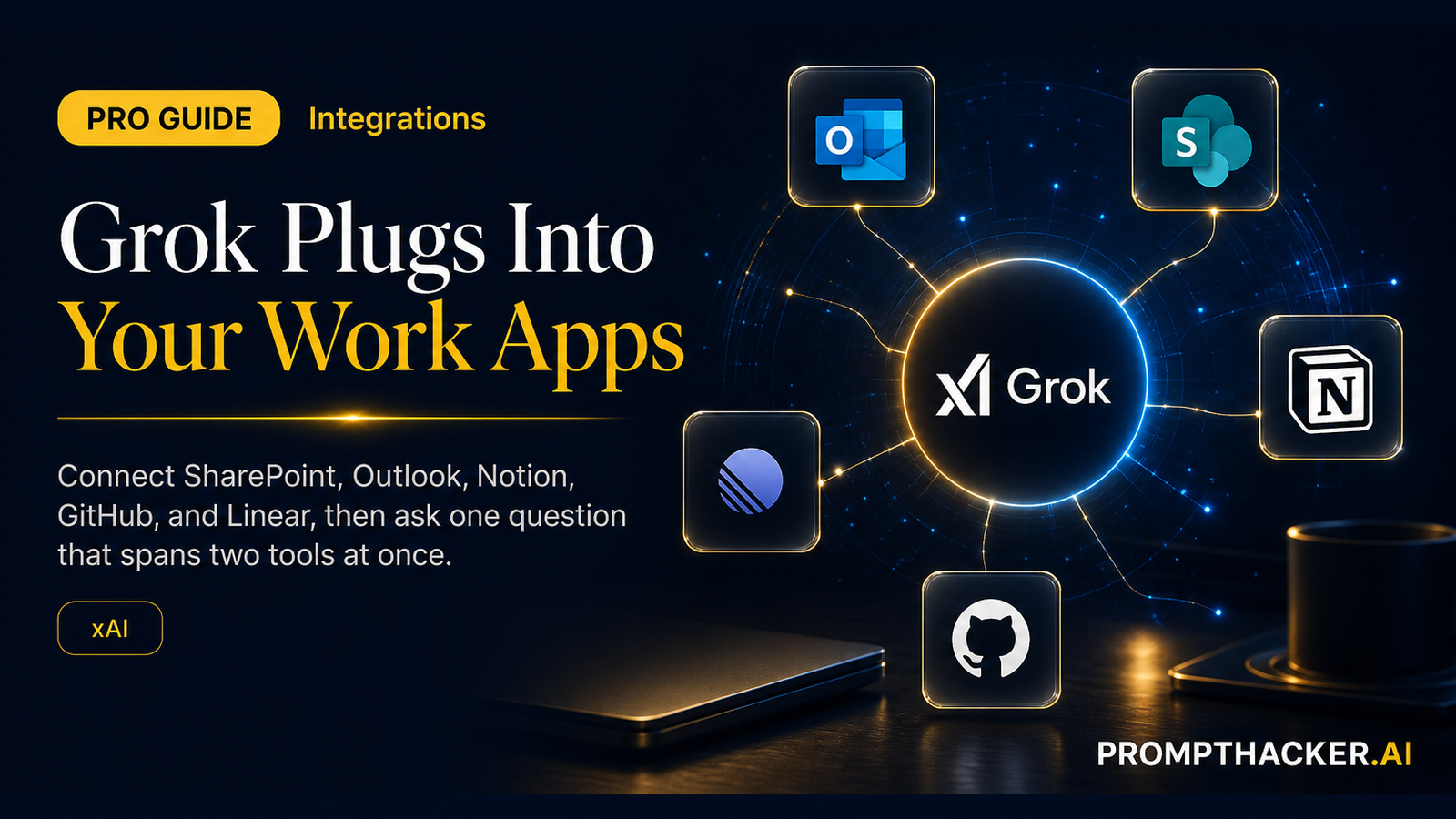
On June 4, xAI closed that gap for Grok. Connectors in Grok Web now reach into SharePoint, Outlook, OneDrive, Google Workspace, Notion, GitHub, and Linear, and a bring-your-own MCP server option lets you wire up anything those defaults miss. Once connected, Grok reads across those tools inside a single chat, so the gathering step disappears.
This is the same pattern the other major assistants are racing toward, and it changes what a good prompt looks like. The win is no longer a clever phrasing. It is a question that spans two systems at once. Here is how to set that up and what to ask.
This is a PromptHacker Premium deep dive.
The two connectors to start with, three cross-app prompts, and the access checklist are below.
What Connected and What MCP Adds
The built-in connectors cover the apps most knowledge teams use every day: Microsoft's SharePoint, Outlook, and OneDrive, the Google Workspace suite, Notion for docs, and GitHub and Linear for engineering work. The bring-your-own MCP option matters for everyone else. MCP, the Model Context Protocol, is an open standard that lets a tool expose its data to an assistant in a structured way. If your CRM, data warehouse, or internal wiki has an MCP server, you can point Grok at it and treat it like a first-class connector.
Plain-English takeaway: the value is not any single connector. It is asking one question that reaches two of them at the same time.
The Two Connectors to Turn On First
Do not connect everything on day one. Pick the two tools where your work actually lives and where the context is usually split between them. For most executives that is email plus their project tracker, Outlook with Linear or Notion. That pairing covers the most common gap: the decision is in an email, the work item is in the tracker, and nothing connects them automatically. Add more connectors only after the first cross-app answer proves useful.
Three Prompts That Only Work Once Connected
1. The status reconciliation
"List my open Linear issues for this sprint, and for each one pull the most recent related Outlook thread so I can see whether the latest decision matches the ticket." This is the gather-and-compare task that used to take twenty minutes of tab switching.
2. The meeting prep
"For my 2pm with the vendor, summarize our last three email exchanges from Outlook and the relevant Notion page, then give me five questions I should walk in with." Context from two sources, one short brief.
3. The loose-ends sweep
"Find anything in Outlook or Notion from the past week where someone is waiting on me and I have not replied or updated the doc." A standing Friday prompt that catches the things that slip.
Settle the Access Questions First
Connecting an assistant to your work tools means it can read what you can read. Before you switch on a connector in a shared or company account, confirm three things: that your IT or admin policy permits it, that the connector is scoped to your access and not someone else's, and that anything genuinely sensitive lives somewhere you have not connected. Start with your own accounts, prove the value, then make the case to your admin for a broader rollout.
Action Steps Summary
- Open Connectors in Grok Web. Review the available integrations and the MCP option.
- Connect just two tools. Your email plus your project tracker is the highest-value pair.
- Run one cross-app prompt. Start with the status reconciliation above.
- Save the prompt that works. Reuse it weekly rather than rebuilding it each time.
- Clear it with your admin before scaling. Confirm policy and scope before connecting company tools.
Three deep dives. Four useful moves. One email worth opening.
PromptHacker turns the AI firehose into practical next steps for work, health, family, and everything time keeps trying to steal.