Microsoft Copilot for Microsoft 365 Enhances Excel and Teams Functionality
Automate complex data analysis in Excel using natural language prompts, saving hours on report generation.
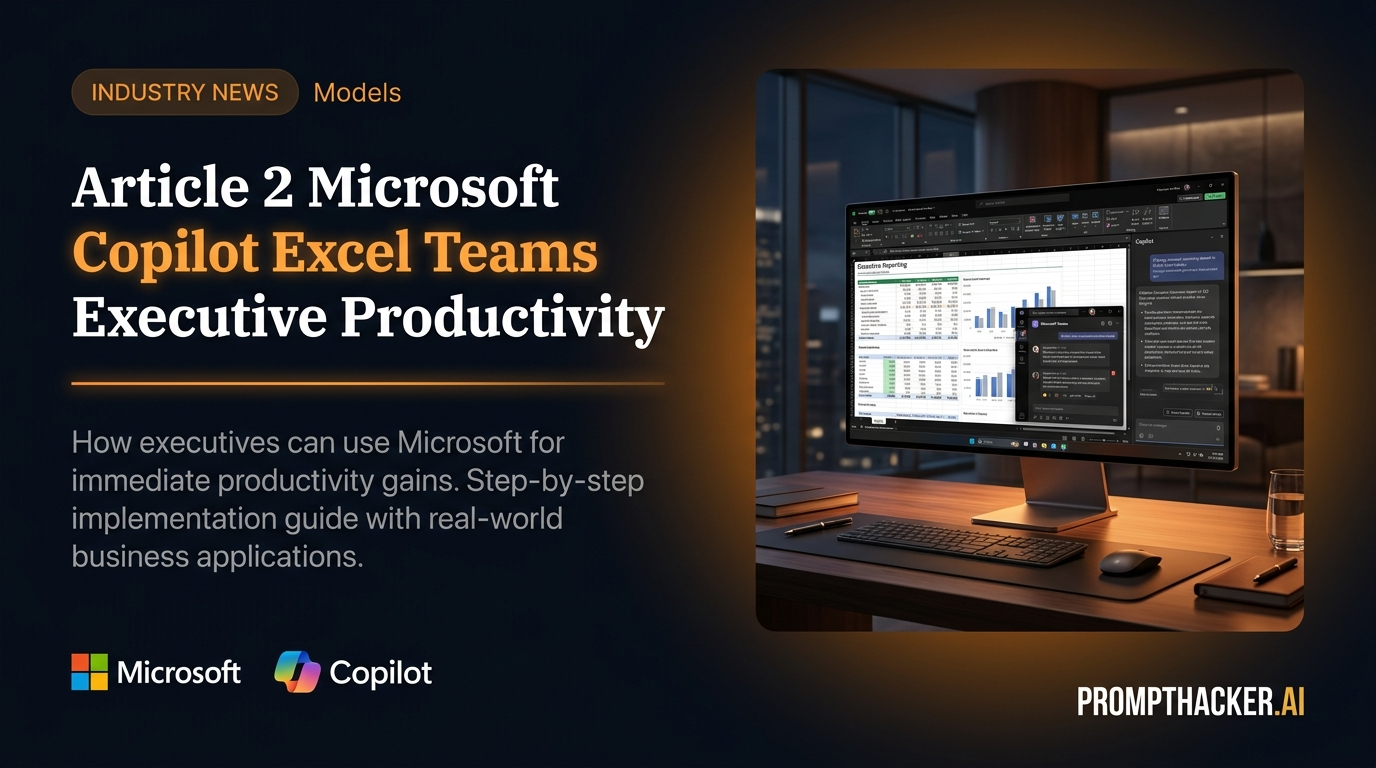
What matters today
Automate complex data analysis in Excel using natural language prompts, saving hours on report generation.
Article roadmap
What you will learn
-
Automate complex data analysis in Excel using natural language prompts, saving hours on report generation.
-
Generate accurate meeting summaries and identify actionable items in Microsoft Teams, streamlining follow-ups.
-
Integrate Copilot's new capabilities into daily workflows for significant time savings in financial analysis and project management.
-
Understand specific prompts to leverage Copilot effectively for data interpretation and communication.
-
Troubleshoot common issues when using Copilot for Microsoft 365 in Excel and Teams.
The Head of Finance at a mid-sized consulting firm faces a recurring challenge: every quarter, the team spends a full week manually compiling and analyzing financial performance data from various spreadsheets. This involves cross-referencing figures, identifying trends, and drafting explanatory notes. The process is prone to human error and diverts valuable resources from strategic planning. Without a more efficient approach, the firm risks delayed insights and missed opportunities to adapt to market shifts.
This manual effort directly impacts the firm's agility, leading to slower decision-making and increased operational costs. The time spent on data crunching could instead be used for client acquisition, market forecasting, or developing new service offerings. The current method creates a bottleneck, preventing the finance team from providing proactive, real-time insights to the executive leadership.
This article details how Microsoft Copilot for Microsoft 365 can eliminate these inefficiencies. It explores new enhancements in Excel and Teams, providing a step-by-step guide to leveraging these features. Executives will discover how to automate data analysis, generate precise meeting summaries, and reclaim valuable time for strategic initiatives.
On April 2, Microsoft announced significant enhancements to Copilot for Microsoft 365, focusing on Excel and Teams. Copilot in Excel now offers more advanced data analysis capabilities, including formula generation and insights extraction. In Teams, Copilot provides improved meeting summaries, identifying action items and key discussion points with greater accuracy. These updates directly boost productivity in core business applications, automating data analysis and meeting management.
Automating Data Analysis in Excel
For many executives, Excel remains a critical tool for financial modeling, sales forecasting, and operational reporting. The traditional process of building complex formulas, creating pivot tables, and extracting meaningful insights can be time-consuming and requires specialized knowledge. Copilot's enhancements simplify this by allowing users to interact with data using natural language.
Consider a Project Manager overseeing multiple projects, each with its own budget spreadsheet. Previously, consolidating budget overruns and identifying spending patterns across projects required meticulous manual effort and formula creation. With Copilot, this process becomes conversational.
Step-by-Step: Leveraging Copilot for Excel Data Analysis
- Ensure Your Microsoft 365 Copilot Subscription is Active: Before using the new features, confirm that your organization has an active Copilot for Microsoft 365 subscription. This is a prerequisite for accessing Copilot's enhanced capabilities within Excel.
- Open Microsoft Excel with Your Dataset: Navigate to the Excel file containing the data you wish to analyze. For instance, open a quarterly sales report, a project budget tracker, or a financial statement. Copilot works best with well-structured data in tables.
- Access Copilot Within Excel: The Copilot icon is typically located in the ribbon or sidebar within Excel. Click on it to open the Copilot pane. This pane is your direct interface for interacting with the AI.
- Prompting for Data Analysis: Formula Generation: Instead of remembering complex Excel functions, describe what you want to achieve. Prompt Example "Calculate the average sales per region for the last quarter." Copilot Action: Copilot will suggest the appropriate formula, such as `=AVERAGEIF(B:B,"Q1",C:C)` (assuming regions are in column B and sales in column C), and can even apply it to your data.
- Insights Extraction: Ask Copilot to identify trends, outliers, or key performance indicators. Prompt Example "Identify the top 5 performing products by revenue in Q4." Copilot Action: Copilot will analyze your sales data, sort by revenue, and highlight the top 5 products, potentially even generating a mini-report or chart.
- Scenario Planning: Use Copilot to explore "what-if" scenarios. Prompt Example "If sales increase by 10% next quarter, what would be the projected revenue?" Copilot Action: Copilot can adjust your existing data or create a new column with projected figures based on your input.
Why it works:
Copilot understands natural language, translating your requests into Excel actions. This eliminates the need to recall specific functions or navigate complex menus, drastically reducing the time spent on data manipulation.
What can go wrong and how to fix it:
Issue: Copilot misinterprets your request. Fix: Be more specific. Break down complex requests into smaller, simpler prompts. Ensure your data is clearly labeled.
Issue: Copilot generates an incorrect formula. Fix: Review the generated formula carefully. If incorrect, explain the desired outcome in more detail or provide an example of the correct calculation.
Enhancing Meeting Management in Microsoft Teams
Meetings are often productivity sinks, with time spent on note-taking and deciphering action items. The improved Copilot in Teams addresses this by providing more accurate and actionable summaries, allowing executives to focus on discussion rather than documentation.
Imagine a Department Head who attends multiple strategy meetings daily. Manually synthesizing notes, identifying decisions, and assigning follow-ups for each meeting is a significant burden. Copilot's enhancements turn this into an automated process.
Step-by-Step: Leveraging Copilot for Teams Meeting Summaries
- Join a Microsoft Teams Meeting: Start or join any scheduled Teams meeting.
- Ensure Copilot is Enabled for Transcription and Summary: During the meeting, look for the Copilot icon or "AI Companion" button in the Teams meeting toolbar.
- Click on it and ensure "Start Meeting Summary" or "Start Transcription" is active. This allows Copilot to process the meeting's audio and dialogue.
- Note: Ensure your organization's IT policies permit transcription and AI summaries. Attendees will be notified when recording or transcription begins.
- Engage in the Meeting as Usual: Participate in the discussion. Copilot works in the background, listening and processing.
- Review the Automatically Generated Meeting Summary: After the meeting concludes, access the summary. It is typically available in the meeting chat, the "Meetings" tab in your Teams calendar, or through a notification.
- Summary Content: The enhanced Copilot provides a concise overview of key topics discussed, major decisions made, and, crucially, a list of identified action items with potential owners.
- Prompt Example (within the summary interface): Prompt Example "Summarize only the decisions made in the last 15 minutes." or "List all action items assigned to the marketing team." Copilot Action: Copilot will dynamically filter and present the requested information from the full transcript and summary.
Why it works:
Copilot's improved AI models are better at distinguishing between general discussion and concrete decisions or action items. This leads to more precise summaries that require less human editing.
What can go wrong and how to fix it:
Issue: Summary is too generic or misses key points. Fix: Encourage clear articulation during the meeting. Speakers should state decisions and action items explicitly. After the meeting, you can prompt Copilot with specific questions to refine the summary.
Issue: Action items are not accurately assigned. Fix: During the meeting, explicitly state who is responsible for each action item. Example: "John will follow up on the client proposal by Friday." Copilot is more likely to capture this direct assignment.
Issue: Privacy concerns or transcription errors. Fix: Always review the summary before sharing. Correct any inaccuracies. Be mindful of meeting participants' comfort with transcription.
These Copilot updates directly boost productivity in core business applications, automating data analysis and meeting management. By eliminating manual effort in data interpretation and meeting follow-ups, executives can reclaim an estimated 90 minutes per week. This time can be redirected towards strategic thinking, innovation, and direct engagement with key stakeholders. The value lies not just in saving time, but in enabling a shift from reactive administrative tasks to proactive leadership.
Action Steps Summary
- Verify Copilot Subscription: Confirm your organization's Copilot for Microsoft 365 subscription is active to access all features. Ensure your IT department has enabled Copilot for your user account and within Microsoft Excel and Teams applications. This foundational step is critical for successful integration.
- Utilize Copilot in Excel for Data Analysis: Open Excel with your dataset, then use the Copilot pane to ask natural language questions for formula generation, trend identification, and "what-if" scenario planning. Experiment with specific prompts to automate tasks like calculating averages, identifying top performers, or projecting future figures, reducing manual data manipulation.
- Leverage Copilot in Teams for Meeting Summaries: During Microsoft Teams meetings, activate Copilot for transcription and summary generation. After the meeting, review the AI-generated summary for key discussion points, decisions, and action items, then share with attendees to streamline follow-up tasks.
Also in This Biweekly Issue
-> ChatGPT Memory Feature: Personalized AI Interactions
-> Anthropic Claude 3 Haiku: Fast, Cost-Effective AI
-> Productivity Gem: Automated Zoom Meeting Summaries
Get the full breakdown every two weeks
PromptHacker Premium delivers 5 deep-dive articles, exact prompts, and step-by-step workflows every two weeks.
Three deep dives. Four useful moves. One email worth opening.
PromptHacker turns the AI firehose into practical next steps for work, health, family, and everything time keeps trying to steal.