Microsoft Copilot Integrates with Microsoft 365 Chat for Unified AI
Strategies for asking Copilot effective questions to retrieve cross-application information.
What matters today
Strategies for asking Copilot effective questions to retrieve cross-application information.
Article roadmap
What you will learn
-
How to access and use the unified Microsoft 365 Copilot Chat.
-
Strategies for asking Copilot effective questions to retrieve cross-application information.
-
How to leverage Copilot to summarize emails, meetings, and documents efficiently.
-
Methods to accelerate decision-making by consolidating insights from your Microsoft 365 data.
-
Ways to improve meeting preparation by quickly gathering relevant context.
A department head at a rapidly growing SaaS company faces a common challenge: preparing for an executive strategy meeting. They need to understand the latest project updates from Teams chats, review recent sales performance detailed in Excel reports, and recall key decisions from past Outlook emails. Traditionally, this involves opening multiple applications, searching through countless threads and documents, and manually synthesizing the information. This fragmented approach consumes valuable time, often leading to rushed preparations and potentially overlooked critical details.
The stakes are high. Incomplete or delayed information can lead to suboptimal strategic decisions, missed opportunities, and a perceived lack of preparedness. The time spent on information gathering distracts from higher-value tasks, hindering productivity and impacting overall business agility. Without a unified way to access and process this data, executives risk falling behind in a fast-paced market where timely, informed decisions are paramount.
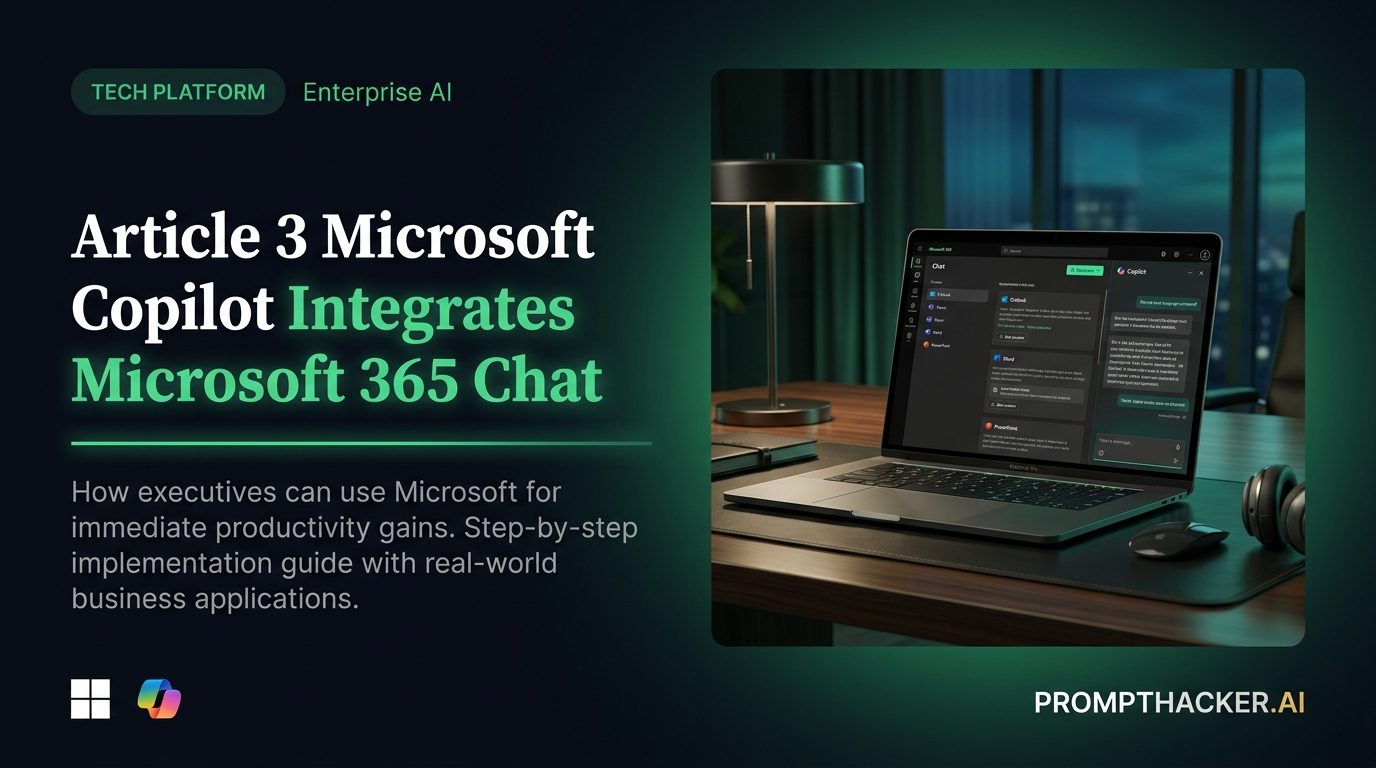
This article details how Microsoft Copilot's deeper integration with Microsoft 365 Chat creates a single AI assistant experience. This powerful unification allows Copilot to access and synthesize information across your entire Microsoft 365 ecosystem. You will learn how to leverage this feature to quickly gather context, summarize communications, and prepare for critical meetings, saving significant time and enhancing the quality of your decision-making.
The integration of Microsoft Copilot within Microsoft 365 Chat transforms how executives interact with their data. Instead of navigating between Outlook, Teams, Word, and other applications, you can now pose questions directly to Copilot in a single chat interface. Copilot then intelligently pulls relevant information from across your entire Microsoft 365 environment, presenting it in a consolidated and actionable format. This functionality is a game-changer for anyone who spends significant time gathering context, preparing for meetings, or making data-driven decisions.
Understanding the Unified Copilot Experience
The core benefit of this integration lies in Copilot's ability to act as a central hub for your organizational knowledge within Microsoft 365. It moves beyond simple document summarization or email drafting. Now, Copilot can understand the relationships between different pieces of information across your applications. For example, it can connect a decision made in a Teams meeting to an action item assigned in an Outlook email, and then link that to a progress report stored in SharePoint. This comprehensive understanding allows it to provide more nuanced and complete answers to your queries.
Consider a sales leader preparing for a quarterly review. They need to know the status of all active deals, recent customer feedback, and any outstanding follow-ups. Before this integration, they would jump between CRM data, Teams conversations with their sales team, and customer support emails. Now, they can ask Copilot in Microsoft 365 Chat, "Summarize the status of our top 5 enterprise deals and highlight any critical customer feedback from the last week." Copilot processes this request by accessing relevant data from all connected Microsoft 365 applications, delivering a concise summary directly in the chat.
Activating and Accessing Microsoft 365 Copilot Chat
Accessing this powerful feature requires an active Microsoft 365 Copilot subscription for your organization. Once subscribed, the Copilot chat interface becomes available within Microsoft Teams.
- Ensure Subscription and Licensing: Confirm that your organization has an active Microsoft 365 Copilot subscription and that your user account is properly licensed. Your IT administrator can provide this information. Without the correct licensing, the Copilot chat functionality will not appear.
- Open Microsoft Teams: Launch the Microsoft Teams application on your desktop or through a web browser. Teams serves as the primary gateway for interacting with the unified Copilot experience.
- Navigate to the "Chat" Section: In the left-hand navigation pane of Teams, click on the "Chat" icon. This section typically displays your recent individual and group chats.
- Locate and Select the "Copilot" Chat: Within your chat list, you will find a dedicated "Copilot" chat. This chat acts as your personal AI assistant, ready to receive your queries. If you do not see it immediately, you might need to use the search bar at the top of Teams to find "Copilot."
- Begin Your Interaction: Once you have selected the Copilot chat, you can start typing your questions or commands into the message box. Copilot will then begin processing your request, drawing information from across your Microsoft 365 environment.
Strategies for Effective Querying
The effectiveness of Copilot Chat largely depends on how you phrase your questions. To get the most comprehensive and accurate responses, consider these strategies:
- Be Specific with Your Intent: Clearly state what you want to achieve. Instead of "Tell me about Project Alpha," try "Summarize the key progress updates for Project Alpha from the last two weeks, including any identified blockers."
- Specify Data Sources (if known): If you know certain information resides in a particular application, you can guide Copilot. For example, "Find all unread emails from John Doe regarding the Q4 budget proposal in Outlook." While Copilot is designed to search broadly, providing hints can sometimes refine results faster.
- Define Timeframes: Always include relevant date ranges to narrow down the search. "What were the main discussion points from yesterday's sales meeting?" is more effective than "Summarize sales meetings."
- Request Specific Output Formats: Ask for bullet points, summaries, or lists to get information presented in a digestible way. "List the action items from the last executive board meeting in bullet points, including who is responsible for each."
- Iterate and Refine: If the initial response is not exactly what you need, follow up with clarifying questions. Copilot maintains context within the conversation, allowing for a natural, iterative process. For instance, after a summary, you might ask, "Can you elaborate on the budget implications mentioned?"
Worked Example: Preparing for a Board Meeting
Let's walk through a scenario where an executive needs to prepare for an upcoming board meeting, requiring information from various Microsoft 365 sources.
Scenario: A CTO needs to provide an update on the progress of a critical software development project, "Project Phoenix," for the upcoming board meeting. This requires consolidating information from recent Teams discussions, project documentation in SharePoint, and relevant email communications.
Executive Action Steps in Microsoft 365 Copilot Chat:
- Initial Query for Project Overview: Prompt "Summarize the current status of Project Phoenix, including major milestones achieved and any critical challenges encountered in the last month." Copilot's Action Copilot searches Teams channels related to Project Phoenix, project documents in SharePoint (e.g., project plans, status reports), and relevant email threads. Expected Output A consolidated summary detailing the latest progress, recent sprint completions, and any significant technical hurdles or resource constraints identified through team discussions or formal reports.
- Drilling Down on Specific Issues: Prompt "Are there any open risks or blockers for Project Phoenix mentioned in recent Teams chats or emails from the development lead, Sarah Chen?" Copilot's Action Copilot specifically filters Teams chats and emails for mentions of risks, blockers, or issues related to Project Phoenix, especially from Sarah Chen. Expected Output A list of identified risks, their potential impact, and any mitigation strategies currently in place or proposed, extracted directly from communications.
- Retrieving Key Decisions: Prompt "What were the key decisions made in the Project Phoenix weekly sync meetings over the past two weeks? Focus on decisions related to scope changes or resource allocation." Copilot's Action Copilot accesses meeting transcripts or summaries from the Project Phoenix weekly syncs, looking for explicit decisions tagged with scope or resource changes. Expected Output A bulleted list of key decisions, the date they were made, and potentially the individuals involved or affected.
- Consolidating for Presentation: Prompt "Based on the information gathered, draft a concise executive summary for the board meeting focusing on Project Phoenix's progress, current risks, and strategic next steps. Keep it to three paragraphs." Copilot's Action Copilot synthesizes all the previously retrieved information into a structured summary, adhering to the requested length and focus. Expected Output A three-paragraph executive summary ready for inclusion in the board presentation, providing a high-level overview of the project's health and future direction.
This multi-step interaction demonstrates how Copilot Chat acts as a powerful information broker, enabling executives to rapidly gather and synthesize complex data that would otherwise take hours of manual effort. The ability to iterate and refine queries within the same chat conversation further enhances efficiency, allowing for a dynamic and responsive information retrieval process.
Addressing Potential Challenges and Limitations
While Microsoft 365 Copilot Chat offers significant advantages, executives should be aware of potential challenges:
- Information Overload: If the underlying data is vast and unstructured, Copilot might still return a large volume of information. Refine your prompts to be as specific as possible to mitigate this.
- Access Permissions: Copilot respects existing Microsoft 365 access permissions. It will only retrieve information that your user account is authorized to view. If you are missing information, ensure you have the necessary permissions.
- Contextual Nuance: While powerful, AI can sometimes miss subtle human nuances or implied meanings. Always review critical information for accuracy and full context, especially when making high-stakes decisions.
- Prompt Engineering Learning Curve: Getting the best results requires learning how to ask effective questions. Experiment with different phrasings and follow-up questions to understand Copilot's capabilities better.
- Reliance on Data Quality: Copilot's outputs are only as good as the data it accesses. If your organization's documents, emails, and chats are poorly organized or contain outdated information, Copilot's responses will reflect these inconsistencies.
By understanding these points, executives can maximize the benefits of Copilot Chat while maintaining a critical eye on the information provided.
Action Steps Summary
- Verify Copilot Subscription and Access: Ensure your organization has an active Microsoft 365 Copilot subscription and that your user account is properly licensed to access the feature within Microsoft Teams.
- Access Copilot Chat in Teams: Open Microsoft Teams, navigate to the "Chat" section, and locate the dedicated "Copilot" chat. This is your central interface for interacting with the unified AI assistant.
- Formulate Targeted Queries: Begin asking Copilot questions that require information from across your Microsoft 365 environment. Be specific with your intent, define timeframes, and request particular output formats for optimal results.
- Review and Refine Outputs: Critically review the consolidated information provided by Copilot. If the initial response is not fully satisfactory, iterate with follow-up questions to refine the results and gather more precise insights.
- Leverage for Key Tasks: Integrate Copilot Chat into your daily workflow for tasks such as summarizing unread emails, gathering context for meetings, understanding project statuses, and preparing comprehensive reports. This accelerates decision-making and enhances preparedness.
Also in This Biweekly Issue
-> ChatGPT Memory Feature Reduces Repetitive Instructions
-> Google Launches Gemini Advanced with Ultra 1.0 Model
-> Draft Comprehensive Executive Summaries with This AI Prompt
Get the full breakdown every two weeks
PromptHacker Premium delivers 5 deep-dive articles, exact prompts, and step-by-step workflows every two weeks.
Three deep dives. Four useful moves. One email worth opening.
PromptHacker turns the AI firehose into practical next steps for work, health, family, and everything time keeps trying to steal.