PH PROMPTHACKER.AI

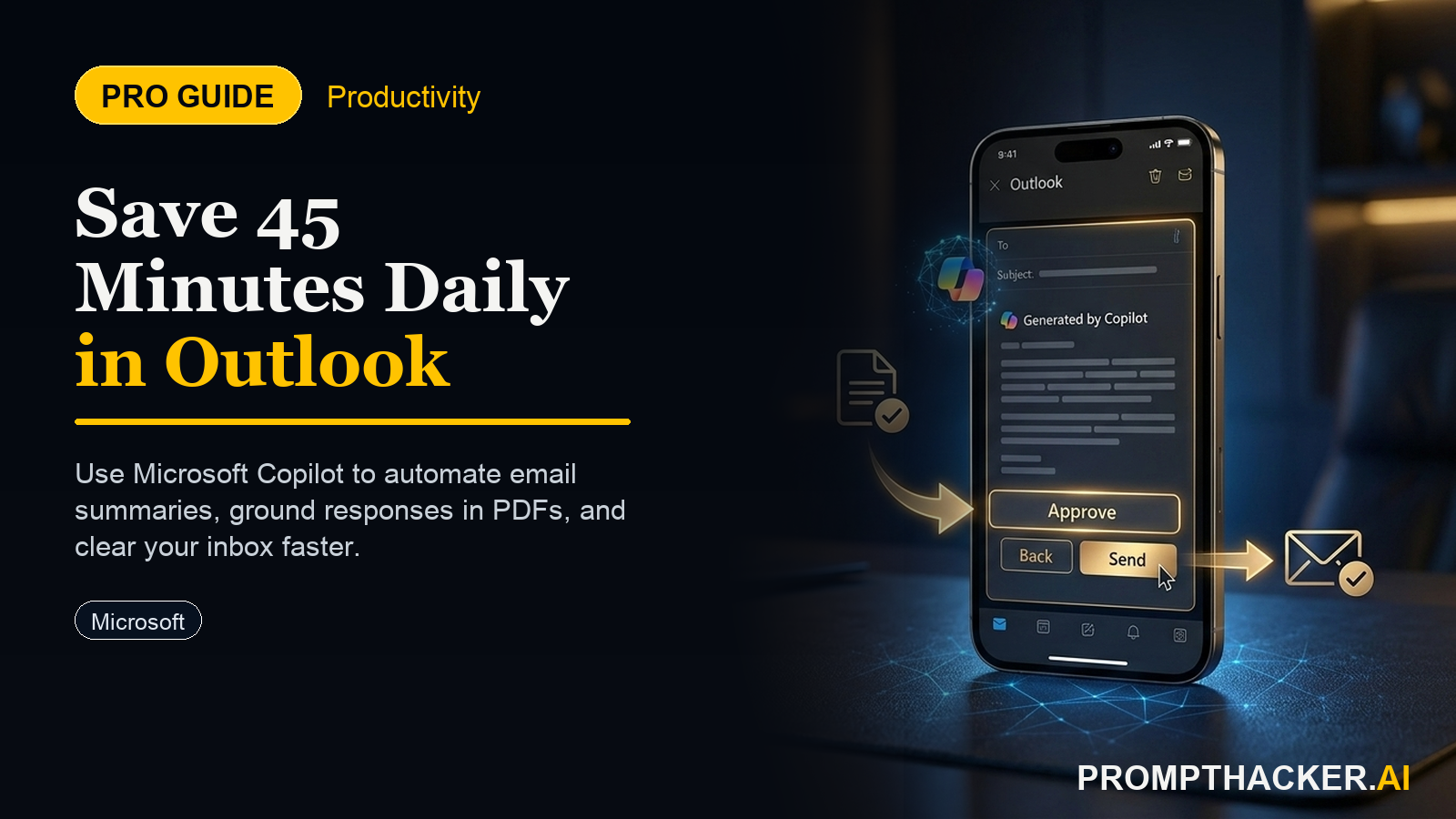
Microsoft Copilot's Outlook Upgrade: Get 45 Minutes Back From Your Inbox Daily

Use Copilot's new email and PDF grounding to turn chaotic threads and attachments into clear decision briefs in under five minutes.

May 13, 2026 7 min read
microsoft copilot outlook pdf grounding
Quick Scan

What matters today

Use Copilot's new email and PDF grounding to turn chaotic threads and attachments into clear decision briefs in under five minutes.

Format TOP UPDATE
Audience Executives using AI at work
Time 7 min read
Topic Microsoft

Key points

  • Grounding Copilot in Outlook Without Leaving Your Inbox
  • From Thread to Decision Brief in 90 Seconds
  • Analyze PDF Contracts Before Legal Sees Them
  • Choosing Your Engine: GPT-5.5 Instant vs. Thinking
  • Second Scenario: The Monday Operations Brief

What you'll learn in this article:

  • How to instantly ground Copilot in any Outlook email thread without copy-pasting.
  • The prompt to turn a 30-message thread into a 200-word decision brief.
  • How to analyze PDF contracts directly within Copilot before a formal legal review.
  • When to use the new GPT-5.5 Instant versus GPT-5.5 Thinking models for speed or depth.
  • A second workflow for turning a week of status updates into a Monday morning action list.

Maria, a regional sales director, lives in Microsoft Outlook. It is 2:30 p.m. and she is staring at a 30-message email thread negotiating a new vendor contract. The final PDF agreement is attached to the latest message. Her call to give a final "yes" or "no" is at 4:00 p.m. and she is nowhere near ready.

Her current process is a frantic, manual scramble. She copies key paragraphs from the vendor emails and pastes them into a separate AI chat window. She downloads the PDF, opens another tool, and pastes clauses from the contract, trying to get a quick sense of the risks. She is losing time to clicks, context switching, and the nagging fear she missed a critical detail buried on message 17.

This disjointed workflow is common for executives. It is also obsolete. A recent Microsoft 365 Copilot update, rolled out the week of May 10, 2026, directly addresses this friction. New features now ground Copilot in your Outlook emails and attached PDFs, eliminating the copy-paste routine entirely and saving heavy inbox users 30 to 45 minutes per day.

Grounding Copilot in Outlook Without Leaving Your Inbox

The biggest drain on Maria's time was not the thinking, it was the toggling. Moving information from Outlook to an AI is clumsy and prone to error. The new implicit grounding feature in Microsoft 365 Copilot solves this by bringing the AI to the data.

Instead of highlighting and copying text, you can now add an entire email thread to Copilot's context with a single interaction. While viewing the thread in Outlook, you simply activate the Copilot pane and select the option to use the current conversation as your source. This action makes the full content of the thread, including all replies and forwards, available for analysis.

This change is significant because it keeps you inside your workflow. Your focus remains on the problem, not on the mechanics of data transfer. For Maria, this means she can stop hunting for paragraphs and start asking for insights immediately.

From Thread to Decision Brief in 90 Seconds

Once the email thread is loaded into Copilot's context, the next step is to ask the right question. A generic "summarize this" prompt on a long, contentious thread is a recipe for a useless wall of text. It will flatten nuance and hide the most important conflicts.

Instead, you need to ask for structure. This prompt forces Copilot to synthesize the information into a format built for a decision maker. After grounding the 30-message vendor thread, Maria would use this exact prompt.

THE THREAD-TO-DECISION-BRIEF PROMPT

"Using the email thread I just added, produce a decision brief: the decision that needs to be made, the three options on the table with one tradeoff each, who is waiting on whom, and the single open question blocking a decision. Keep it under 200 words."

This prompt works because it demands specific outputs. It asks for the core decision, the available paths, the associated costs (tradeoffs), the human dependencies, and the primary blocker. The strict word count ensures Copilot delivers only the most critical information. The result is a clean brief an executive can use to prepare for a call in two minutes.

Analyze PDF Contracts Before Legal Sees Them

The vendor negotiation thread is only half the problem. The other half is the attached PDF contract. Previously, analyzing it required downloading the file, opening it in another application, and copying sections into an AI.

The May 2026 update removes this friction. When you click a PDF attachment in an email, it can now open directly inside the Copilot pane. The document appears on one side of the pane, with the chat interface on the other. This colocation of source material and AI is a powerful combination for rapid analysis.

With the vendor contract open, Maria can now query it directly to spot risks before sending it to her legal team. A good first-pass prompt is: "Review this PDF contract. Identify the three clauses with the most financial risk or operational ambiguity for our side. Quote the exact clause and explain the risk in one sentence." This gives her a high-level map of potential trouble spots, allowing her to ask her lawyers smarter, more targeted questions.

This feature is a tool for preliminary diligence, not a replacement for legal counsel. Treat the output as a way to prioritize your legal team's attention, not as formal legal advice.

Choosing Your Engine: GPT-5.5 Instant vs. Thinking

Underpinning these new capabilities are two new model choices within Copilot Chat: GPT-5.5 Instant and GPT-5.5 Thinking. Selecting the right one depends on your task.

Use GPT-5.5 Instant for speed. It is tuned for fast, concise replies. It excels at tasks like summarizing a short email, rephrasing a sentence for clarity, or extracting a specific date or number from a conversation. If your task should take a human less than a minute, Instant is the right choice. You will get a response in under three seconds.

Use GPT-5.5 Thinking for depth and reasoning. This model is slower but more thorough. It is the correct choice for the decision brief prompt or for analyzing the PDF contract for nuanced risks. Any task that requires synthesis, multi-step logic, or understanding complex relationships benefits from this model. Choose Thinking when you need accuracy and insight over raw speed.

Second Scenario: The Monday Operations Brief

This workflow extends beyond a single negotiation. Consider David, an operations lead who starts every Monday by manually building an action list. He sifts through dozens of status update emails from his logistics, fulfillment, and supply chain teams, a process that takes him an hour.

With the new Outlook grounding, David can streamline this entire process. He can select multiple email threads from the past week and add them all to a single Copilot Chat session. Once the context is loaded, he can run a prompt like this: "From the added email threads, synthesize a weekly operations report. Create three sections: Blockers, Key Accomplishments, and Top 3 Priorities for this week. Use bullet points for each section."

In about three minutes, Copilot generates the report that previously took him an hour to compile. He can spend the rest of that time solving the problems the report identified, not just finding them.

Edge Cases and Failure Modes

These new tools are powerful, but not infallible. Executives should be aware of their limitations.

First, Copilot only knows what you show it. If you add a thread but forget to include a critical side email where a key decision was made, the AI's output will be incomplete and potentially misleading. Always ensure you have provided the complete context for the task.

Second, avoid the summary trap on complex threads. As mentioned, a simple "summarize" command can obscure the real issue. For any conversation involving negotiation, conflict, or detailed planning, use a structured prompt that asks for specific elements like blockers, decisions, and open questions.

Finally, do not treat PDF analysis as a substitute for professional advice. Copilot can spot risky-sounding language in a contract, but it is not a lawyer. It cannot understand the business context or legal precedent with the same depth as your general counsel. Use it to prepare for conversations with experts, not to avoid them.

Action Steps Summary

  • Activate Implicit Grounding. When you have a complex email thread in Outlook, open the Copilot pane. Use the built-in function to add the entire conversation to the AI's context. This avoids manual copy-pasting and keeps you in your workflow.
  • Run the Decision Brief Prompt. For any long thread requiring a decision, use a structured prompt. Ask for the core decision, options, tradeoffs, and blockers. This turns a messy conversation into a concise, actionable brief for your next meeting.
  • Analyze Attached PDFs In-Context. Open PDF attachments directly within the Copilot experience. This allows you to view the document and ask analytical questions in the same window, speeding up your initial review for risks or key terms before escalating to legal or finance.
  • Select the Right GPT-5.5 Model. Choose GPT-5.5 Instant for fast, simple tasks like summarizing a short message. Select the more powerful GPT-5.5 Thinking for complex synthesis, deep analysis of documents, or generating structured reports from multiple sources.

Bottom line

The useful move with Microsoft Copilot's Outlook Upgrade: Get 45 Minutes Back From Your Inbox Daily is to run one narrow test this week, then keep only the workflow that saves time, improves a decision, or gives your team clearer output. Treat the announcement as raw material, not the win itself.

About the author

Pierre Bradshaw Founder, PromptHacker.ai

Pierre has spent 25+ years building growth systems across fintech, real estate, lending, campaigns, and AI workflows, with machine-learning work dating back to 2012.

If you have any questions or comments about Microsoft Copilot's Outlook Upgrade: Get 45 Minutes Back From Your Inbox Daily feel free to reach out. I'd love to hear from you.

Contact Pierre
Free weekly briefing

Three deep dives. Four useful moves. One email worth opening.

PromptHacker turns the AI firehose into practical next steps for work, health, family, and everything time keeps trying to steal.