Microsoft Copilot in PowerPoint Automates Presentation Creation
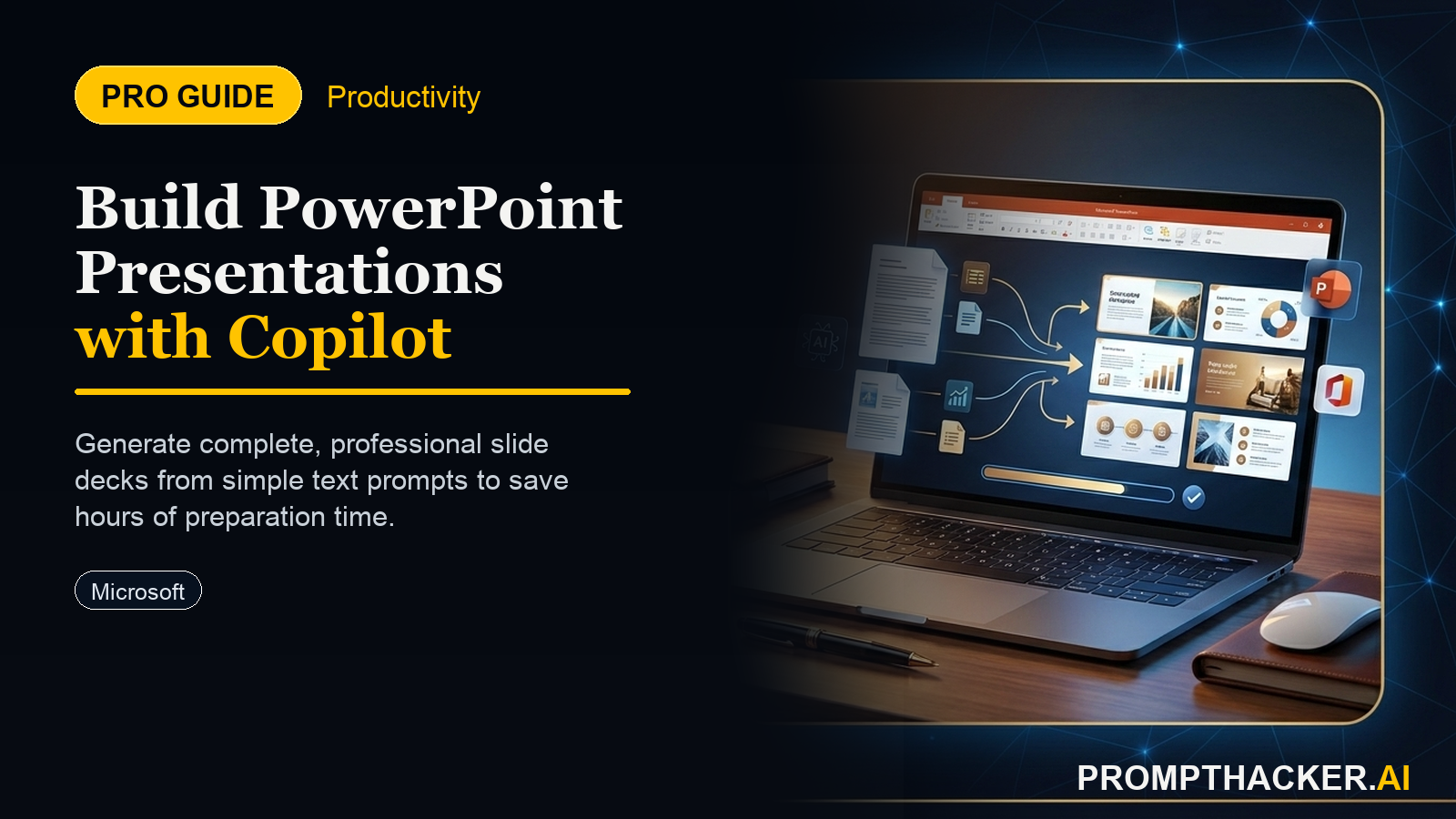
How to generate full presentation drafts from a simple text outline to save hours on initial design.
What matters today
How to generate full presentation drafts from a simple text outline to save hours on initial design.
Article roadmap
What you will learn
-
How to generate full presentation drafts from a simple text outline to save hours on initial design.
-
How to leverage Copilot to suggest relevant slide layouts and incorporate images for professional visuals.
-
How to refine AI-generated presentations to match specific brand guidelines and messaging for impactful delivery.
-
How to streamline the creation of diverse presentation types, from sales pitches to quarterly reports, for consistent output.
A regional sales director at a growing manufacturing firm faces a demanding schedule. Each week, preparing for client pitches, internal strategy sessions, and quarterly reviews consumes critical hours. Manually designing slides, finding appropriate visuals, and structuring content for multiple presentations often extends workdays late into the evening, diverting focus from strategic client engagement and team leadership. The constant pressure to produce polished, impactful presentations, often on short notice, creates a significant bottleneck in their workflow.
Failing to adapt to these demands means missed opportunities, delayed strategic initiatives, and reduced time for high-value activities like client relationship building or market analysis. The manual effort involved in presentation creation can lead to inconsistent messaging, generic visuals, and ultimately, less persuasive communication, impacting sales targets and team morale. Relying on outdated methods for presentation design means executives remain bogged down in tedious tasks rather than focusing on the core content and delivery strategy.
This article details how Microsoft Copilot in PowerPoint now automates the creation of entire presentation drafts from a simple text outline or document. Learn how to leverage this update to generate slide layouts, incorporate relevant images, and draft bullet points in minutes, freeing up two hours weekly for strategic content and impactful delivery.
The latest update to Microsoft Copilot in PowerPoint, released on April 18, 2025, fundamentally changes how executives approach presentation creation. Rather than starting from a blank canvas, users can now provide Copilot with a text outline or an existing document, and the AI will generate a complete draft presentation. This includes suggesting appropriate slide layouts, integrating relevant images, and drafting key bullet points for each slide. The capability streamlines the initial design phase, allowing executives to focus on refining content and delivery rather than laboring over formatting and visual selection.
This automation is particularly beneficial for high-volume presentation needs, such as sales teams adapting pitches for various clients, project leads summarizing progress for stakeholders, or department heads preparing weekly updates. The system intelligently interprets the input, translating textual information into a visually coherent and professionally structured presentation. It eliminates the tedious work of manually arranging elements, searching for stock photos, and ensuring design consistency, returning valuable time to executives for strategic thinking and impactful communication.
Step 1: Preparing Your Input Document or Outline for Copilot
The effectiveness of Copilot's presentation generation hinges on the quality and structure of your initial input. A clear, well-organized text outline or document provides Copilot with the necessary framework to build a coherent presentation. This is not about writing a full script, but rather supplying the key points and logical flow.
- Structure for Success: Begin by organizing your content with clear headings and subheadings. Think of these as potential slide titles and main bullet points. For example, use a main heading for each major section of your presentation, followed by subheadings for specific topics within that section.
- Conciseness is Key: While Copilot can process longer documents, providing concise, focused information for each section will yield more accurate and relevant slide content. Avoid overly dense paragraphs; instead, use bullet points or short, declarative sentences.
- Contextual Cues: Include keywords or brief phrases that indicate the purpose or desired tone of a slide. For instance, if a slide needs a data visualization, you might include a note like "[Insert Q1 Sales Chart here]" even if the data itself is not in the input document. This guides Copilot's selection of layouts and visual elements.
Unlock Advanced AI Workflows
Get exclusive access to our prompt library and deep-dive tutorials.
Three deep dives. Four useful moves. One email worth opening.
PromptHacker turns the AI firehose into practical next steps for work, health, family, and everything time keeps trying to steal.