Microsoft Copilot Enhances Executive Productivity in PowerPoint and Excel
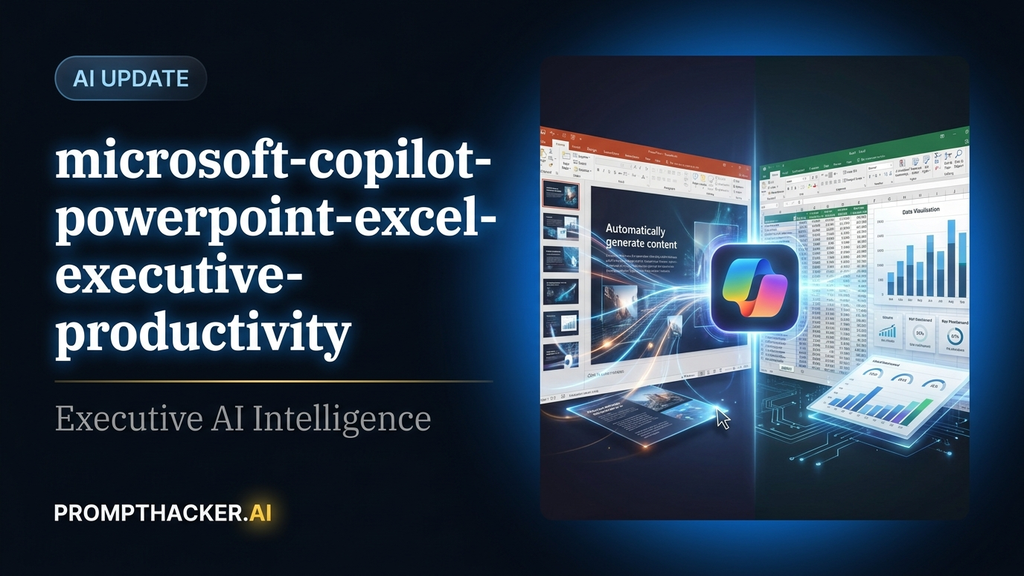
Generate professional PowerPoint presentations from outlines or meeting notes in minutes.
What matters today
Generate professional PowerPoint presentations from outlines or meeting notes in minutes.
Article roadmap
What you will learn
-
Generate professional PowerPoint presentations from outlines or meeting notes in minutes.
-
Extract key insights and visualizations from complex Excel data using natural language prompts.
-
Streamline your workflow by automating routine tasks in Microsoft 365.
-
Reduce time spent on manual slide creation and data interpretation by up to 90 minutes weekly.
-
Utilize Copilot's enhanced capabilities for strategic decision-making and efficient reporting.
Why Microsoft Copilot Enhances matters now
A regional sales director at a Fortune 500 company faces a recurring challenge: preparing a comprehensive quarterly sales review presentation for the executive board. This presentation, critical for strategic planning, typically consumes an entire workday. The director must sift through vast Excel spreadsheets, identify key performance indicators, synthesize market trends, and then translate these complex insights into compelling, visually appealing PowerPoint slides. This manual process is not only time-consuming but also prone to human error, diverting valuable executive attention from strategic analysis to tedious compilation.
The stakes are high. Incomplete or delayed presentations can lead to misinformed decisions, missed opportunities, and a perceived lack of preparedness. The sales director needs to demonstrate not just data, but actionable intelligence, presented clearly and concisely. Without an efficient method, this weekly burden compounds, impacting overall productivity and the ability to respond swiftly to market changes. The traditional approach stifles agility and places undue stress on high-level personnel.
This article details how the latest Microsoft Copilot updates for PowerPoint and Excel directly address these executive pain points. You will discover how to leverage these enhancements to automate slide generation, gain immediate data insights, and reclaim significant time previously lost to manual tasks. We will provide specific, actionable steps and prompts to integrate these powerful AI tools into your daily workflow, ensuring your presentations are always impactful and your data analysis is always sharp.
Microsoft Copilot Enhances executive action plan
Microsoft Copilot has received significant enhancements across PowerPoint and Excel, transforming how executives approach critical tasks. These updates, rolled out on August 22, 2024, are designed to automate routine processes and accelerate strategic analysis, directly benefiting C-suite members, department heads, and financial analysts. The core value proposition is clear: reduce manual effort and increase the speed of insight generation. This translates to an estimated 90 minutes saved per week, freeing executives to focus on higher-level strategic decision-making.
Consider a Chief Financial Officer preparing for a critical investor briefing. Traditionally, this involves weeks of data aggregation, analysis, and presentation design. With Copilot's new features, the CFO can now drastically cut down this preparation time.
Automating PowerPoint Presentation Creation
The updated Copilot in PowerPoint can now generate entire presentations from a simple outline or even raw meeting notes. This capability moves beyond merely suggesting slide layouts; it actively constructs content based on your input. The goal is to provide a robust first draft, allowing executives to focus on refining the narrative and applying strategic insights rather than building slides from scratch.
Ensure your Microsoft 365 subscription includes Copilot and that it is activated. The Copilot icon typically appears in the ribbon interface. If you do not see it, check your organization's IT policies or update your Microsoft 365 applications.
Why it works:
Copilot integrates directly into the PowerPoint application, allowing for seamless interaction within your familiar environment. This eliminates the need to export data or switch between different tools, maintaining workflow continuity.
This is the critical input phase. The quality of Copilot's output heavily depends on the clarity and detail of your prompt. Instead of just a topic, provide a structured outline or comprehensive meeting notes.
Verbatim Prompt Example
"You are an expert presentation designer. Using the following meeting notes, create a detailed 10-slide presentation outline for an executive board meeting. Each slide should have a clear title and 3-5 bullet points summarizing the content. Focus on our Q3 performance review and strategic adjustments for Q4. [Paste Meeting Notes Here]"
Imagine your meeting notes include discussions on "Q3 Revenue growth: 15% YoY, driven by SaaS subscriptions," "Market share increase in EMEA by 2%," "New product launch delays impacting Q4 projections," and "Proposed cost-cutting initiatives for Q4."
Copilot will process these notes and begin structuring a presentation. For instance, it might suggest a slide titled "Q3 Financial Highlights" with bullet points on revenue growth and market share, and another titled "Q4 Strategic Adjustments" detailing product launch mitigation and cost-cutting plans.
- Vague output: If Copilot produces generic slides, your input was likely too broad. Refine your outline to be more specific, including key metrics, dates, and desired outcomes.
- Missing context: If Copilot omits crucial information, ensure it was explicitly present in your meeting notes or outline. You can always add a follow-up prompt to include specific data points. For example: "Add a slide detailing the customer acquisition cost for Q3, showing a comparison to Q2."
Once you have provided the initial input, guide Copilot on the structure and types of slides you need. This allows for a more tailored output.
Verbatim Prompt Example
"Based on the outline, generate a 10-slide presentation. Include an executive summary, a market analysis slide with a projected growth chart, three slides on product performance, two on financial projections, and a concluding slide with strategic recommendations."
Why it works:
This level of specificity helps Copilot understand the narrative flow and visual requirements, ensuring the generated presentation aligns with your strategic communication goals. It moves beyond a generic template to a customized draft.
Copilot provides a strong foundation, but executive oversight is still crucial. Review each slide for accuracy, tone, and strategic alignment. This is where your human expertise adds the final layer of polish.
for initial generation, followed by 30-45 minutes for executive review and refinement, saving significant time over manual creation.
- Inconsistent branding: Copilot does not automatically apply your company's specific branding guidelines. After generation, use PowerPoint's design tools to apply your corporate template, fonts, and color schemes.
- Grammar or stylistic errors: While rare, AI can sometimes produce awkward phrasing. Proofread carefully and make any necessary linguistic adjustments.
The end result is a high-quality presentation draft ready for final tweaks, significantly reducing the time executives spend on manual slide creation. This efficiency allows more time for strategic thought and critical decision-making.
Advanced Data Insights in Excel
Copilot's enhancements in Excel empower executives to extract meaningful insights from large datasets without needing advanced spreadsheet skills. It translates natural language queries into complex data manipulations, visualizations, and trend analyses.
Scenario: A Vice President of Operations needs to understand the root causes of recent supply chain delays. The relevant data is spread across multiple tabs in a large Excel workbook, including supplier performance, logistics metrics, and inventory levels. Manually correlating this data would take hours.
Ensure your data is organized in a structured format within Excel. Copilot works best with clearly labeled columns and rows.
Why it works:
Copilot can directly access and process the data within your active Excel workbook, eliminating the need for data transfers or external tools. This direct integration is key to its speed and efficiency.
Instead of manually creating pivot tables or complex formulas, ask Copilot direct questions about your data.
Verbatim Prompt Example
"Analyze the sales data for the last quarter. Identify the top 5 performing products by revenue and show their month-over-month growth. Then, identify any regional sales anomalies."
For the VP of Operations scenario, a prompt could be: "Analyze the 'Supplier Performance' tab. Identify the top 3 suppliers with the longest average delay times over the past six months. Correlate this with inventory levels to see if delays led to stockouts. Provide a chart showing this relationship."
Copilot will then process the data, perform the requested calculations, and present the findings, potentially with a generated chart showing the correlation between supplier delays and inventory levels. It might even suggest: "Supplier A shows a 25% increase in average delay time, coinciding with a 15% increase in stockouts for critical components. Recommend reviewing Supplier A's contract."
- Misinterpretation of terms: If Copilot struggles to understand your query, try rephrasing it using more standard business or data terminology. For example, instead of "bad suppliers," use "suppliers with performance issues."
- Incomplete data: Copilot can only analyze the data it has access to. If critical information is missing from your spreadsheet, its insights will be limited. Ensure your dataset is comprehensive.
- Overly complex requests: Break down very complex analytical requests into smaller, sequential prompts. For example, first "Summarize sales by region," then "Identify regions with sales below target," then "Suggest reasons for underperformance in those regions."
Copilot maintains context within a session, allowing for iterative analysis. Build on previous questions to drill down into specific areas.
Verbatim Prompt Example
"Based on the top 5 performing products, what were the primary marketing channels that contributed to their success? Create a bar chart comparing channel performance for these products."
Why it works:
This conversational approach mimics how a human analyst would work, enabling executives to explore data dynamically and uncover deeper insights without predefined reports.
Copilot can generate various charts and graphs directly from your analysis, making it easier to communicate complex data.
Verbatim Prompt Example
"Generate a line graph showing the trend of operational costs over the last 12 months, segmented by department."
for complex queries and visualizations, saving hours compared to manual data manipulation.
By integrating these enhanced Copilot features into your daily routines, executives can move from data compilation to strategic action faster than ever before. This not only boosts individual productivity but also enhances the overall agility and responsiveness of the organization. The focus shifts from the mechanics of creating reports to the strategic implications of the information.
ACTION STEPS SUMMARY
- Activate Copilot: Ensure Microsoft Copilot is enabled within your Microsoft 365 environment for both PowerPoint and Excel. This is the foundational step for leveraging its advanced capabilities.
- Outline Presentations: Provide detailed outlines or comprehensive meeting notes to Copilot in PowerPoint, instructing it to generate presentation drafts with specific slide types.
- Analyze Excel Data: Use natural language prompts in Excel to ask Copilot specific questions about your datasets, requesting analysis, correlations, and visualizations.
- Refine and Review: Review Copilot's generated content in both applications, applying your strategic insights and company branding to finalize reports and presentations.
- Iterate and Deepen: Utilize follow-up prompts in Excel to deepen your data analysis, exploring trends and anomalies to inform strategic decisions more effectively.
Also in This Biweekly Issue
-> Google Gemini Advanced Enhances Meeting Summaries & Data Analysis
-> OpenAI ChatGPT Teams Introduces Shared Custom Instructions for Consistency
-> PRO TIP: Draft Presentation Outlines from Meeting Notes with Copilot
Get the full breakdown every two weeks
PromptHacker Premium delivers 5 deep-dive articles, exact prompts, and step-by-step workflows every two weeks.
Three deep dives. Four useful moves. One email worth opening.
PromptHacker turns the AI firehose into practical next steps for work, health, family, and everything time keeps trying to steal.