Copilot in Excel: turn named tables into an automated weekly status report
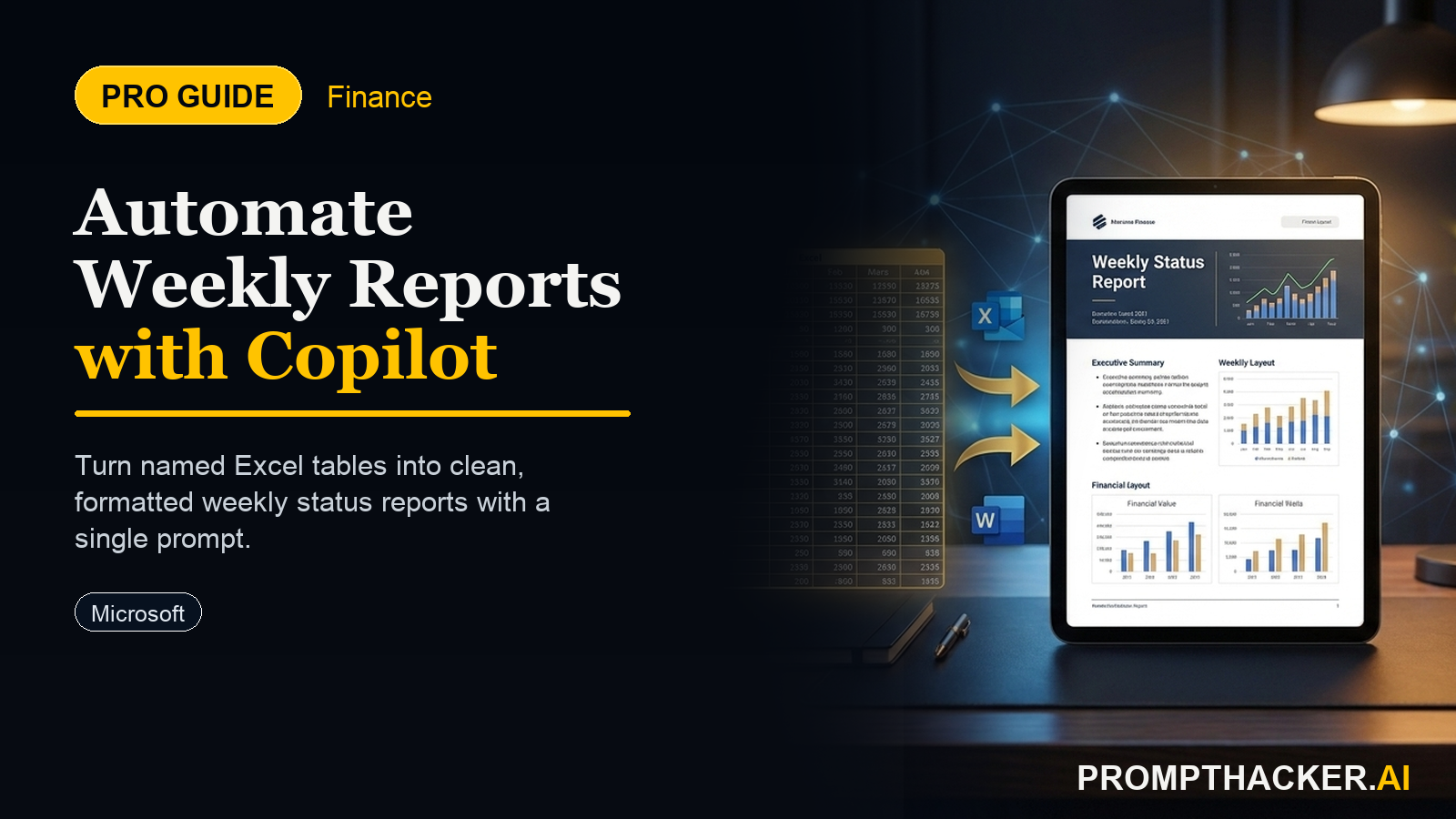
Microsoft Copilot Wave 3 reads across your spreadsheet's named tables and generates a formatted weekly report, here's the setup that saves 45 minutes every Friday.
What matters today
Microsoft Copilot Wave 3 reads across your spreadsheet's named tables and generates a formatted weekly report, here's the setup that saves 45 minutes every Friday.
Microsoft Copilot Wave 3 reads across your spreadsheet's named tables and generates a formatted weekly report, here's the setup that saves 45 minutes every Friday.
Article roadmap
What you will learn
-
How to structure Excel tables so Copilot can read them reliably
-
The exact prompt that generates a four-section weekly report from your data
-
How to export reports to a new worksheet and create a weekly archive
-
How to save your prompt as a recurring template for under 5 minutes per week
-
Bonus: customize reports for executives vs. operations audiences
Every Friday, the same routine: pull sales numbers, check task status, track budget variance, write it all up. 45 minutes of copy-paste and formatting that is pure busywork. Your data already exists in three Excel tables. Copilot already knows how to read it.
This week's Copilot Wave 3 update lets you connect named tables directly. No linking. No manual formulas. You paste one prompt, Copilot reads across all your tables, and generates a fully formatted weekly report in seconds.
Here's how to set it up and make it your Friday routine.
Step 1: Name Your Tables
Named tables are how Copilot finds your data. In Excel:
- Select your data (headers and all rows).
- Go to Insert > Table (or Ctrl+T).
- Right-click the table > Table > Table Name.
- Enter a name with underscores, no spaces: Sales_Pipeline, Tasks_Open, Budget_Actuals.
Example names: Sales_Pipeline (deals and revenue), Tasks_Open (task ownership and due dates), Budget_Actuals (spend by category). Use underscores instead of spaces. Copilot searches by these names.
Step 2: Structure Each Table Correctly
Copilot reads tables reliably when they're formatted consistently:
- Clear header row (bold or distinct formatting).
- Include a Date or Week column so Copilot can filter by recent data.
- No merged cells. One cell = one value.
- No blank rows within the table. Copilot stops reading at the first gap.
- Consistent data types (numbers as numbers, dates as dates, not text).
Check once: are your three tables clean? If you're still using spreadsheets with merged headers and blank rows, spend 15 minutes fixing the structure. It makes Copilot (and humans) read your data faster.
Step 3: Open Copilot and Run the Master Prompt
In Excel on Windows, click Copilot (top ribbon) or press Alt+M. In Excel on Mac, click the Copilot icon (or Shift+Control+M). Copy the prompt below and paste it:
Review the named tables in this workbook: Sales_Pipeline, Tasks_Open, and Budget_Actuals. Generate a weekly status report with four sections: (1) Revenue snapshot: this week's total vs. last week, percentage change, and top 3 deals by value. (2) Task priorities: the 3 open tasks with the highest priority score, who owns them, and their due dates. (3) Budget variance: actual spend vs. plan for each category, flagging any line over 10% variance. (4) Recommendations: one specific action item for each section based on the data. Format each section with a bold header. Keep each section to 4 bullet points or fewer.
Copilot reads the three named tables, synthesizes the data, and outputs a formatted report in seconds.
Step 4: Export to a New Worksheet Tab
After Copilot generates the report:
- Copy the output.
- Create a new worksheet tab: right-click > Insert Sheet.
- Name it Weekly_Report_[Date] (e.g., Weekly_Report_Apr10).
- Paste the report into that new tab.
This creates an archive. Every week, you add a new dated tab. Over time, you have a 12-week history of reports. Copy from the dated tab into email or Teams for distribution.
Step 5: Save Prompt as Recurring Template
Here's the weekly routine: open the file, open Copilot, paste the same prompt, change the date in the worksheet name, run.
Total time: under 5 minutes after week one.
Optional: save the prompt in a note (OneNote, Notion, or a text file) so you never rewrite it. Copy, paste, adjust date, done.
Bonus: Customize for Different Audiences
The same data, different reports. Two variations:
For executives: Focus on revenue and risk. Add a section on deal velocity and pipeline health. Skip task details. Highlight budget variance as dollars, not percentage.
For operations: Focus on task ownership and due dates. Highlight blockers. Include budget line-item detail. Skip revenue snapshot; emphasize execution.
Action Steps
- Audit your three tables for naming and structure. Do you have Sales_Pipeline, Tasks_Open, Budget_Actuals named and clean? If not, spend 15 minutes cleaning: remove merged cells, add date columns, name them. 15 minutes.
- Open Copilot in Excel and paste the prompt above. Does it generate a report? Does it read all three tables? Test it once. 5 minutes.
- Create your first Weekly_Report_[Date] tab and export the output. Copy, create new tab, paste, save. This is the pattern you'll repeat. 5 minutes.
- Save the prompt in a note or text file. You'll paste this every Friday for the next 52 weeks. Store it where you'll find it. 2 minutes.
- Schedule 5 minutes on your Friday calendar. Open file, run Copilot, export to dated tab, send to stakeholders. Make it a ritual. Repeat weekly.
Your Friday routine just changed
Automate your weekly status report with Copilot. Get PromptHacker Premium for exclusive Excel workflows, prompt templates, and weekly productivity breakdowns.
Three deep dives. Four useful moves. One email worth opening.
PromptHacker turns the AI firehose into practical next steps for work, health, family, and everything time keeps trying to steal.