Copilot Video Recap: Turn Meeting Summaries Into Shareable Highlight Reels in One Click
Microsoft 365 Copilot shipped Video Recap in March 2026 for all enterprise and business subscribers.
What matters today
Microsoft 365 Copilot shipped Video Recap in March 2026 for all enterprise and business subscribers.
Article roadmap
What you will learn
-
What Video Recap does and how it differs from a standard meeting summary
-
Which meetings benefit most (and which ones don't qualify)
-
How to use Researcher output formats to eliminate report rework
-
The time savings breakdown per role: managers, sellers, project leads
-
Step-by-step setup with Microsoft 365 Copilot
What Video Recap Actually Does
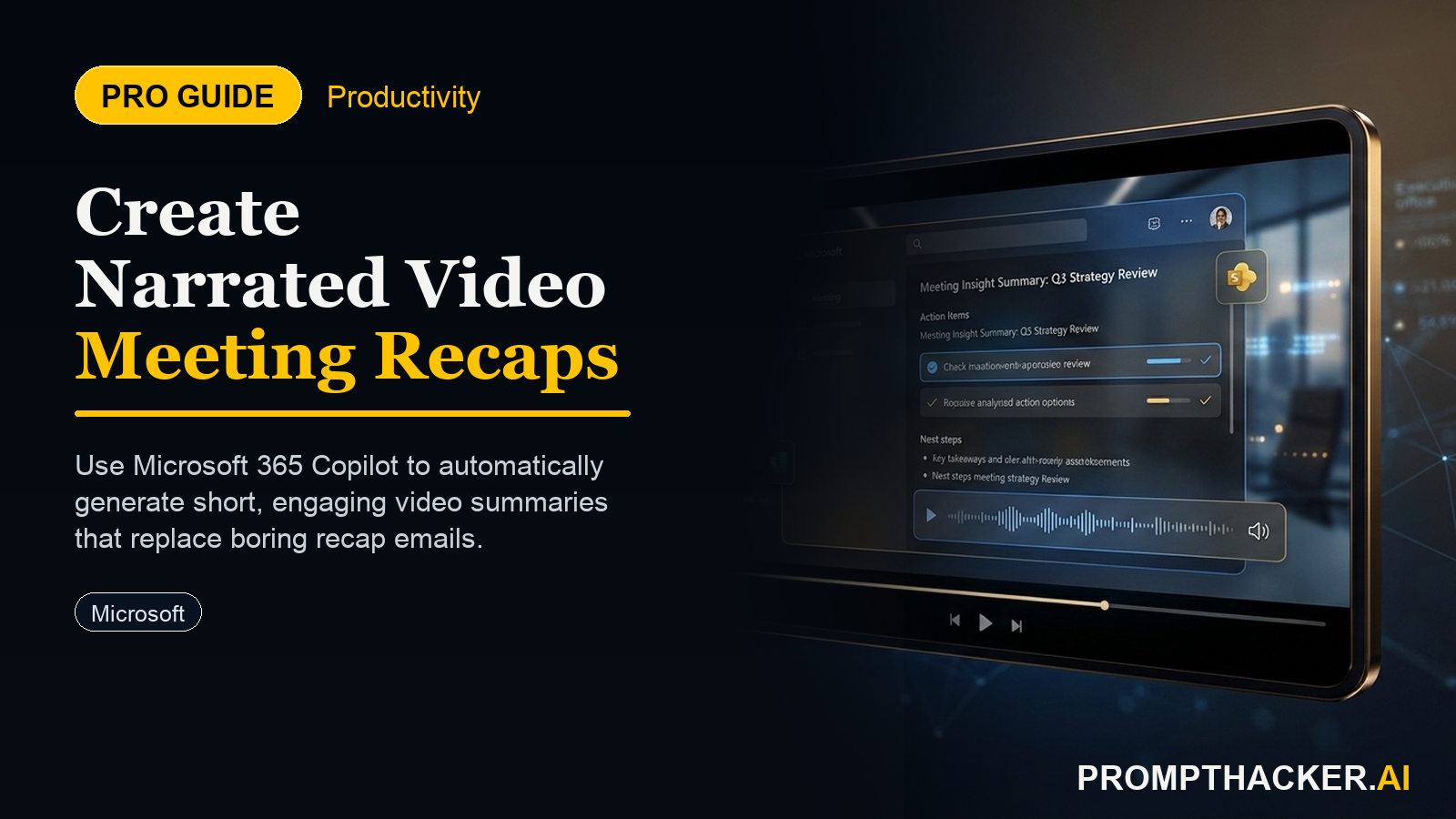
Microsoft 365 Copilot shipped Video Recap in March 2026 for all enterprise and business subscribers. When you ask Copilot Chat to summarize a meeting, you now receive two outputs instead of one: the standard written summary and a narrated video highlight reel that combines key takeaways with short clips from the actual recording.
The video version is not a transcript playback. Copilot identifies the two to four most decision-critical moments in the meeting, extracts 15 to 45 second clips from each, stitches them together with AI narration explaining the context, and delivers the finished reel inside Copilot Chat or Microsoft Clipchamp web player.
The result is a meeting artifact that stakeholders who did not attend can actually consume in 3 to 4 minutes, compared to the 60 to 90 minutes required to watch a full recording.
⏱️ Time Saved
A 60-minute meeting that previously required a 15-minute written debrief and a full recording for absent stakeholders now delivers a 3-minute narrated video that replaces both. For teams running 5 or more meetings per week, that is 45 to 60 minutes of post-meeting work eliminated.
Which Meetings Qualify
Video Recap has two hard requirements:
- The meeting must have been recorded through Microsoft Teams (not third-party recording tools).
- The recording must be at least 10 minutes long. Shorter recordings generate a written summary only.
Additional constraints as of the March 2026 launch:
- English-language meetings only (Audio Recap, the narration feature, is English-first with 7 other languages in rollout).
- Recording must be stored in Microsoft OneDrive or SharePoint, not downloaded locally.
- The Copilot user requesting the recap must have been an attendee or have explicit access to the recording.
Researcher Output Formats: Eliminate Report Rework
Shipped in the same March 2026 update: Copilot Researcher, which generates long-form research reports, can now export directly to four formats without any manual reformatting: PowerPoint, PDF, infographic, and audio summary.
The workflow that previously looked like this: run Copilot Researcher, read the output, copy sections into PowerPoint, spend 20 to 30 minutes reformatting slides, now looks like this: run Copilot Researcher, click "Export to PowerPoint." The slides are structured, labeled, and formatted in your organization's default template.
COPILOT RESEARCHER PROMPT FOR MEETING PREP
"Research [topic or company name] covering: current market position, key product updates in the last 90 days, three open questions our team should address in tomorrow's meeting, and one risk to flag. Output length: 600 words maximum. Then export as a PowerPoint with one slide per section."
Time Savings by Role
Setup in 4 Steps
- Confirm your Microsoft 365 Copilot subscription is active (Business Standard or above with Copilot add-on, or E3/E5 with Copilot license).
- Enable Teams recording for the meetings you want to recap. Recordings must auto-save to SharePoint or OneDrive. Confirm this in your Teams admin settings.
- After a meeting ends, open Copilot Chat and type: "Give me a video recap of [meeting name] from [date]."
- For Researcher exports, open Copilot Researcher, run your query, then click the Export button in the top right of the response and select your desired format.
Best First Use
Use Video Recap for your next all-hands, client QBR, or any meeting where stakeholders regularly ask "can you send me the notes?" The 3-minute video distributes faster than a written summary and gets watched more reliably than a recording link.
Common Pitfalls and How to Avoid Them
Three mistakes that cause the workflow to break down. First, forgetting to enable recording before the meeting starts. Copilot cannot retroactively generate a Video Recap from a meeting that was not recorded. Make recording your default in Teams settings, not an optional step before each call. Second, recording to a local drive instead of SharePoint or OneDrive. Copilot Chat can only access recordings stored in Microsoft cloud storage. If your Teams admin settings route recordings to a local folder, Video Recap will not find them. Audit this setting once and fix it once. Third, requesting the recap while the video is still processing. Teams typically takes 5 to 15 minutes to process a recording after a meeting ends. Requesting the recap immediately returns a "recording not available" error. Wait 10 minutes, then run the Copilot Chat prompt.
Action Steps Summary
- Audit your Teams recording settings today. Confirm recordings auto-save to SharePoint or OneDrive, not a local drive.
- Enable recording as a default for your five highest-signal recurring meetings.
- Wait 10 minutes after each meeting ends, then run the Copilot Chat prompt to request the Video Recap and the written summary.
- Distribute using the three-line post format: what happened, biggest risk, what you need from the recipient, then the video link.
- For research tasks, use Copilot Researcher with the prep prompt above and export directly to PowerPoint instead of reformatting manually.
- Track acknowledgment rates for two weeks. If stakeholders respond faster to the video format than to written recaps, make it your default and extend to more meetings.
Three deep dives. Four useful moves. One email worth opening.
PromptHacker turns the AI firehose into practical next steps for work, health, family, and everything time keeps trying to steal.