Use Apple Intelligence Writing Tools to Halve Email Response Time
How to activate and utilize Apple Intelligence Writing Tools for email management.
What matters today
How to activate and utilize Apple Intelligence Writing Tools for email management.
Article roadmap
What you will learn
-
How to activate and utilize Apple Intelligence Writing Tools for email management.
-
Methods for securely summarizing lengthy email threads on-device.
-
Strategies for generating professional, context-aware email replies rapidly.
-
Techniques to maintain privacy while using AI for sensitive communications.
-
How to integrate AI writing assistance into your daily communication workflow to save time.
Why Use Apple Intelligence matters now
A regional sales director at a mid-sized SaaS company faces an overflowing inbox daily. Each morning, dozens of emails demand attention, many requiring detailed responses to complex customer inquiries or internal team discussions. Scrolling through long threads to grasp the full context of a client issue, then drafting a nuanced reply, can consume hours before the day's critical sales calls even begin. The sheer volume of communication often forces a choice between thoroughness and speed, leading to delayed responses or replies that miss key details.
The stakes are high. Delayed or incomplete responses can erode client trust, slow down sales cycles, and create internal friction. Missing a critical detail in a long email thread can lead to miscommunication, requiring additional follow-up and further delaying progress. Without an efficient way to manage this communication deluge, productivity suffers, and the sales director spends more time on administrative tasks than on revenue-generating activities.
This article introduces a practical solution using Apple Intelligence Writing Tools. Discover how to leverage on-device AI to condense lengthy email conversations and craft precise, professional replies in a fraction of the usual time. Learn a secure, efficient method for managing your inbox, ensuring your responses are always accurate and timely without compromising sensitive information.
Use Apple Intelligence executive action plan
The deluge of email is a universal challenge for executives. The average executive spends over 2.5 hours per day on email, much of it navigating long threads and drafting responses. Apple Intelligence, available on iOS 18 for iPhone 15 Pro, iPhone 15 Pro Max, and iPhone 16 models, offers a powerful, on-device solution to this problem. Its Writing Tools feature integrates directly into the Mail app, allowing for secure, context-aware assistance without sending your sensitive data to external servers. This capability can halve the time spent on email responses by automating summarization and drafting.
Time to value:
2 minutes per email.
The core benefit of Apple Intelligence's Writing Tools lies in its on-device processing. When you use it within the Mail app, the AI analyzes the email content directly on your iPhone. This means confidential client communications, internal strategy discussions, or sensitive HR matters remain private, never leaving your device. This security feature is paramount for executive adoption, addressing a major concern with cloud-based AI tools.
Consider a project manager overseeing a complex software development initiative. A critical bug report comes in via a lengthy email thread involving multiple engineers, QA testers, and product managers. The thread spans dozens of replies, detailing various tests, theories, and potential fixes. Before Apple Intelligence, the project manager would dedicate significant time to reading every message, distilling the core issue, and then crafting an update for stakeholders or assigning next steps. With Writing Tools, this process is dramatically streamlined.
Step 1: Activating Apple Intelligence Writing Tools
First, ensure your iPhone is updated to iOS 18.1 or later. Apple Intelligence is not enabled by default for all features. Navigate to Settings > General > Apple Intelligence and toggle on the "Writing Tools" option. This activation ensures the AI features are available within compatible applications, including Mail. Without this step, the writing assistance options will not appear. A common failure mode is attempting to use the feature before confirming its activation. If the options are missing, recheck the settings.
Step 2: Summarizing a Long Email Thread
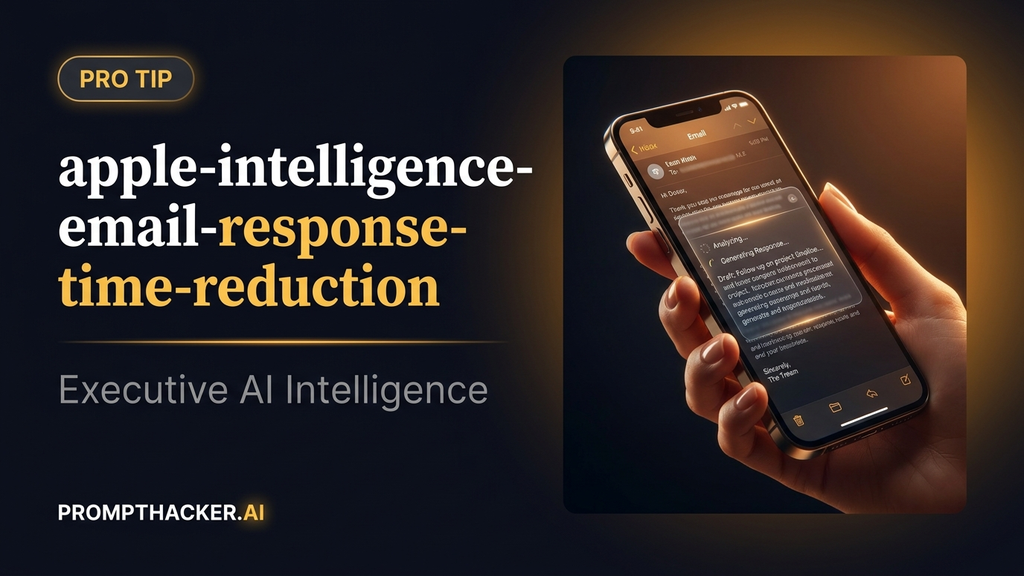
Open the Mail app and select the long email thread you need to process. Scroll to the top of the thread to ensure all messages are loaded. Select any portion of text within the thread. A contextual menu will appear. Tap the "Writing Tools" option. Among the choices, you will see "Summarize." Selecting this will prompt Apple Intelligence to generate a concise summary of the entire thread. This summary appears as an overlay, allowing you to quickly grasp the key points without reading every individual message.
Why it works: The AI processes the entire conversational history, identifying main topics, key decisions, and unresolved questions. This capability is invaluable for quickly catching up on discussions or preparing for meetings without pre-reading extensive correspondence. If the summary is too brief or misses a nuance, you can often refine it by tapping "Refine" and selecting options like "More Detail" or "Focus on X."
Step 3: Generating a Professional Reply
After reviewing the summary, or if you already understand the context, you can proceed to draft a reply. Start a new reply to the email thread. Instead of typing from scratch, tap into the message body where you would normally begin writing. A small AI icon or a "Writing Tools" prompt will appear. Tap this to open the writing assistance options. Select "Draft Reply" or "Rewrite." This is where you can input your prompt.
EXAMPLE PROMPT
"Write a professional response to this email thread. My position is [your position on the issue]. Keep it under 150 words, direct, and end with a clear next step or request. Use formal but not stiff language."
Replace [your position on the issue] with your specific stance. For instance: "My position is that we need to prioritize the backend API fixes before launching the new front-end features."
Why it works: This prompt is effective because it provides clear constraints: length, tone, and a required element (next step/request). Apple Intelligence uses the full context of the email thread and your specific instruction to generate a tailored response. This eliminates writer's block and ensures the reply is relevant and actionable. A common failure mode is providing an overly vague prompt, leading to a generic response. Be as specific as possible with your desired outcome. For example, instead of "Write a reply," specify "Write a reply confirming receipt, stating our next action, and asking for their availability."
Step 4: Reviewing and Refining the AI-Generated Reply
Once the AI generates the draft, it appears in the message body. Always review this draft carefully. While Apple Intelligence is highly capable, it is an AI and can sometimes misinterpret nuance or omit critical details. Check for:
- Accuracy: Does it correctly reflect the facts and your position?
- Completeness: Does it include all necessary information and address all relevant points from the thread?
- Tone: Is the language appropriate for the recipient and context?
- Clarity: Is the message clear, concise, and easy to understand?
You can edit the AI-generated text directly, just like any other message. You can also tap "Refine" to ask the AI to make changes, such as "Make it more concise," "Add a call to action," or "Change the tone to be more assertive." This iterative refinement process ensures the final message is exactly what you intend, often in much less time than drafting from scratch.
Step 5: Enhancing Visual Clarity in Business Presentations
Beyond email, Apple Intelligence also offers a "Clean Up" feature in Photos. While not directly email-related, executives often include images in their communications or presentations. If you have an image for a business presentation that contains distracting background elements, use the Clean Up tool in the Photos app (within the edit menu) to remove them. This improves the professional appearance of your visual aids, making your messages more impactful. This is particularly useful for internal reports or client-facing decks where visual polish matters.
ACTION STEPS SUMMARY
- Enable Apple Intelligence: Navigate to iPhone Settings, then General, and ensure Apple Intelligence is toggled on, specifically "Writing Tools." This step is crucial for accessing AI features within the Mail app.
- Summarize Email Threads: In the Mail app, select a lengthy email thread, tap any text, choose "Writing Tools," and then "Summarize." Review the generated summary to quickly understand the thread's context.
- Draft Professional Replies: Start a reply in Mail, tap into the message body, select "Writing Tools," and use a precise prompt like "Write a professional response to this email thread. My position is [your position]. Keep it under 150 words, direct, and end with a clear next step or request. Use formal but not stiff language."
- Review and Refine: Always critically review the AI-generated draft for accuracy, completeness, and tone. Utilize the "Refine" options or direct editing to ensure the message meets your exact requirements before sending.
- Enhance Presentation Images: If you use images in your communications, leverage the "Clean Up" feature in the Photos app to remove distractions, improving the visual clarity and professionalism of your presentations or reports.
Also in This Biweekly Issue
-> Apple Intelligence: Executive Productivity on iPhone
-> Use Meta AI in WhatsApp for Quick Business Research
-> Copilot Python in Excel: Data Analysis Without an Analyst
Get the full breakdown every two weeks
PromptHacker Premium delivers 5 deep-dive articles, exact prompts, and step-by-step workflows every two weeks.
Three deep dives. Four useful moves. One email worth opening.
PromptHacker turns the AI firehose into practical next steps for work, health, family, and everything time keeps trying to steal.