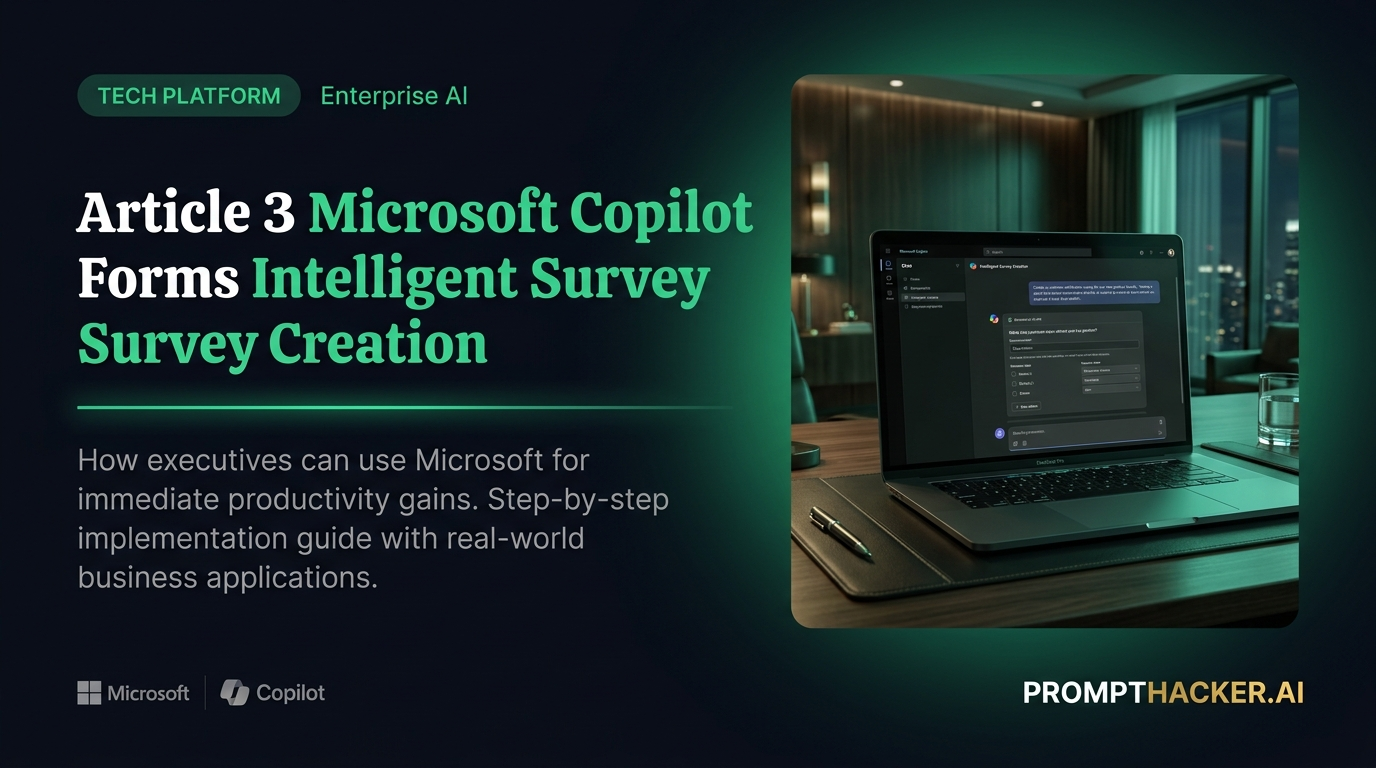
Microsoft Copilot Integrates with Microsoft Forms for Intelligent Survey Creation
Structure forms efficiently for market research, employee feedback, or customer satisfaction.
What matters today
Structure forms efficiently for market research, employee feedback, or customer satisfaction.
Article roadmap
What you will learn
-
Generate professional surveys and polls in minutes using Microsoft Copilot.
-
Automate the drafting of questions and answer types based on simple prompts.
-
Structure forms efficiently for market research, employee feedback, or customer satisfaction.
-
Reduce manual effort in survey creation, freeing up valuable executive time.
-
Collect critical feedback faster to accelerate strategic decision-making.
Why Microsoft Copilot Integrates matters now
A human resources director at a rapidly growing tech startup faces the daunting task of assessing employee morale across multiple departments. Manual creation of comprehensive satisfaction surveys, including drafting relevant questions, setting up logical flows, and ensuring anonymity, consumes hours each month. This time sink delays critical feedback collection, impacting the company's ability to address employee concerns proactively and improve retention rates. The HR director needs a faster, more efficient way to gather actionable insights.
Without an efficient survey creation process, valuable opportunities for feedback are missed, leading to uninformed decisions regarding employee engagement, customer satisfaction, or market strategy. Delays in collecting and analyzing data can result in significant financial losses, decreased productivity, and a competitive disadvantage. The inability to quickly adapt to internal or external changes directly impacts a company's agility and long-term success.
This article details how Microsoft Copilot's new integration with Microsoft Forms directly addresses these challenges. Executives can leverage AI to rapidly design and deploy intelligent surveys, automating the most time-consuming aspects of form creation. Discover how to transform your feedback collection process, saving hours and gaining critical insights faster than ever before.
Microsoft Copilot Integrates executive action plan
The integration of Microsoft Copilot with Microsoft Forms marks a significant advancement for executives seeking to streamline data collection and feedback processes. This feature enables users to leverage AI for drafting questions, suggesting answer types, and structuring surveys based on a simple, natural language prompt. The result is a professional, effective survey generated in a fraction of the time traditionally required for manual creation. This capability is particularly beneficial for HR managers, marketing teams, and project leads who frequently need to gather structured feedback.
Consider a marketing manager at a consumer goods company needing to conduct quick market research for a new product launch. Traditionally, this involves brainstorming questions, researching best practices for survey design, and manually inputting each element into a survey tool. This process can take several hours, delaying the start of data collection and potentially missing critical market windows. With Copilot, the manager can now simply describe the survey's purpose, and the AI will generate a robust draft.
1. Accessing Copilot in Microsoft Forms
The first step involves navigating to Microsoft Forms within your Microsoft 365 environment. This integration is designed to be intuitive, appearing as a natural part of the form creation workflow. No complex setup or separate applications are required.
- How it works: Open your web browser and go to forms.office.com or access Forms directly through your Microsoft 365 portal.
- Why it works: Integrating Copilot directly into the Forms interface reduces friction, allowing users to initiate AI assistance without leaving their familiar work environment. This seamless experience encourages adoption and maximizes time savings.
- What can go wrong: Users might not immediately see the Copilot integration if their Microsoft 365 tenant has not yet fully rolled out the feature, or if they are not using a compatible Copilot license.
- How to fix it: Ensure your Microsoft 365 subscription includes Copilot and that your organization's IT administrator has enabled the feature. Check Microsoft's official release notes for the latest availability information.
2. Initiating AI-Assisted Survey Creation
Once in Microsoft Forms, select the option to create a new form or quiz. The Copilot integration will typically appear as a prominent button or prompt, inviting you to "Create with Copilot" or "Generate questions with AI."
- How it works: Click on "New Form" or "New Quiz," then look for the Copilot icon or a text prompt indicating AI assistance.
- Example Prompt: "Create a survey for employee satisfaction."
- Why it works: This direct prompt initiates the AI's understanding of your survey's purpose. Clear, concise prompts are crucial for generating relevant and effective questions. Copilot uses this input to tailor its suggestions to the specific context of your feedback needs.
- What can go wrong: A vague prompt, such as "Make a survey," might lead to generic or unhelpful questions.
- How to fix it: Always provide a clear objective for your survey. Specify the target audience, the desired outcome, and any key topics you want to cover. For example, "Create a survey to gather feedback on the recent company-wide remote work policy, focusing on productivity and work-life balance."
3. Reviewing and Refining AI-Generated Content
Copilot will then generate a set of initial questions, complete with suggested answer types (e.g., multiple choice, text, rating scales). This is a draft, not a final product. Executives should review the generated content carefully and make necessary adjustments.
- How it works: Copilot presents a preliminary draft of your survey. Review each question for clarity, relevance, and bias. Edit, add, or delete questions as needed.
- Why it works: While AI is powerful, human oversight remains essential. Reviewing the content ensures that the survey aligns perfectly with your specific objectives and organizational tone. This step allows for the injection of nuanced understanding that only a human can provide.
- What can go wrong: Accepting the AI's suggestions without review might lead to surveys that are too generic, contain irrelevant questions, or miss critical details specific to your context.
- How to fix it: Treat the AI-generated content as a robust starting point. Refine the wording, adjust answer options, and add any specific questions unique to your organization. Consider running a small pilot test with a few colleagues before broad deployment.
4. Structuring and Customizing the Form
Beyond individual questions, Copilot can also assist with the overall structure of the form. This includes suggesting logical sections, branching questions, or even appropriate introductory and concluding remarks.
- How it works: After reviewing questions, consider how they flow. Copilot can suggest grouping related questions into sections or adding skip logic based on previous answers.
- Why it works: A well-structured survey improves the respondent's experience and increases completion rates. Logical flow ensures that respondents are only asked relevant questions, reducing survey fatigue.
- What can go wrong: Over-reliance on AI for complex branching logic without manual verification can lead to errors in survey paths.
- How to fix it: Manually test any complex branching or section logic to ensure it functions as intended. Use the preview feature in Microsoft Forms extensively before publishing.
5. Publishing and Analyzing Results
Once the survey is finalized, publish it and distribute the link to your target audience. Microsoft Forms natively collects and visualizes responses, allowing for immediate analysis.
- How it works: Click "Collect responses" to generate a shareable link or embed code. As responses come in, view real-time data and charts within the Forms interface.
- Why it works: The integrated collection and analysis tools mean there is no need to export data to external software for basic insights. This accelerates the feedback loop, allowing for faster decision-making.
- What can go wrong: Poor distribution channels or unclear instructions for respondents can lead to low response rates.
- How to fix it: Share the survey link through multiple relevant channels (email, internal communication platforms). Provide clear instructions and set realistic deadlines. Follow up with reminders as needed.
This integration streamlines survey creation, allowing executives to gather critical feedback faster and more efficiently. The time saved, estimated at 75 minutes per week for relevant roles, can be redirected towards strategic planning and immediate action based on the insights gained. The ability to quickly generate professional surveys means market research can be more agile, employee feedback more frequent, and customer satisfaction monitoring more responsive.
Action Steps Summary
- Access Microsoft Forms and Copilot: Open Microsoft Forms within your Microsoft 365 environment and select the option to create a new form, looking for the Copilot integration. This ensures you start the survey creation process with AI assistance enabled.
- Define Your Survey's Purpose with a Prompt: Provide a clear and specific prompt to Copilot, describing the objective of your survey. For example, "Create a survey for employee satisfaction regarding hybrid work arrangements." This initial prompt guides the AI in generating relevant questions and structures.
- Review and Customize AI-Generated Content: Examine the questions and suggested answer types generated by Copilot. Edit, refine, add, or remove questions to ensure they perfectly align with your specific goals and organizational context. Human oversight is crucial for accuracy and relevance.
- Structure the Form and Test Logic: Organize the survey into logical sections and implement any necessary branching or skip logic. Thoroughly test the survey flow using the preview function to ensure a smooth respondent experience and accurate data collection.
- Publish and Monitor Responses: Share your finalized survey with your target audience using the provided link. Monitor incoming responses and utilize Microsoft Forms' built-in analytics to derive insights. This step closes the loop, transforming feedback into actionable intelligence.
Also in This Biweekly Issue
-> OpenAI ChatGPT Team Rolls Out Custom Instructions for AI Consistency
-> Google Gemini Advanced Gains Enhanced Data Analysis with Direct File Uploads
-> Pro Tip: Generate Executive Summaries from Meeting Transcripts with AI
Get the full breakdown every two weeks
PromptHacker Premium delivers 5 deep-dive articles, exact prompts, and step-by-step workflows every two weeks.
Three deep dives. Four useful moves. One email worth opening.
PromptHacker turns the AI firehose into practical next steps for work, health, family, and everything time keeps trying to steal.