Automated Meeting Summary and Action Item Extraction
Extract critical action items and key discussion points without manual note-taking.
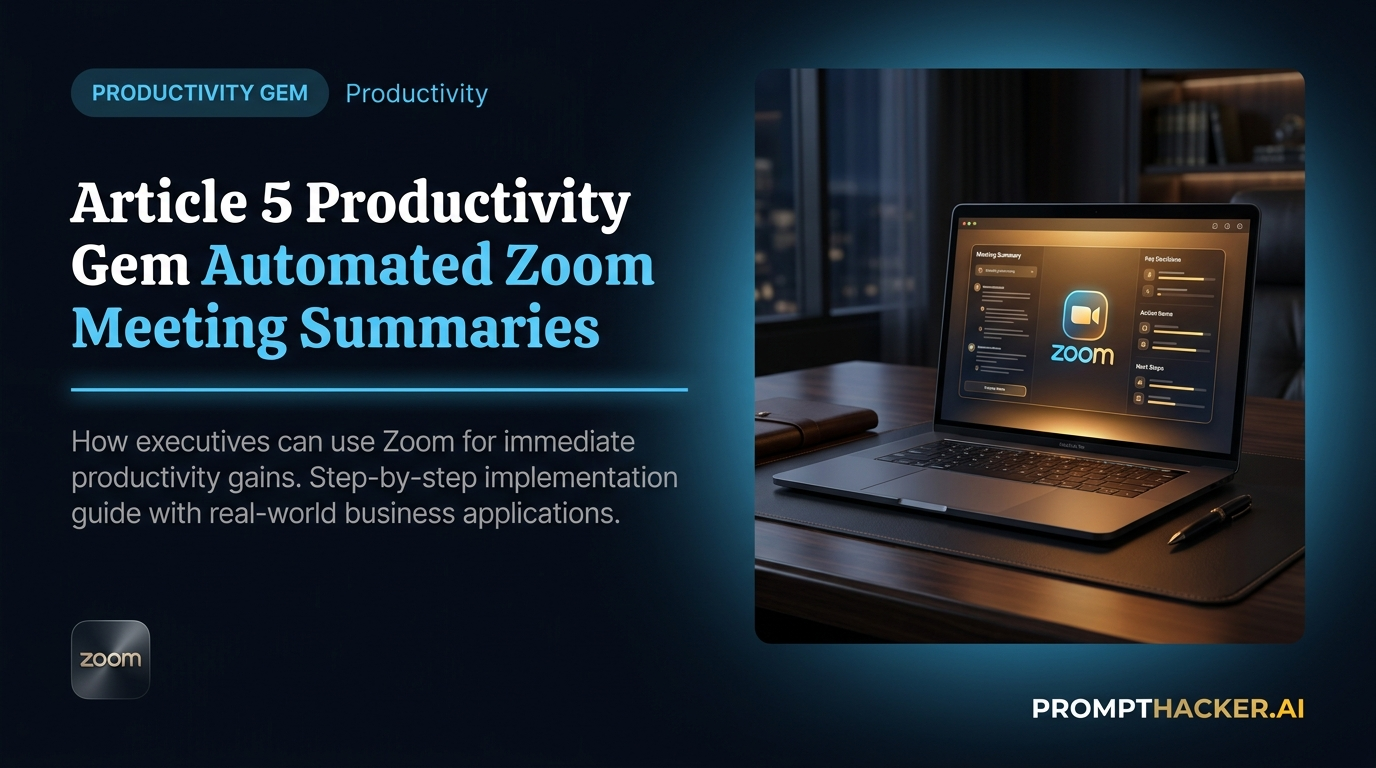
What matters today
Extract critical action items and key discussion points without manual note-taking.
Article roadmap
What you will learn
-
Configure Zoom's AI Companion to automatically summarize meetings.
-
Extract critical action items and key discussion points without manual note-taking.
-
Access and share AI-generated summaries efficiently after meetings.
-
Reduce post-meeting administrative time by 30 minutes per session.
-
Streamline follow-up processes and improve accountability for meeting outcomes.
Why Automated Meeting Summary matters now
A busy Vice President of Sales at a rapidly growing SaaS company faces back-to-back virtual meetings daily. Each call, whether it is a client demo, an internal strategy session, or a one-on-one with a team member, generates a flurry of discussion points, decisions, and assigned tasks. Manually taking detailed notes, synthesizing key takeaways, and then distributing action items to the relevant team members consumes significant time. This administrative overhead often pushes into evenings or detracts from more strategic responsibilities.
Without an efficient system for capturing and distributing meeting information, critical decisions can be overlooked, action items can be delayed, and team accountability may suffer. Important follow-ups might fall through the cracks, impacting project timelines and client satisfaction. The cumulative effect of these small inefficiencies can slow down business momentum and create bottlenecks in communication, directly affecting revenue generation and team performance.
This article provides a step-by-step guide to leveraging Zoom's AI Companion for automated meeting summaries and action item extraction. Learn how to activate this powerful feature and integrate it into your daily workflow. Discover how to reclaim valuable time, ensure comprehensive record-keeping, and streamline post-meeting processes, allowing you to focus on strategic execution rather than administrative tasks.
Automated Meeting Summary executive action plan
The manual process of taking meeting notes, identifying key decisions, and assigning action items is a significant time sink for executives. Often, the person tasked with note-taking cannot fully engage in the discussion. Post-meeting, the effort to synthesize information and distribute it accurately adds another layer of work. Zoom's AI Companion feature directly addresses these challenges by automating the summarization process, freeing up participants to focus entirely on the conversation. This automation ensures that no critical detail is missed and that follow-ups are clear and prompt.
Consider a Director of Product Development who leads multiple sprint review meetings each week. These meetings are crucial for tracking progress, identifying roadblocks, and making quick decisions. Historically, the Director or a team member would spend 30-45 minutes after each meeting compiling notes, drafting summaries, and listing action items. With five such meetings weekly, this accumulates to over three hours of administrative work. Implementing Zoom's AI Companion eliminates this manual effort, allowing the Director to immediately transition to the next task or focus on strategic planning.
The AI Companion leverages advanced natural language processing to listen to the meeting audio, transcribe it, and then identify the most salient points. It distinguishes between general discussion and concrete decisions or assigned tasks. This capability is not just about transcription; it is about intelligent synthesis. The AI learns to recognize patterns in conversation that indicate a resolution or a directive. The result is a highly structured summary that saves time and improves the quality of post-meeting communication.
Time to value: 5 minutes setup, 30 minutes saved per meeting.
Step 1: Ensure AI Companion is Enabled in Your Zoom Account
Before using the AI Companion in a meeting, confirm that it is activated for your Zoom account. This is typically an administrative setting managed by your IT department or the Zoom account administrator. As an executive, you may need to request this feature if it is not already available.
Why this works:
The AI Companion is not a default feature for all Zoom accounts. It requires explicit activation, often at the organizational level, to ensure compliance with data privacy policies and user preferences. Without this initial setup, the option will not appear in your meeting controls.
What can go wrong:
If you cannot find the AI Companion button in your meeting toolbar, it is likely disabled at the account level.
How to fix it:
Contact your IT administrator or Zoom account owner and request that they enable the "AI Companion" feature for your user group. They can usually find this setting in the Zoom web portal under Account Management > Account Settings > AI Companion.
Step 2: Start a Zoom Meeting and Activate the AI Companion
Once AI Companion is enabled for your account, you can activate it within any eligible Zoom meeting you host or participate in.
- Start or join a Zoom meeting.
- Locate the "AI Companion" button in the meeting toolbar, typically at the bottom of your Zoom window. It often appears as a stylized "AI" icon.
- Click the "AI Companion" button. A menu will appear with options.
- Select "Start Meeting Summary."
- A notification will appear for all participants, informing them that the AI Companion is summarizing the meeting. This is a crucial step for transparency and consent.
Why this works:
Activating the AI Companion at the beginning of the meeting ensures that the entire discussion is captured from the outset. The real-time notification to participants promotes an open and transparent meeting environment, adhering to best practices for AI tool usage. The AI begins processing the audio immediately, allowing it to build a comprehensive context for the entire conversation.
What can go wrong:
Participants might be uncomfortable with AI summarizing without prior notice.
How to fix it:
Always announce verbally at the start of the meeting that the AI Companion will be used for summarization. Explain the benefits, such as improved follow-ups and reduced manual note-taking, to gain buy-in. Ensure your organization's policies permit AI summarization.
Step 3: Conduct Your Meeting Naturally
With the AI Companion active, proceed with your meeting as usual. There is no need to alter your speaking style or explicitly prompt the AI. The system is designed to understand natural conversation flow.
Why this works:
The AI Companion is built to integrate seamlessly into existing meeting dynamics. Its advanced algorithms are trained on vast datasets of human speech, allowing it to interpret context, identify speakers, and discern key points without requiring specific verbal cues or commands. This allows executives to remain focused on the discussion and decision-making.
What can go wrong:
The summary might miss nuances or specific jargon.
How to fix it:
While the AI is sophisticated, ensure critical terms or decisions are stated clearly. If a complex topic is being discussed, a brief verbal recap of the decision at the end of that segment can help the AI capture it accurately. You can also review and edit the summary later.
Step 4: Access the AI-Generated Summary After the Meeting
Once the meeting concludes, the AI Companion processes the recording and generates the summary. This summary is typically available within minutes, depending on the meeting length.
- End the Zoom meeting.
- Navigate to the "Meetings" tab in your Zoom web portal or desktop application.
- Find the specific meeting you just concluded.
- Look for the "AI Companion" or "Summary" section associated with that meeting.
- Click to view the AI-generated summary.
Why this works:
Zoom centralizes all meeting-related assets, including recordings, transcripts, and AI summaries, making them easily accessible through a single interface. This eliminates the need to search through various applications or local files, streamlining post-meeting administrative tasks. The prompt availability of the summary means action can be taken quickly.
What can go wrong:
The summary might not appear immediately, or you might have trouble locating it.
How to fix it:
Allow a few minutes for processing, especially for longer meetings. If you still cannot find it, ensure you are logged into the correct Zoom account and checking the "Meetings" tab. If the issue persists, check Zoom's support documentation or contact their customer service.
Step 5: Review, Edit, and Share the Summary and Action Items
The AI-generated summary provides a strong foundation, but a quick human review is always beneficial to ensure accuracy and add any critical context.
- Review the AI-generated summary for accuracy, clarity, and completeness.
- Edit any sections that require clarification or additional detail. You can often add specific context or rephrase points for better understanding.
- Identify and highlight specific action items , ensuring they are assigned to the correct individuals with clear deadlines. The AI is good at identifying these, but human oversight ensures precision.
- Share the refined summary and action items with all relevant attendees or stakeholders. Zoom often provides direct sharing options via email or a link.
Why this works:
While AI is highly capable, human oversight ensures that the summary perfectly aligns with the meeting's objectives and accurately reflects all nuances. This step adds a layer of quality control, ensuring that the disseminated information is precise and actionable. Efficient sharing mechanisms within Zoom further reduce the time spent on administrative tasks.
What can go wrong:
The AI might misinterpret a speaker or an action item.
How to fix it:
Treat the AI summary as a robust draft. Your quick review can correct any misinterpretations or add context that only a human can provide. Focus on key decisions and action items during your review to ensure their accuracy.
This systematic approach to automated meeting summaries allows executives to save significant time, improve the accuracy of meeting records, and ensure timely follow-through on commitments. The 30 minutes saved per meeting can be redirected towards strategic thinking, client engagement, or leadership development, directly impacting business growth and operational efficiency.
Action Steps Summary
- Enable AI Companion: Confirm Zoom's AI Companion feature is active for your account by checking settings or contacting your IT administrator. This foundational step ensures the tool is available for use in your meetings.
- Activate Summary in Meeting: During a Zoom meeting, click the "AI Companion" button in the toolbar and select "Start Meeting Summary" to begin automated recording and summarization. This initiates the AI's process of capturing meeting content.
- Conduct Meeting Naturally: Proceed with your discussion without changing your speaking style. The AI Companion is designed to understand natural conversation and will process the audio in the background.
- Access Post-Meeting Summary: After the meeting concludes, navigate to the "Meetings" tab in your Zoom portal to locate and access the AI-generated summary. This provides immediate access to the synthesized meeting information.
- Review, Edit, and Share: Review the AI-generated summary for accuracy, make any necessary edits, and then share the refined summary and extracted action items with attendees and relevant stakeholders. This ensures clarity and promotes timely follow-up.
Also in This Biweekly Issue
Get the full breakdown every two weeks
PromptHacker Premium delivers 5 deep-dive articles, exact prompts, and step-by-step workflows every two weeks.
Three deep dives. Four useful moves. One email worth opening.
PromptHacker turns the AI firehose into practical next steps for work, health, family, and everything time keeps trying to steal.